
How to invite a student to a quick online lesson
How to invite a student to an online lesson
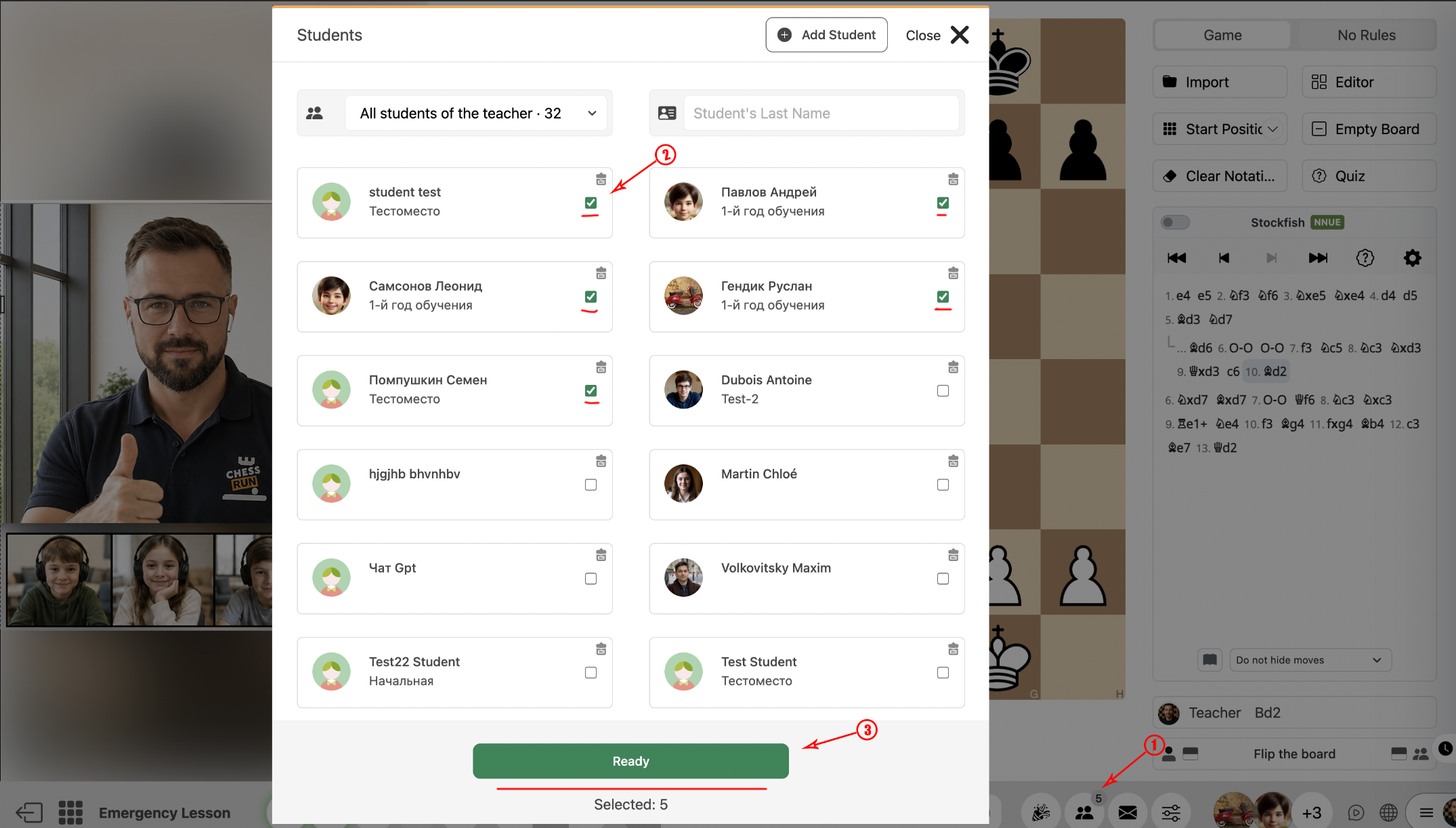
In the open lesson, click the student list, check the box next to the desired student, and click 'Add'. If you have a fixed schedule set up, students are added to lessons automatically.
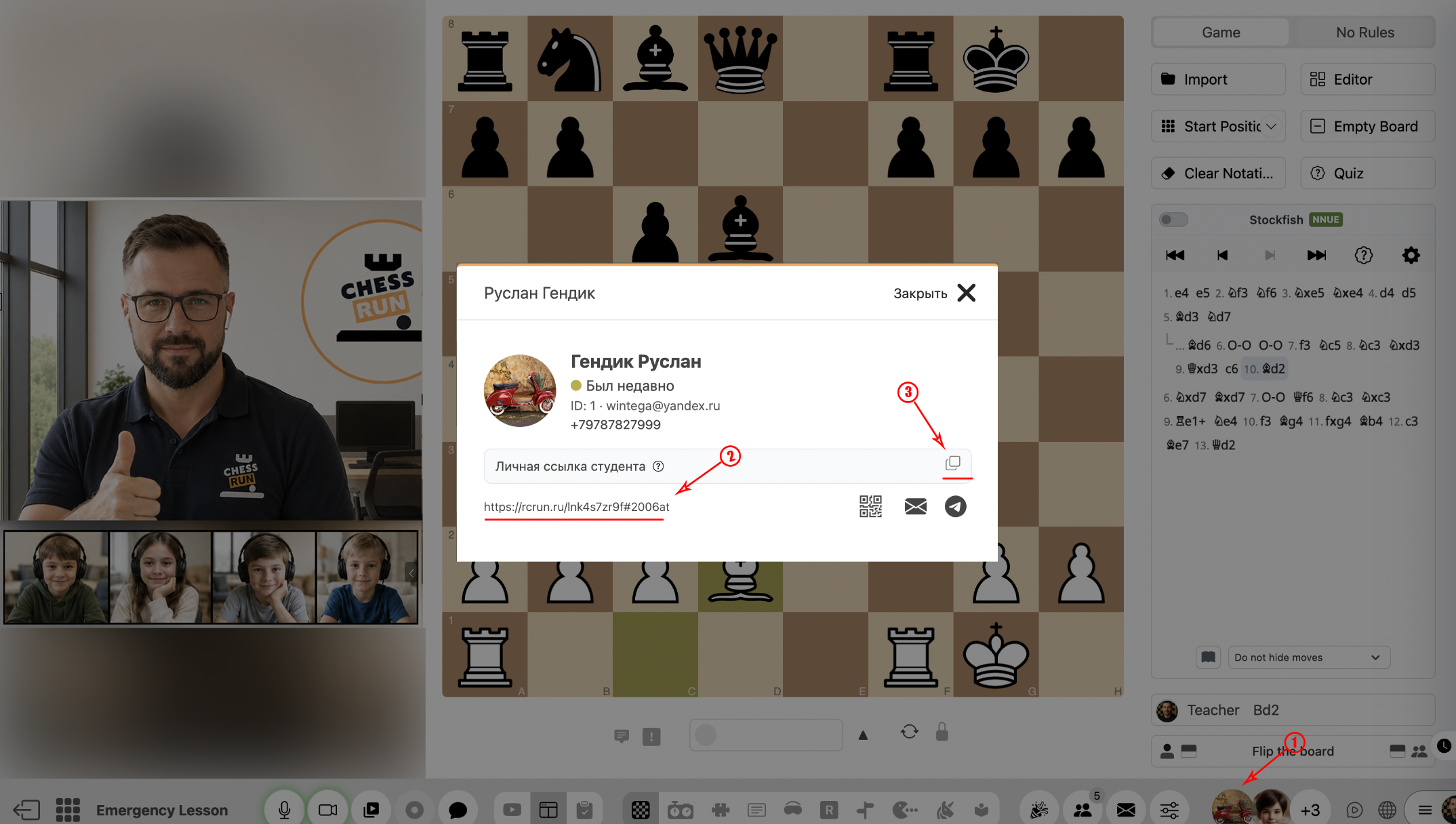
Find the student in the list and click their avatar. In the pop-up window, copy the permanent lesson link. You only need to send this link once — it remains valid for all future lessons with this coach.
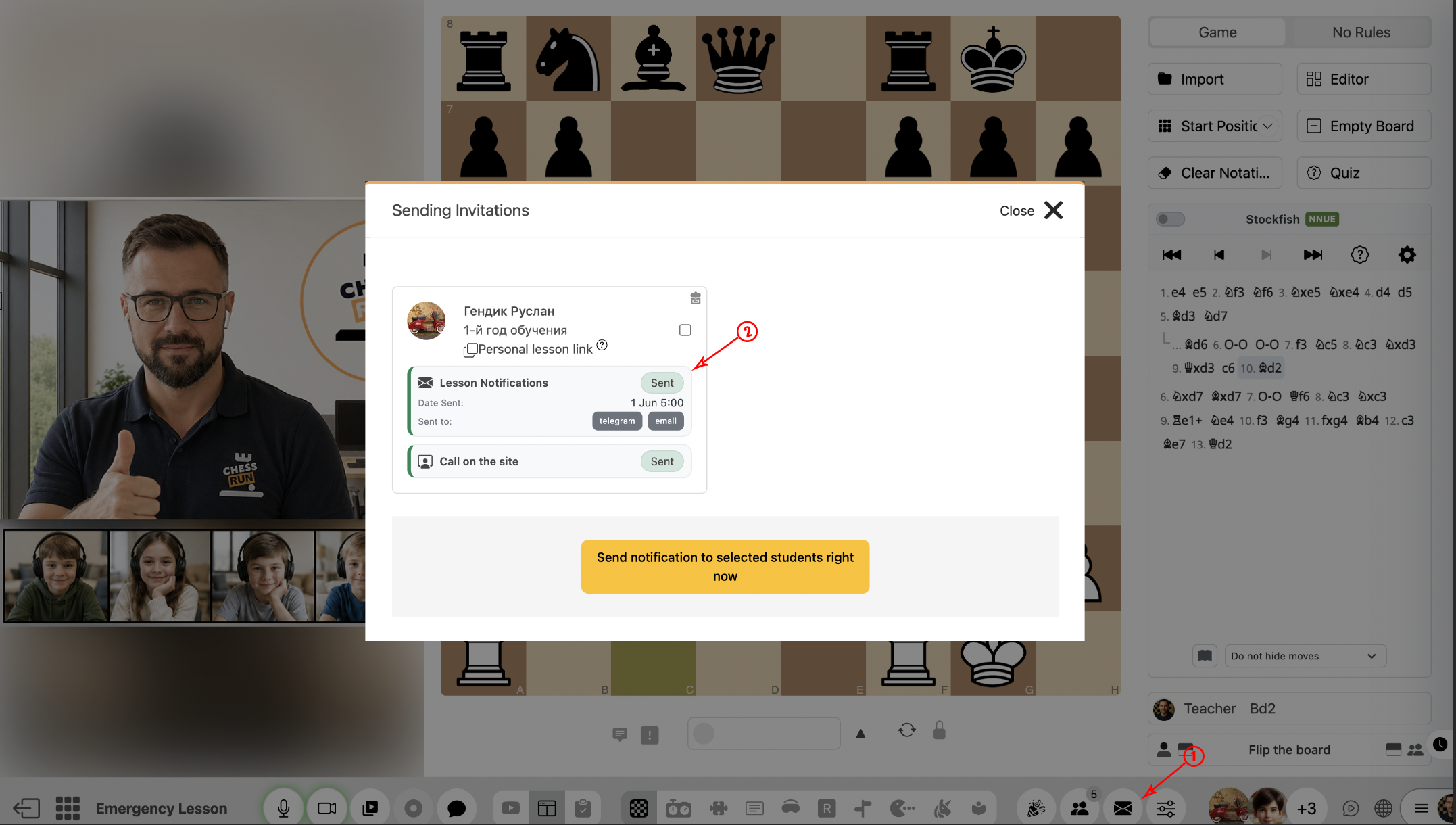
Open the student's card to view the history of link sends. If the lesson is from your regular schedule, the link will be sent automatically via email.
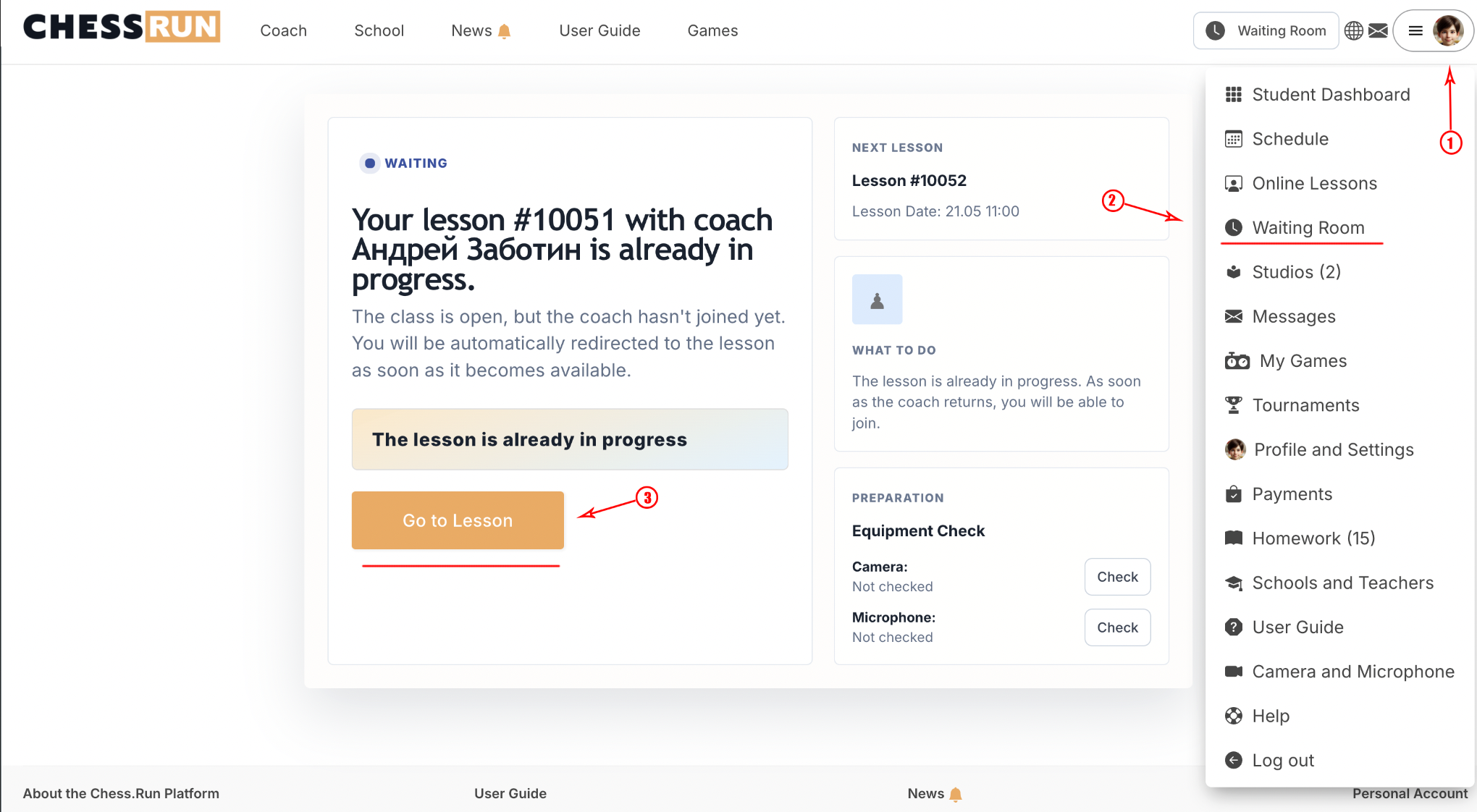
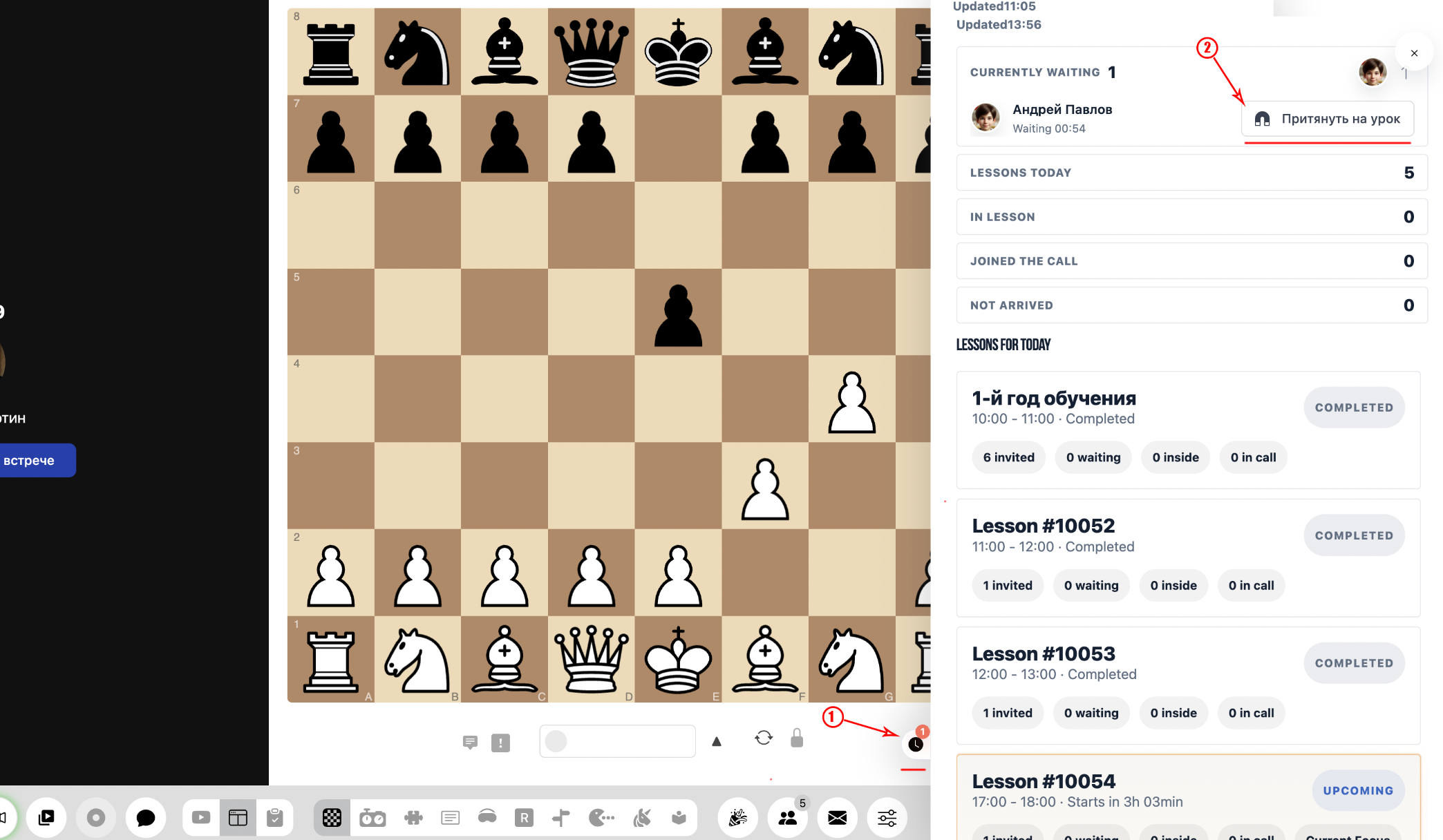
When the student follows the link, they enter the waiting room. If you are already in the lesson room, the student is automatically redirected to the lesson, or they can click 'Join the lesson immediately'.
If the student cannot join on their own, use the special 'magnet' icon to pull the student directly into the online lesson room.
If you have a fixed schedule set up, students are automatically added and lesson links are sent to them. The permanent lesson link can be reused and doesn’t need to be resent each time.
FAQ
What if a student loses their lesson link?
Copy and resend the permanent link from the student's card — it works for all future lessons.
When should I use the 'Magnet student' button?
If the student isn’t joining automatically or can’t enter from the waiting room, use the magnet icon to instantly pull them into the lesson.