
How to set a special trainer rate in a student subscription
Special rate from issue to payment
In Subscriptions, click Issue New for the student and choose a template. Below the price, expand Trainer pay. In Rate, choose Amount per participation or Percentage of the price, enter the value and choose the trainer — a specific one or Any trainer of the school. If the lesson price is known, the form shows an example such as Trainer 800.00 RUB · School 2700.00 RUB. Click Issue. If you don't need special pay, keep Trainer's rate and issue the subscription as usual.
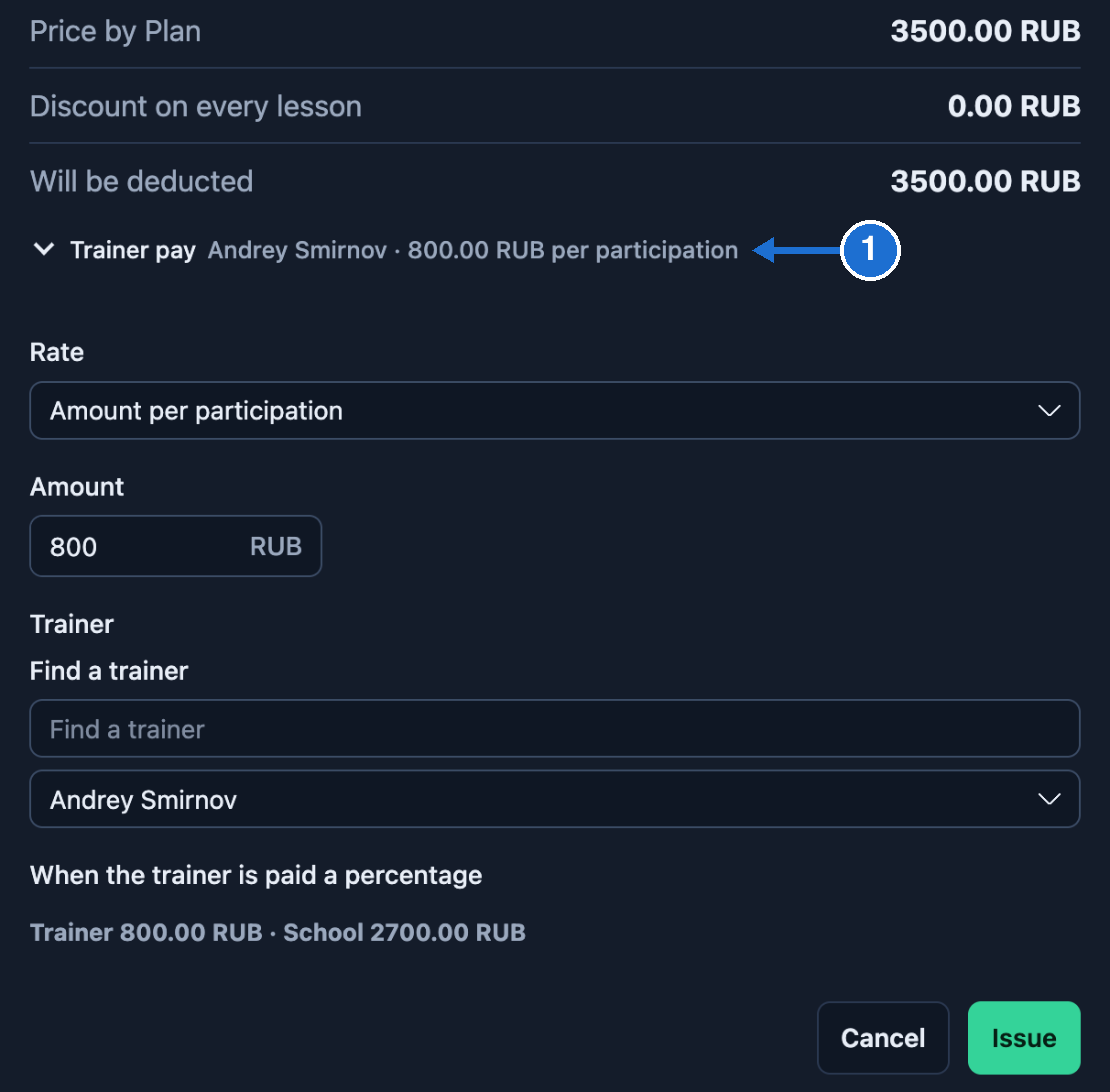
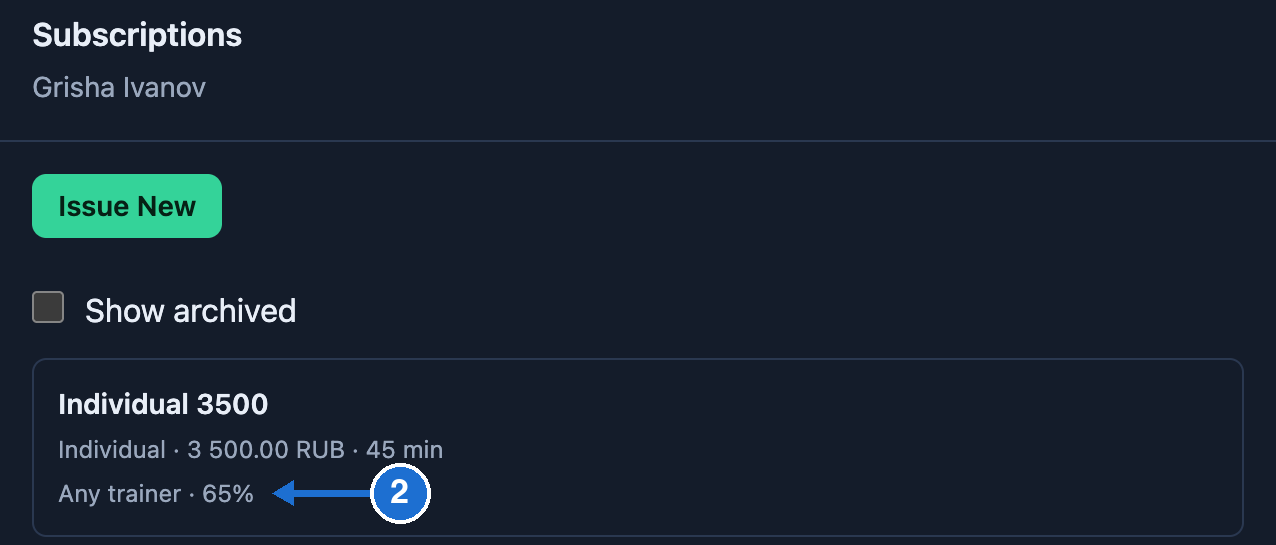
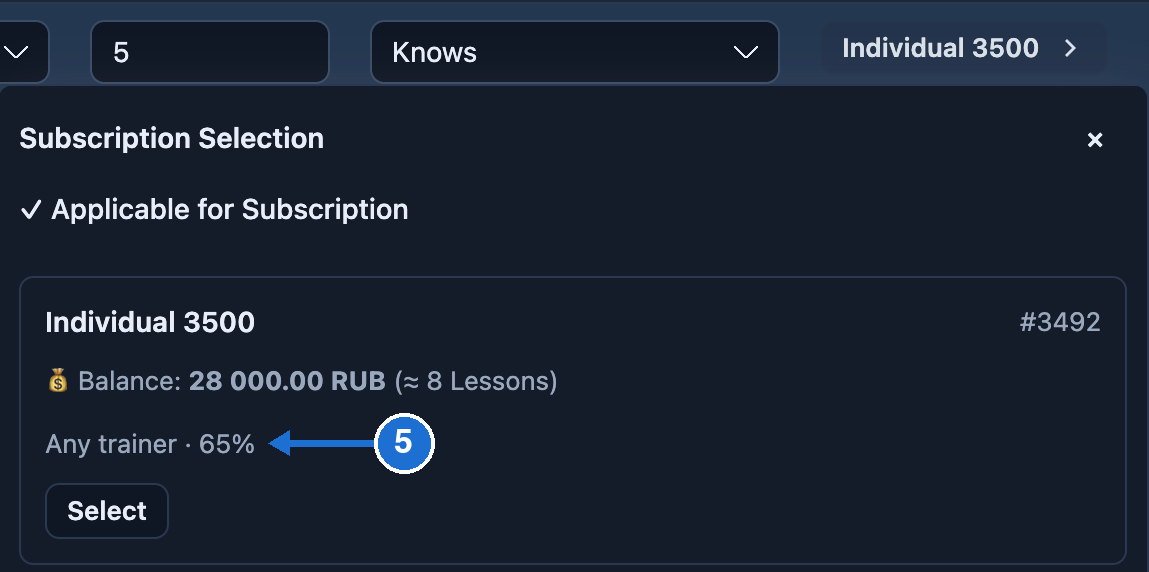
In the student's subscription list, a subscription with special terms gets a second line, for example Andrey Smirnov · 800.00 RUB per participation or Any trainer · 65%. Subscriptions with the standard rate have no such line.
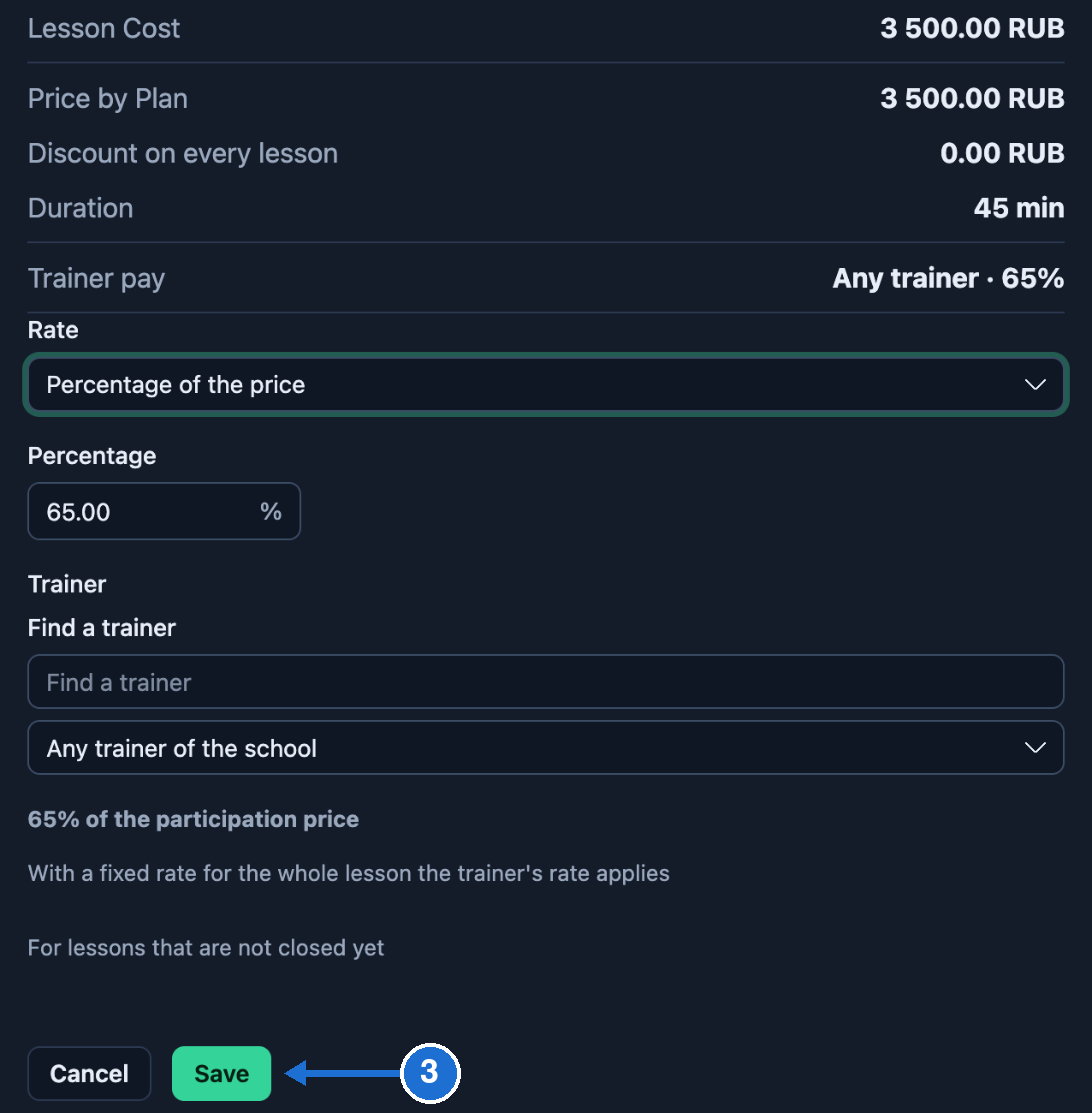
Open the subscription and click Change in the Trainer pay row. Set the new terms and click Save. The new rate applies to lessons that are not closed yet, including lessons already held but not closed. Closed lessons are not recalculated. To cancel special pay, choose Trainer's rate and save. For a course, the same row is in the course assignment details.
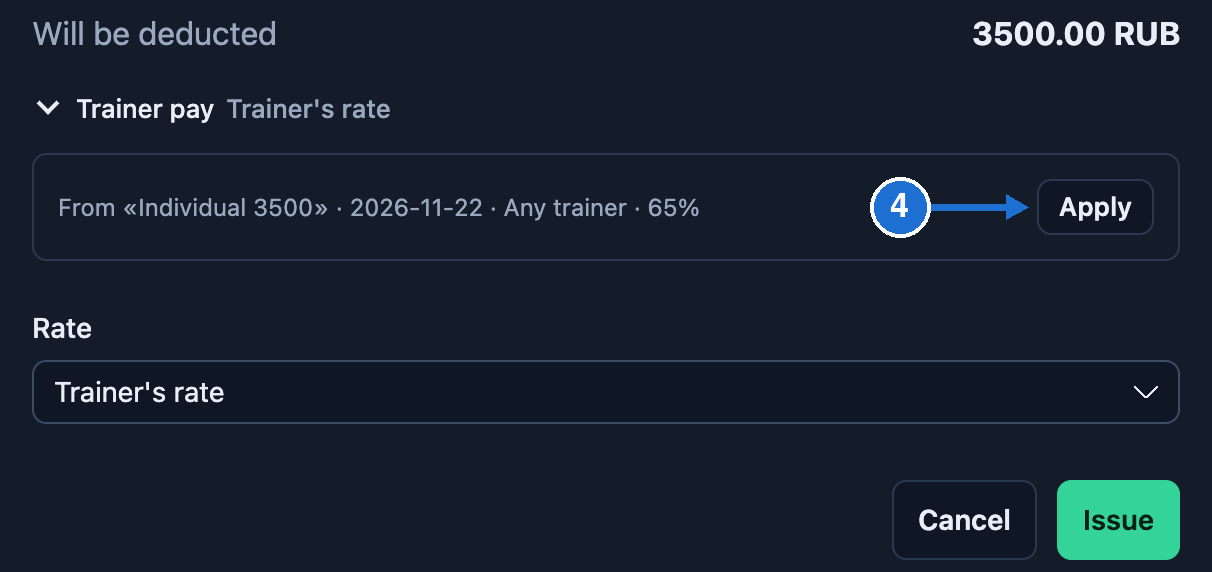
A new subscription always starts with the standard rate. If the student already had special terms, the expanded Trainer pay section shows a hint with the latest such subscription. Click Apply to fill in the fields; you can still change them. The terms are saved when you click Issue.
Nothing extra is needed when closing a lesson: the buttons and the subscription selection stay the same. In the Subscription Selection window, a subscription with special terms shows a line with those terms. The trainer payment is calculated when the lesson is closed.
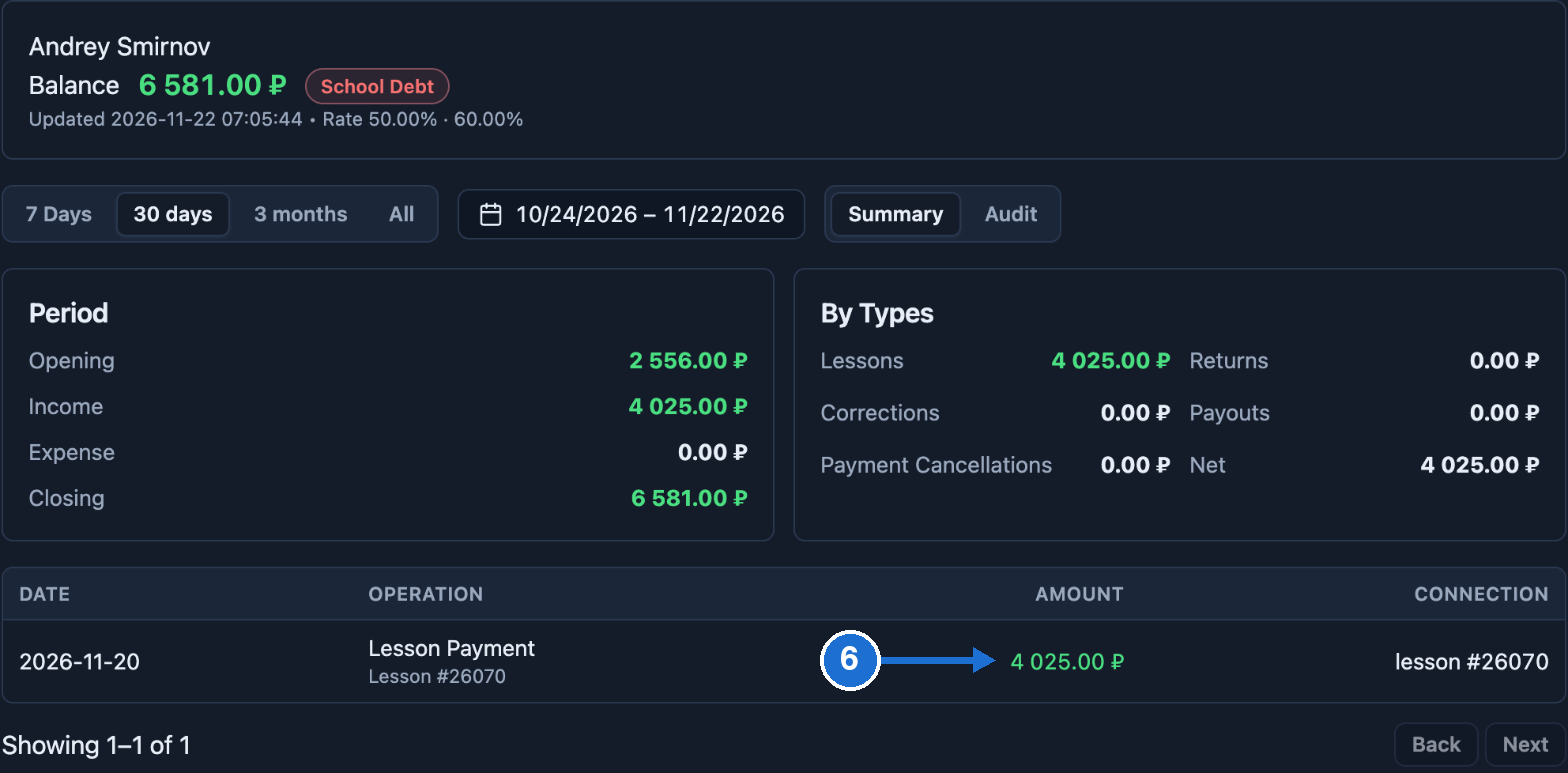
Open Finances → Coaches and click the trainer's balance. Summary mode shows the lesson payment. In the example, a group lesson has two students at 3,500 RUB each: 2,275 RUB for the student with 65% terms and 1,750 RUB for the student on the standard 50% rate, 4,025 RUB in total. Audit mode lists all entries in time order. The trainer sees their payments but not the students' subscription terms.
How the special rate is applied:
- It applies only when the selected trainer teaches the lesson, or to any trainer if Any trainer of the school is selected. Another trainer is paid at their usual rate.
- If the trainer has a fixed rate for the whole lesson, that rate applies and the subscription terms are not used.
- An amount per participation is paid even for a free lesson or a 100% discount, at the school's expense. No payment is made for an absence exempt from charging.