
How to add a student or group to a lesson in the calendar
How to add a student or group to a lesson
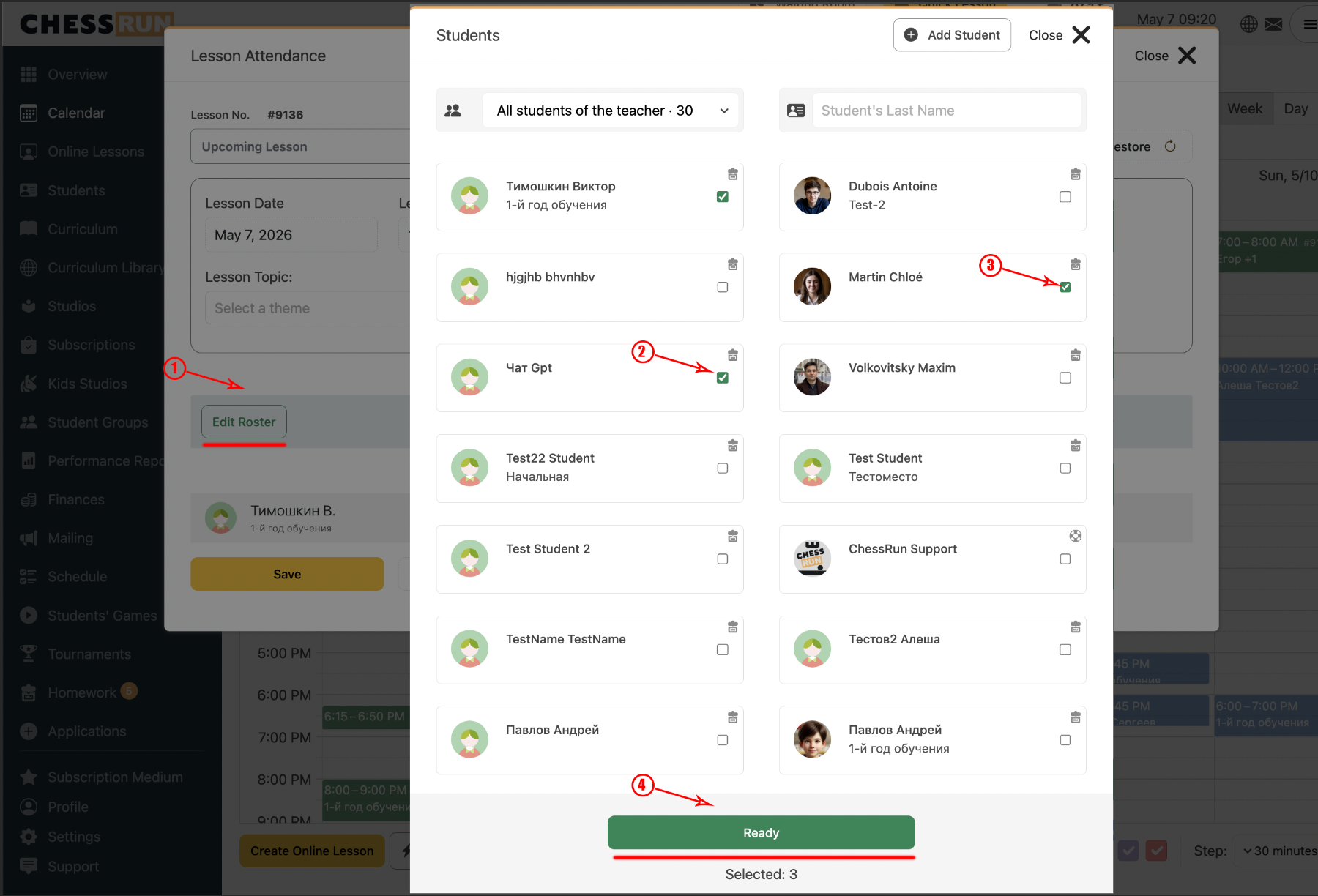
1Open the lesson creation or editing window
Click the desired time slot in the calendar to create a new lesson or open an existing one. In the window, click 'Edit roster', check the students or group you want, and click 'Done'. To remove a student, simply uncheck their name.
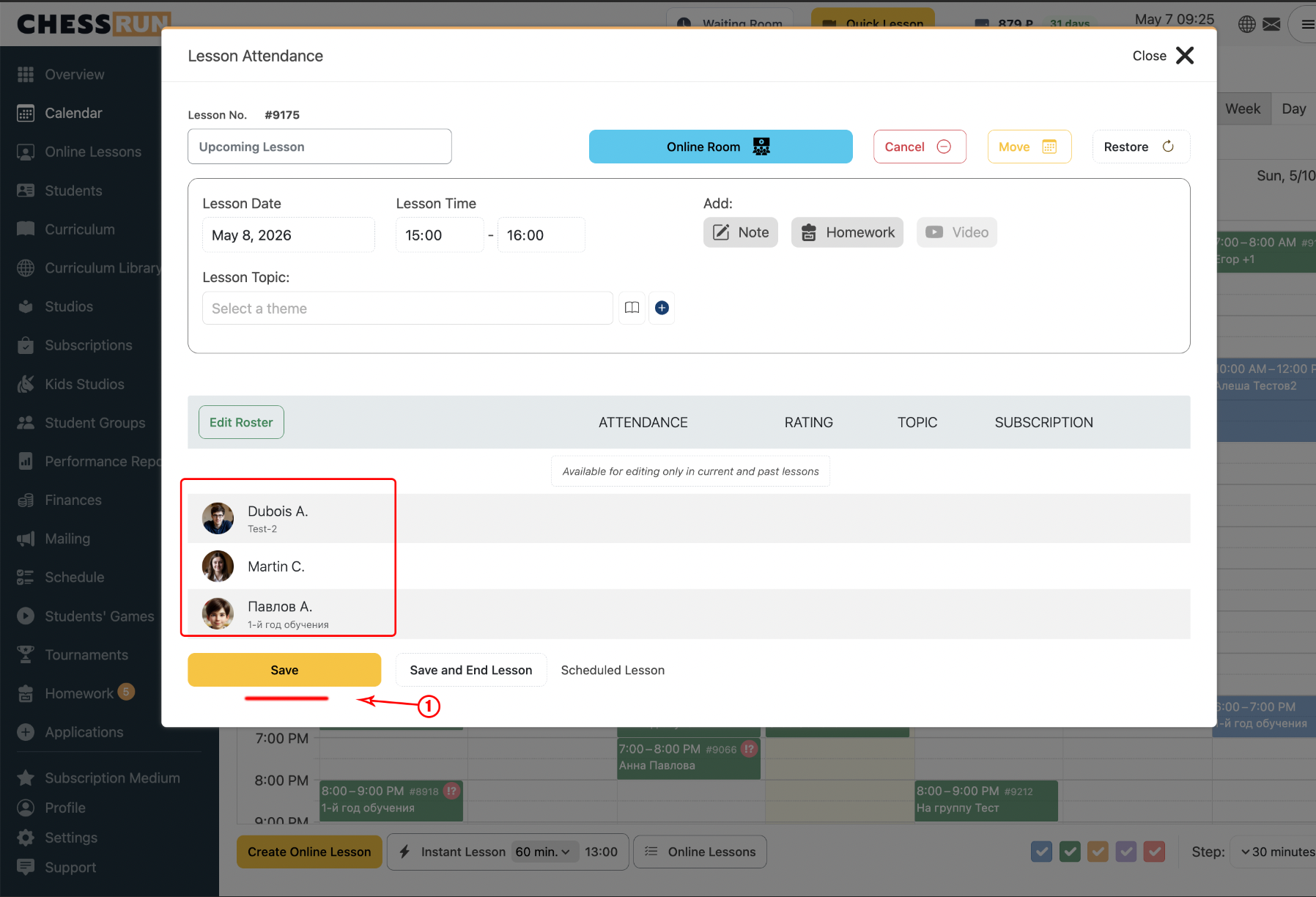
2Save the lesson roster
In the lesson creation window, review the selected students or group. If everything is correct, click 'Save'.
FAQ
Can I add an entire group at once?
Yes, in the selection window you can check off a whole group, not just individual students.
How do I remove a student from a lesson?
Open the roster selection, uncheck the student, and save your changes.