
How student subscriptions and auto-charges work
How auto-charges work with student subscriptions
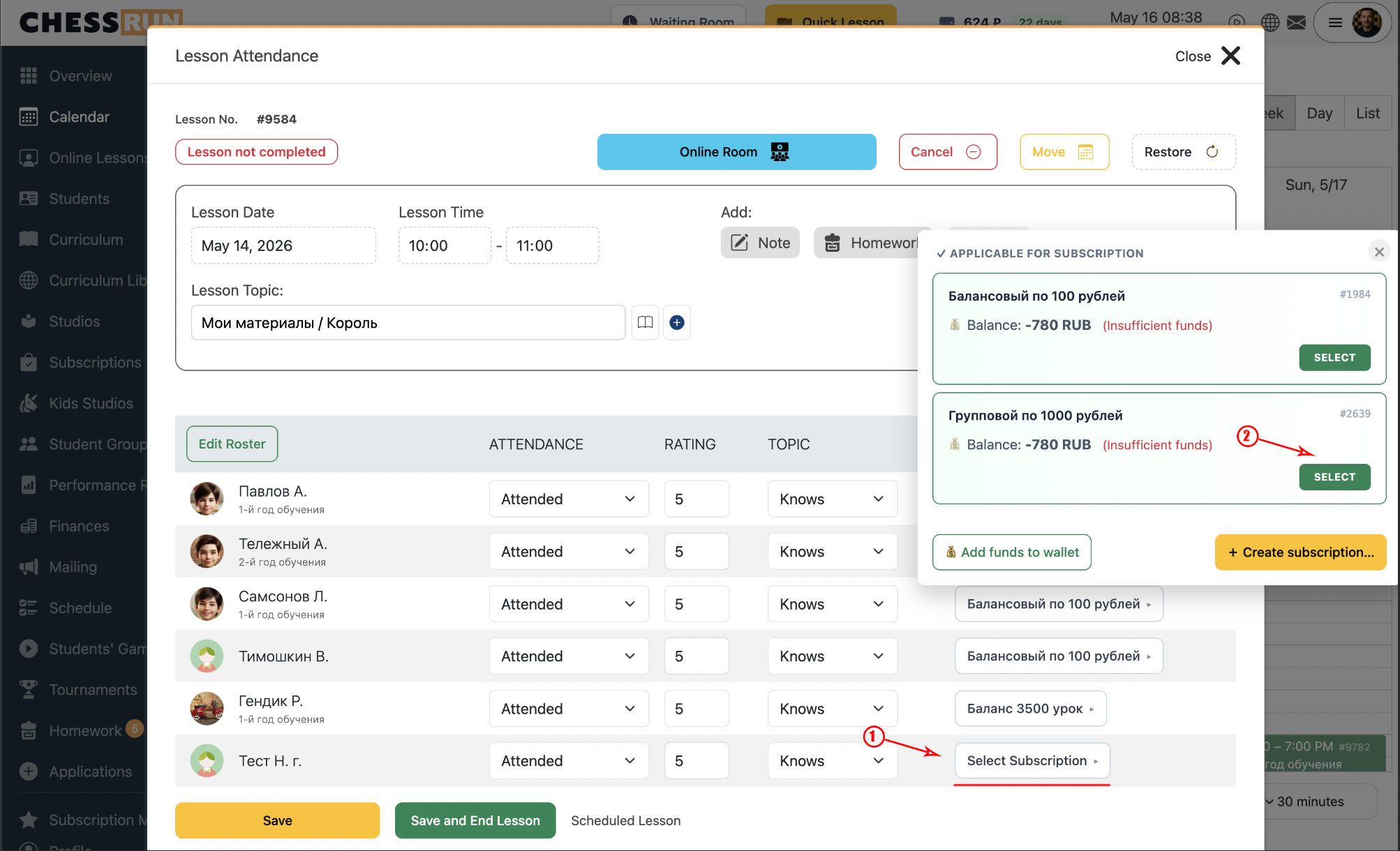
Open the lesson card on the Calendar page. The subscriptions block displays all active subscriptions for the student. A student may have several active subscriptions; if only one is available, the system selects it automatically. The subscription only determines the amount to be charged after lesson completion.
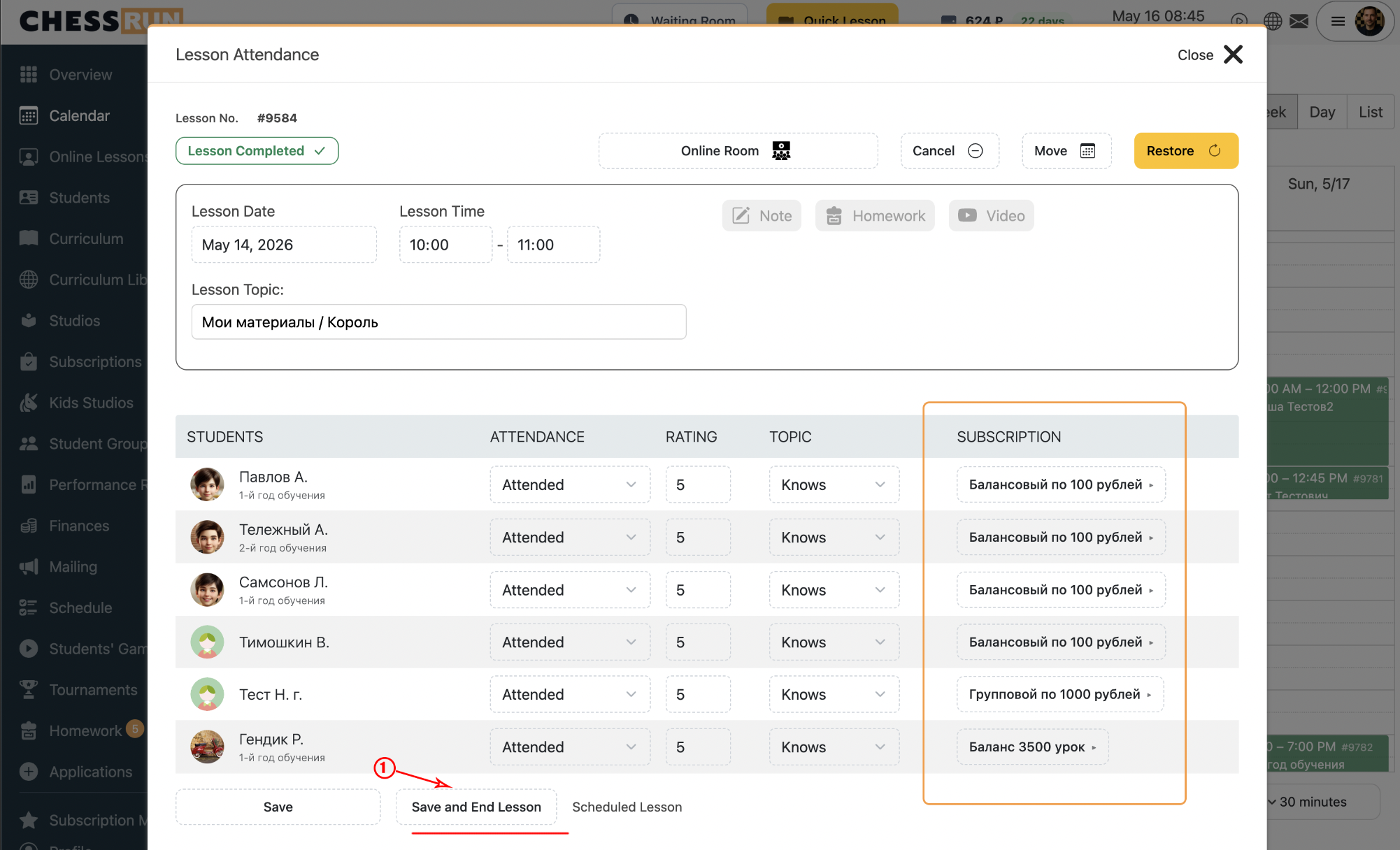
Once the lesson is completed, the system automatically charges the amount defined in the subscription from the student's balance. The transaction is created right after lesson completion.
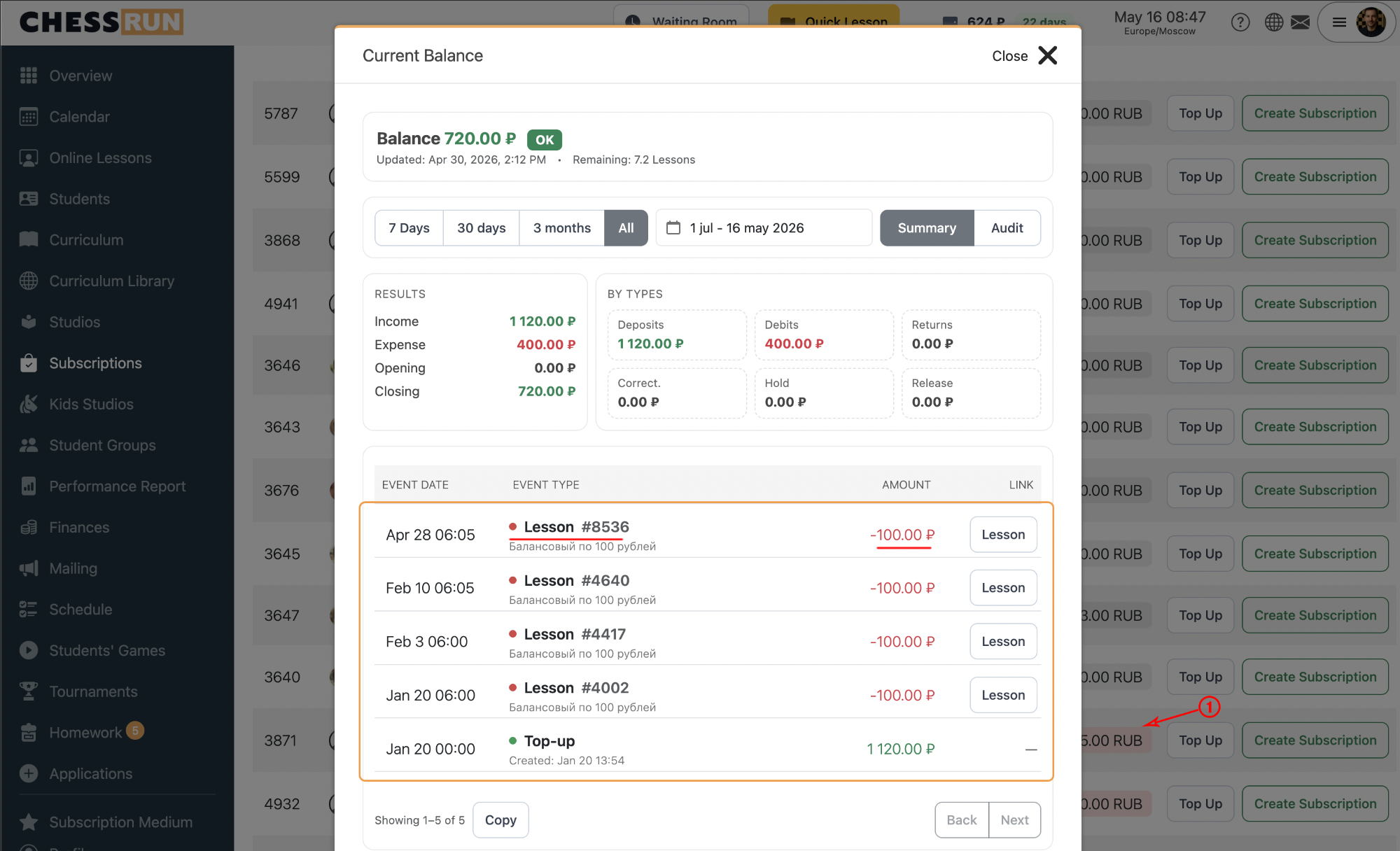
After the lesson is completed and auto-charged, you can see the charge operation in the student's transaction history. The history shows the lesson date, charge amount, and a system comment.
What if a student has multiple subscriptions?
Select the relevant subscription manually when completing the lesson. If there is only one, the system will select it automatically.
When does the subscription charge occur?
Charging happens immediately after the lesson is marked as completed, automatically, according to the amount set in the subscription.
Where can I see details of the auto-charge?
Open the student's transaction history. There you’ll see the charge date, amount, and an operation comment.
FAQ
What if a student has multiple subscriptions?
Select the relevant subscription manually when completing the lesson. If there is only one, the system will select it automatically.
When does the subscription charge occur?
Charging happens immediately after the lesson is marked as completed, automatically, according to the amount set in the subscription.
Where can I see details of the auto-charge?
Open the student's transaction history. There you’ll see the charge date, amount, and an operation comment.