
How to Assign a Studio to Students in an Online Lesson
How to assign a studio to students
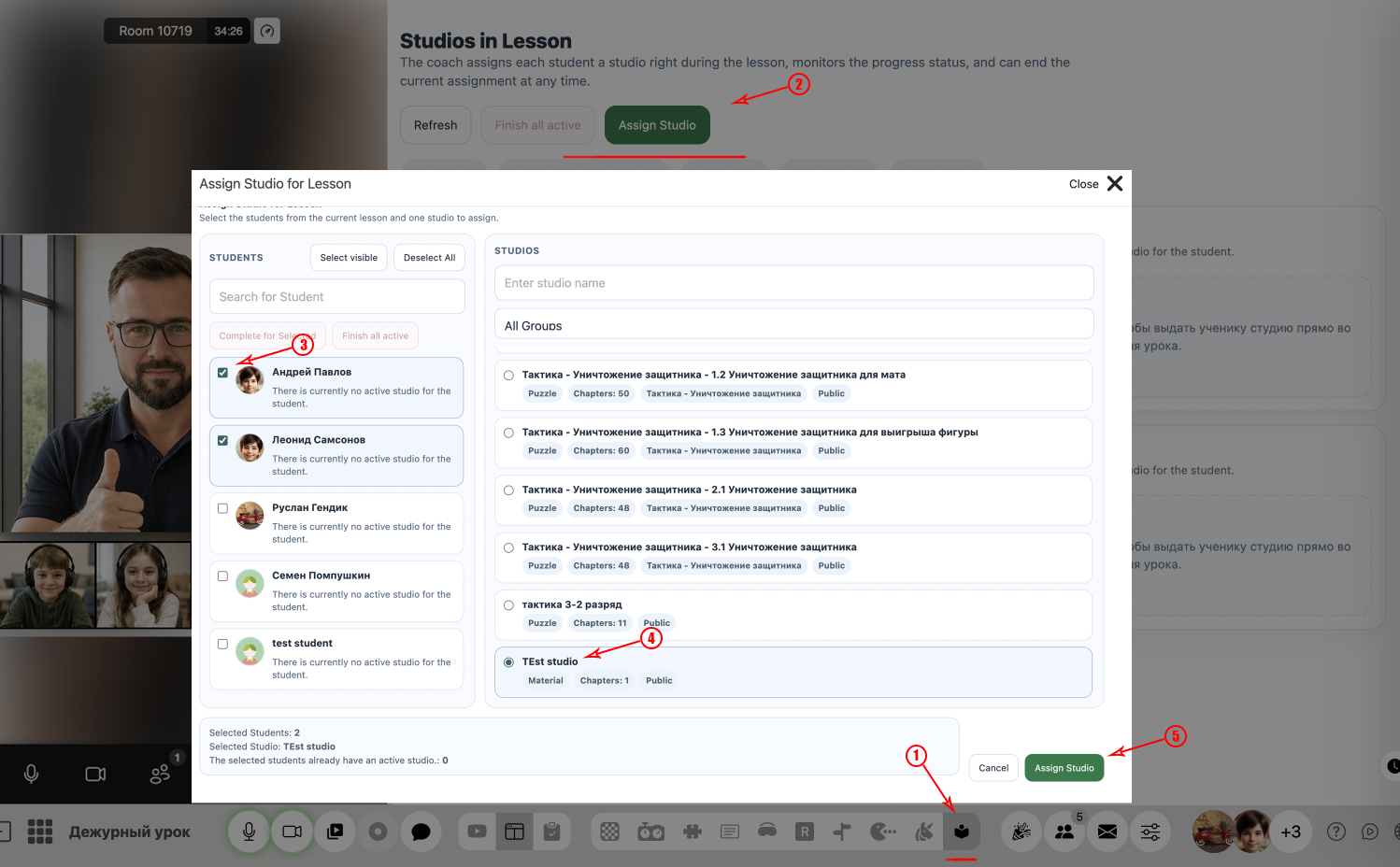
1Select a studio and assign it to students
Select the desired studio and assign it to one or more students during the lesson.
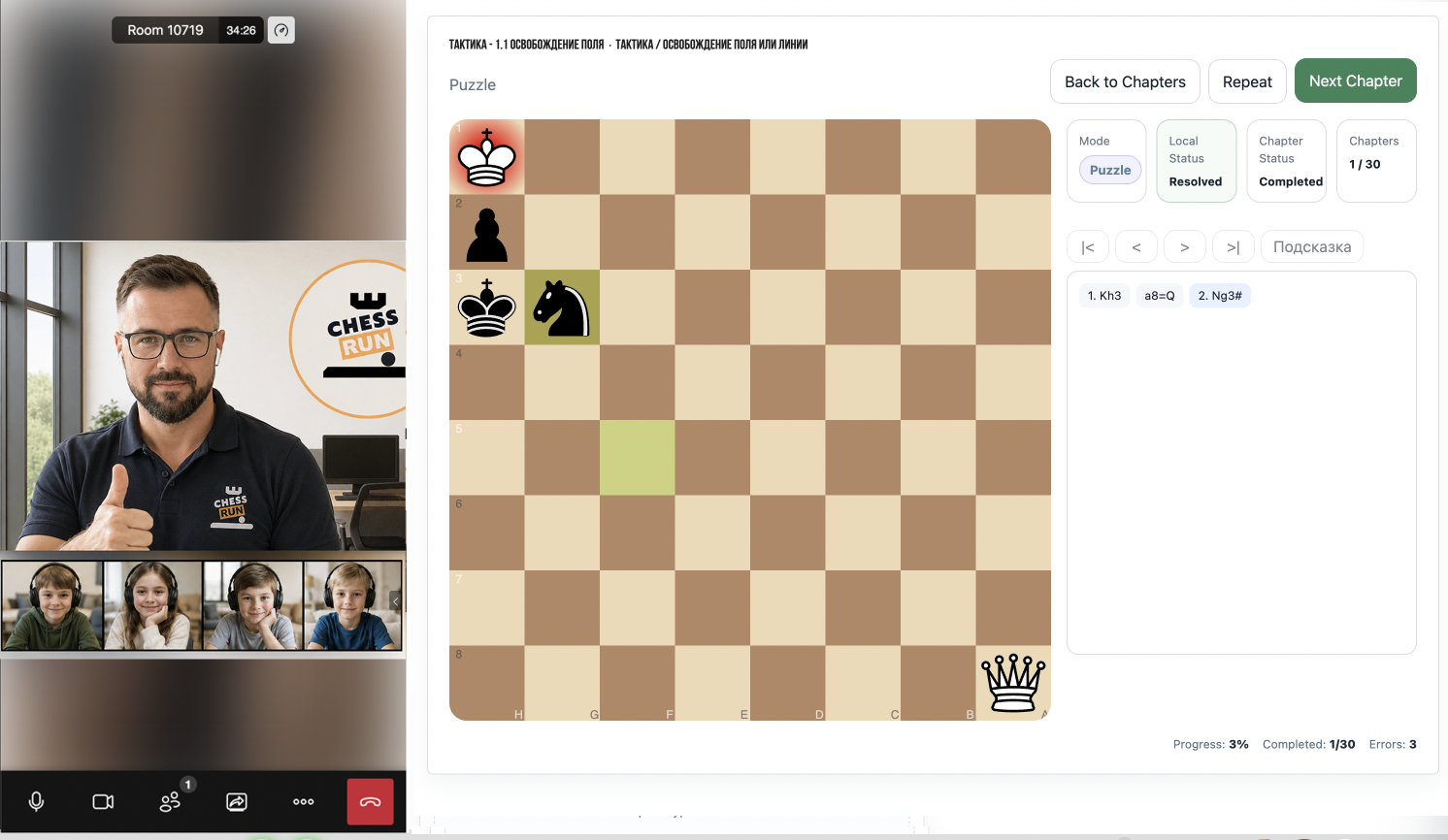
2The studio becomes available to students
Once assigned, the studio becomes available for the selected students to complete.
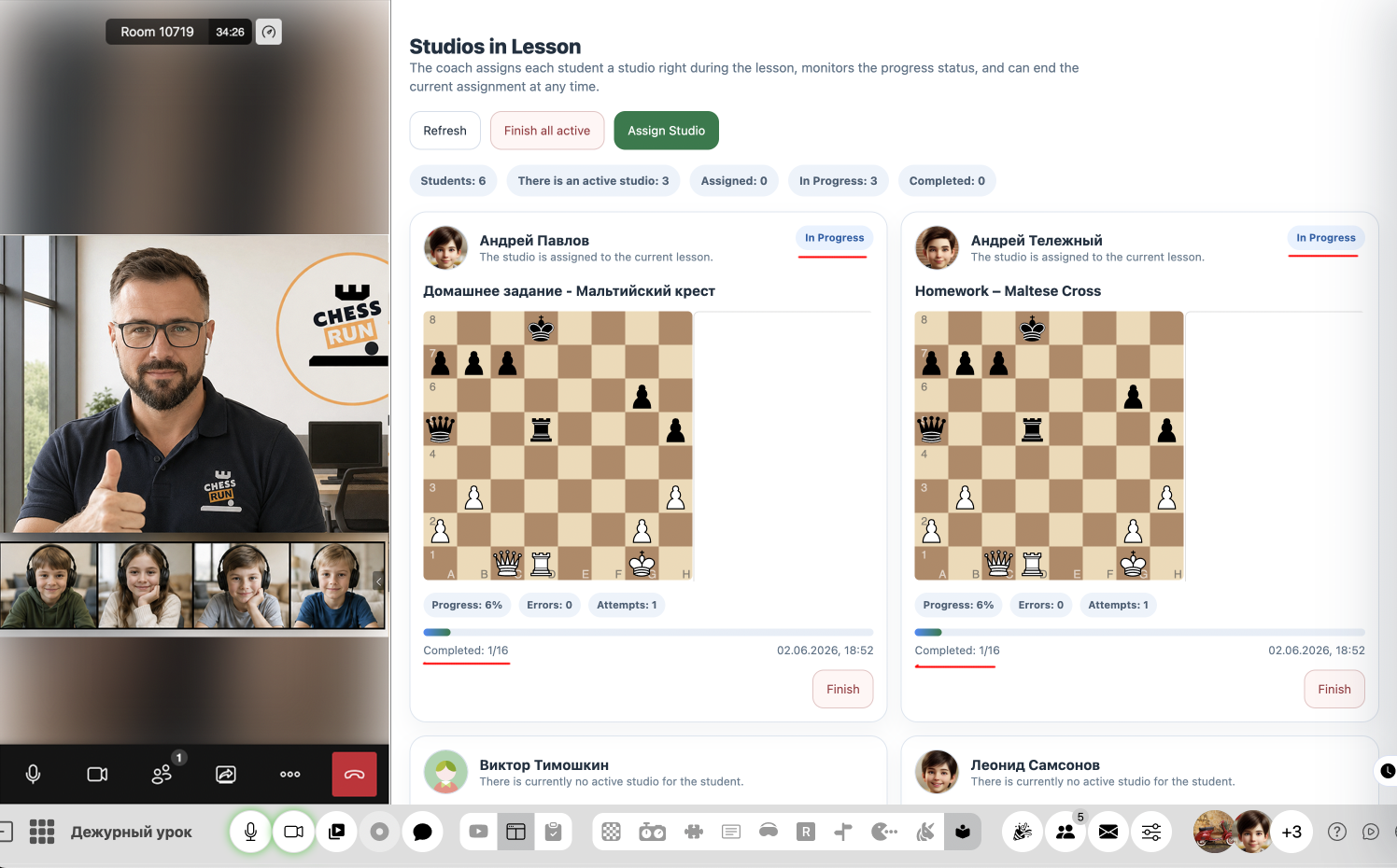
3Track completion progress
Teachers can monitor students' progress while they work through the assigned studio.
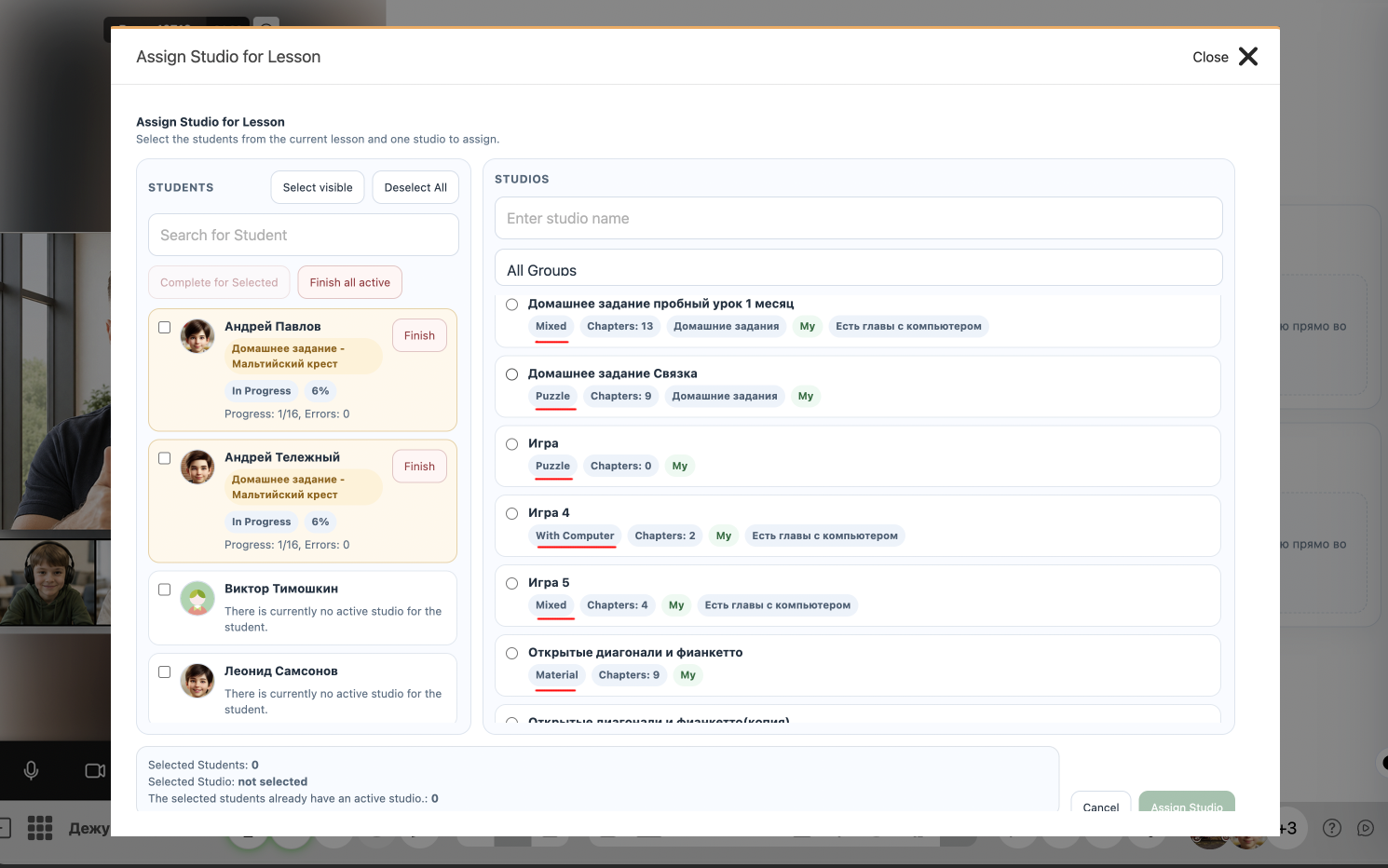
4Consider the studio type
When assigning a studio, keep its type in mind. Studios are available in three formats: puzzles, learning materials, and play vs computer.
FAQ
Can I assign one studio to multiple students at once?
Yes, you can select several students and assign the same studio to all of them simultaneously.
What will the student see after the studio is assigned?
The studio will appear in the student’s interface, and they can start working on it immediately.