
How to use the memory training exercise in a lesson
How to use memory training during a lesson
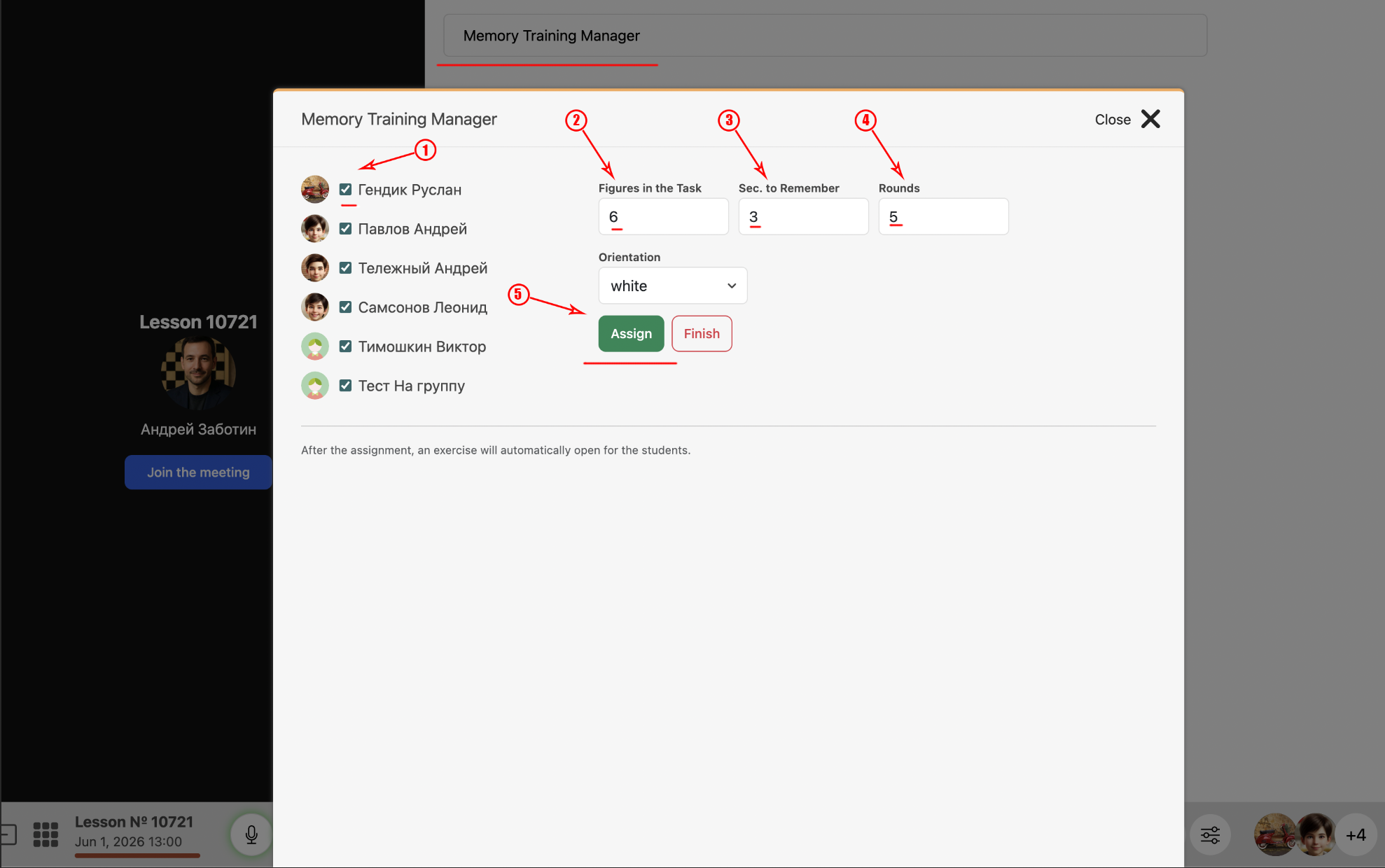
Click the “Memory Training Manager” button. In the window that opens, select the number of pieces (for young children, start with 2 or 3), set the memorization time, and choose the number of rounds. All exercises are generated automatically.
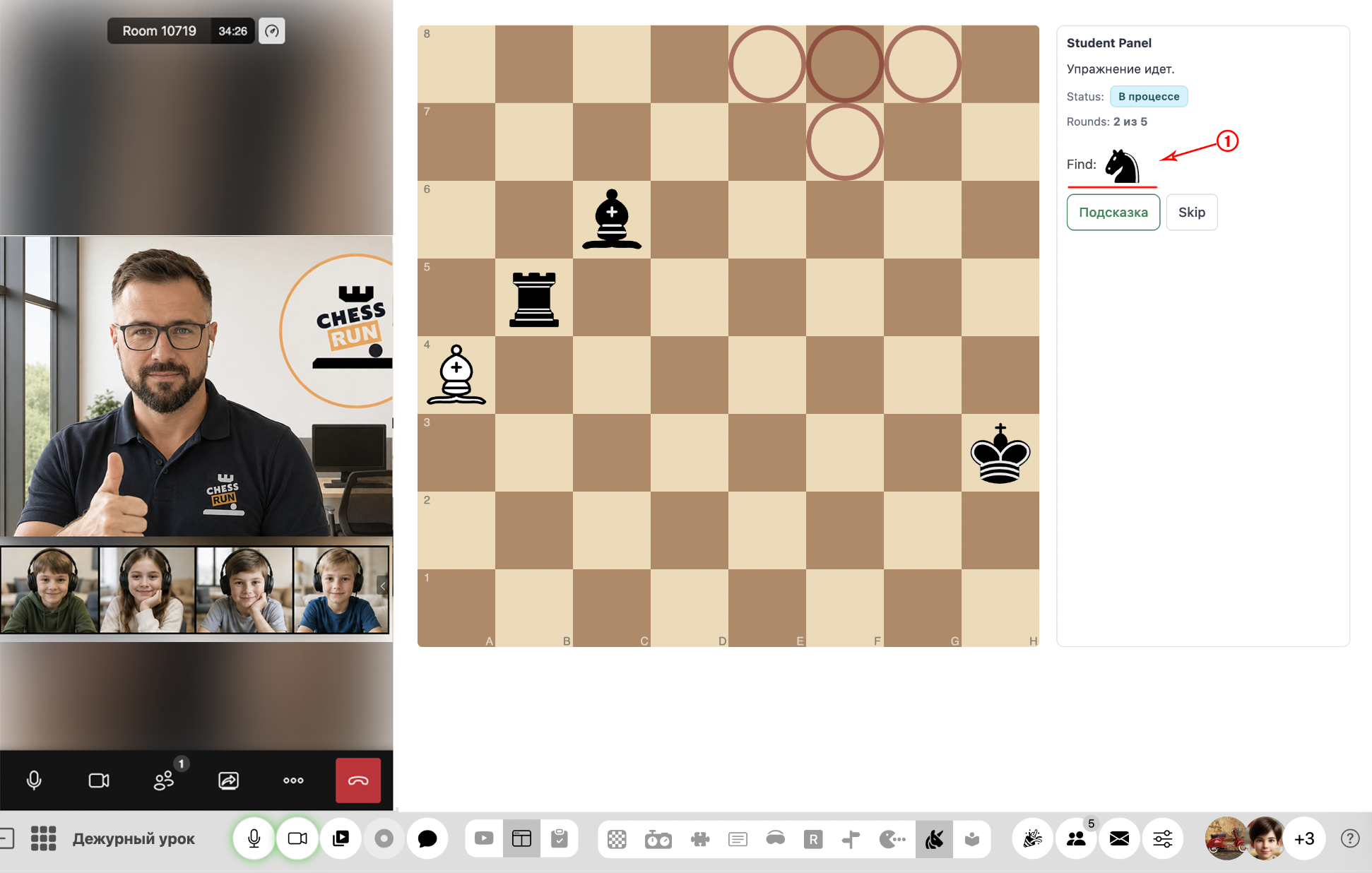
The student is shown a position with pieces for several seconds. The pieces disappear, and the student must select the squares where the pieces were placed.
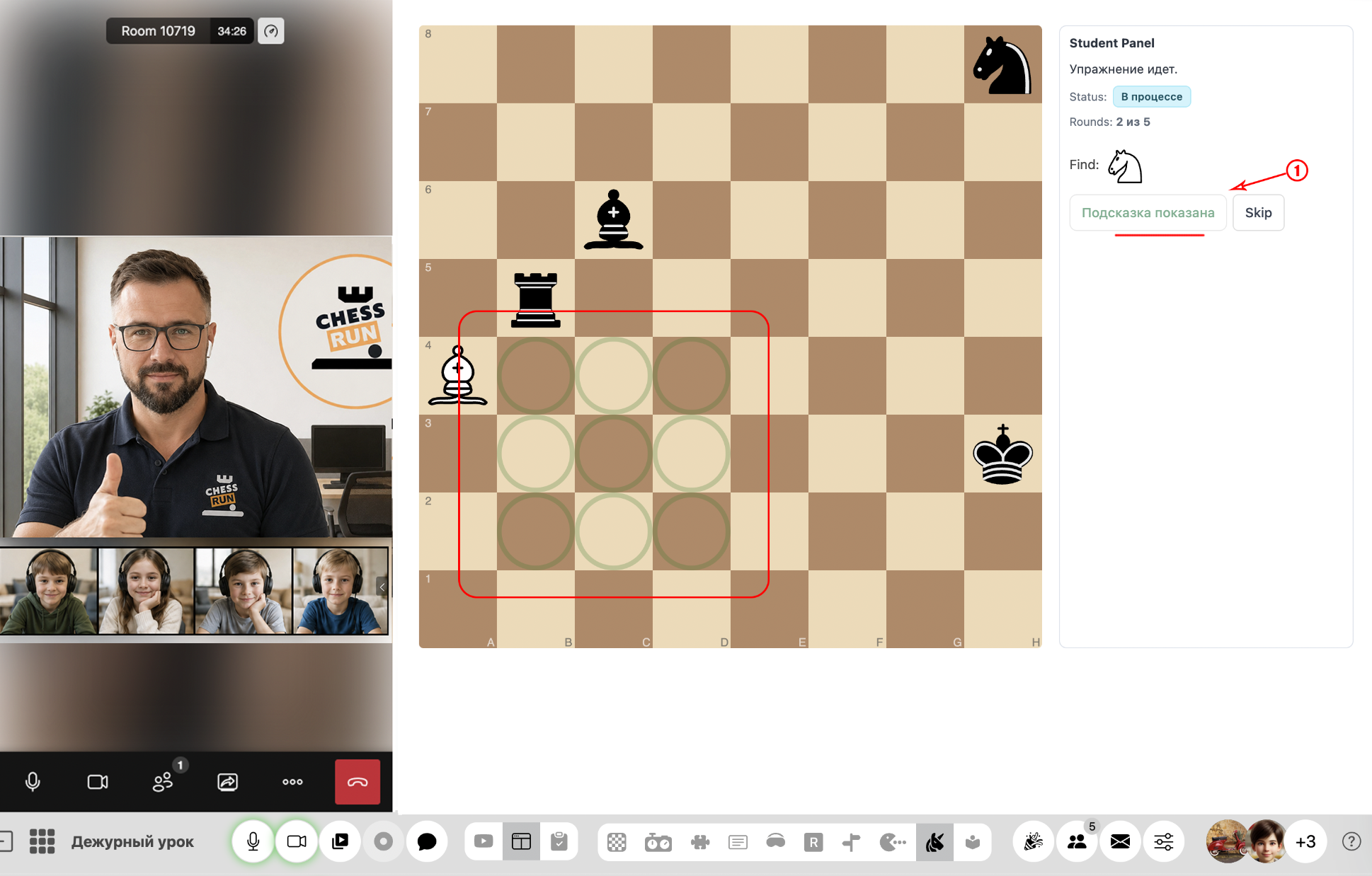
If a student finds it difficult, they can use the “Hint” button. Nine squares will be highlighted, and the correct answer is among them.
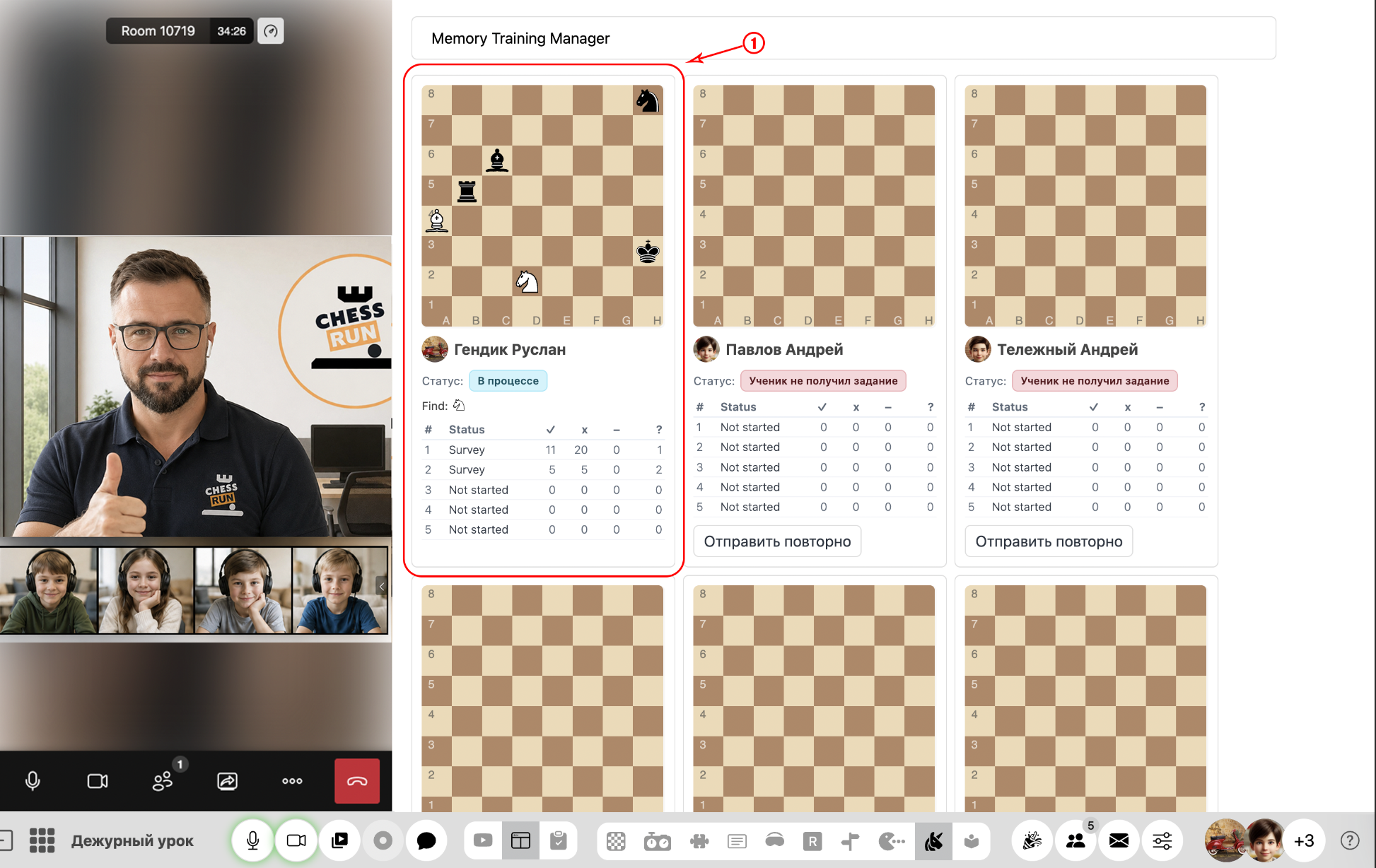
The teacher panel shows each student’s live progress: their board, the number of mistakes, and how many hints were used in each round.
FAQ
Can I change the exercise settings after starting?
Task settings (pieces, seconds, rounds) must be selected before the exercise begins and cannot be changed once it's started. To change parameters, cancel and start a new exercise.
Do students see their own mistakes and hints?
Students only see their current progress. Detailed statistics on mistakes and hints are available to the coach in the teacher panel.