
How to create and update a regular schedule
How to create and update your regular schedule
Choose the desired day of the week and click 'Add lesson'. Then set the lesson time and select students or a group for that lesson.
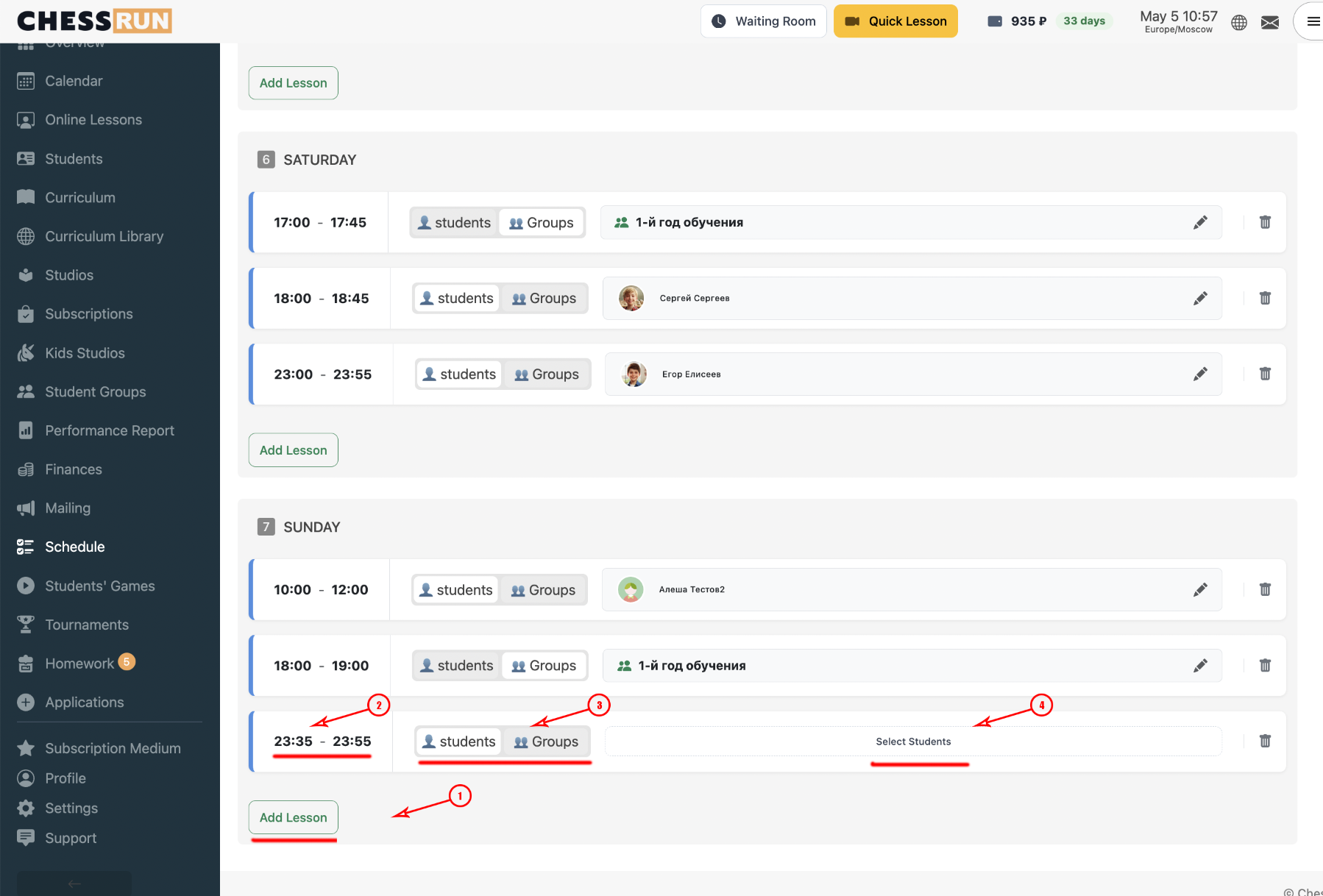
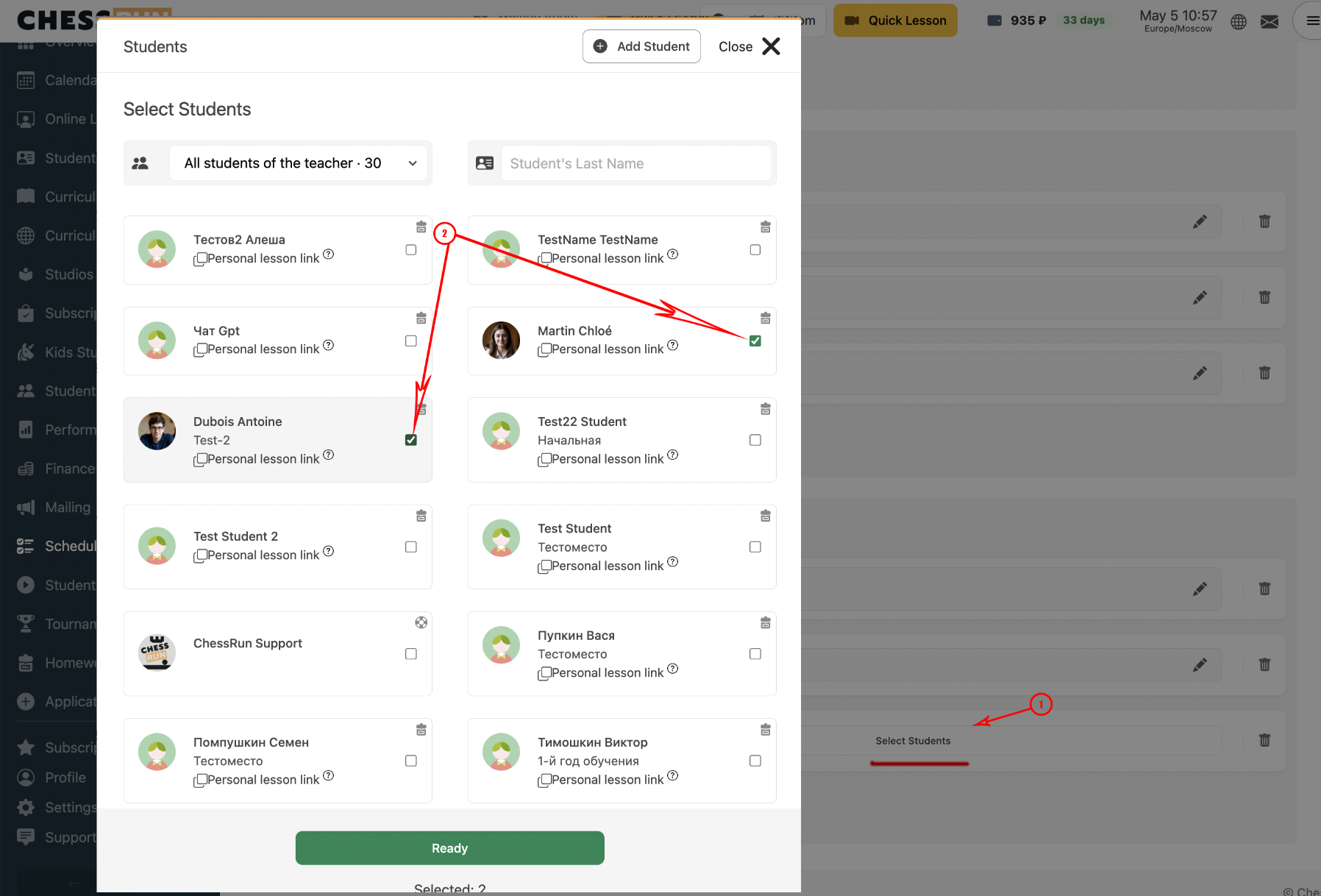
Click the area to select students or a group. In the window that opens, choose the required students or an entire group and mark them to attach to the lesson.
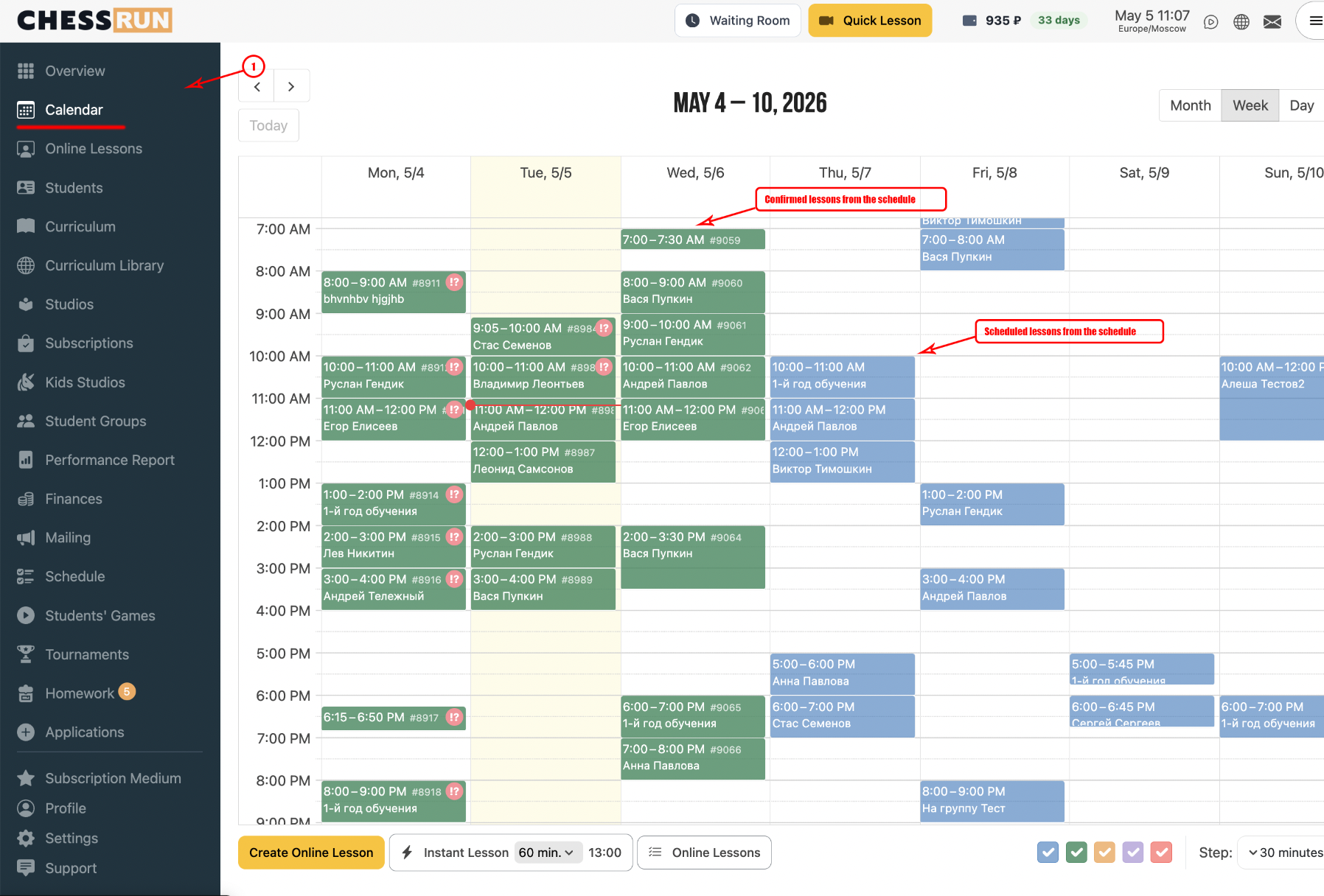
Go to the 'Calendar' tab, where lessons from your regular schedule will appear automatically.
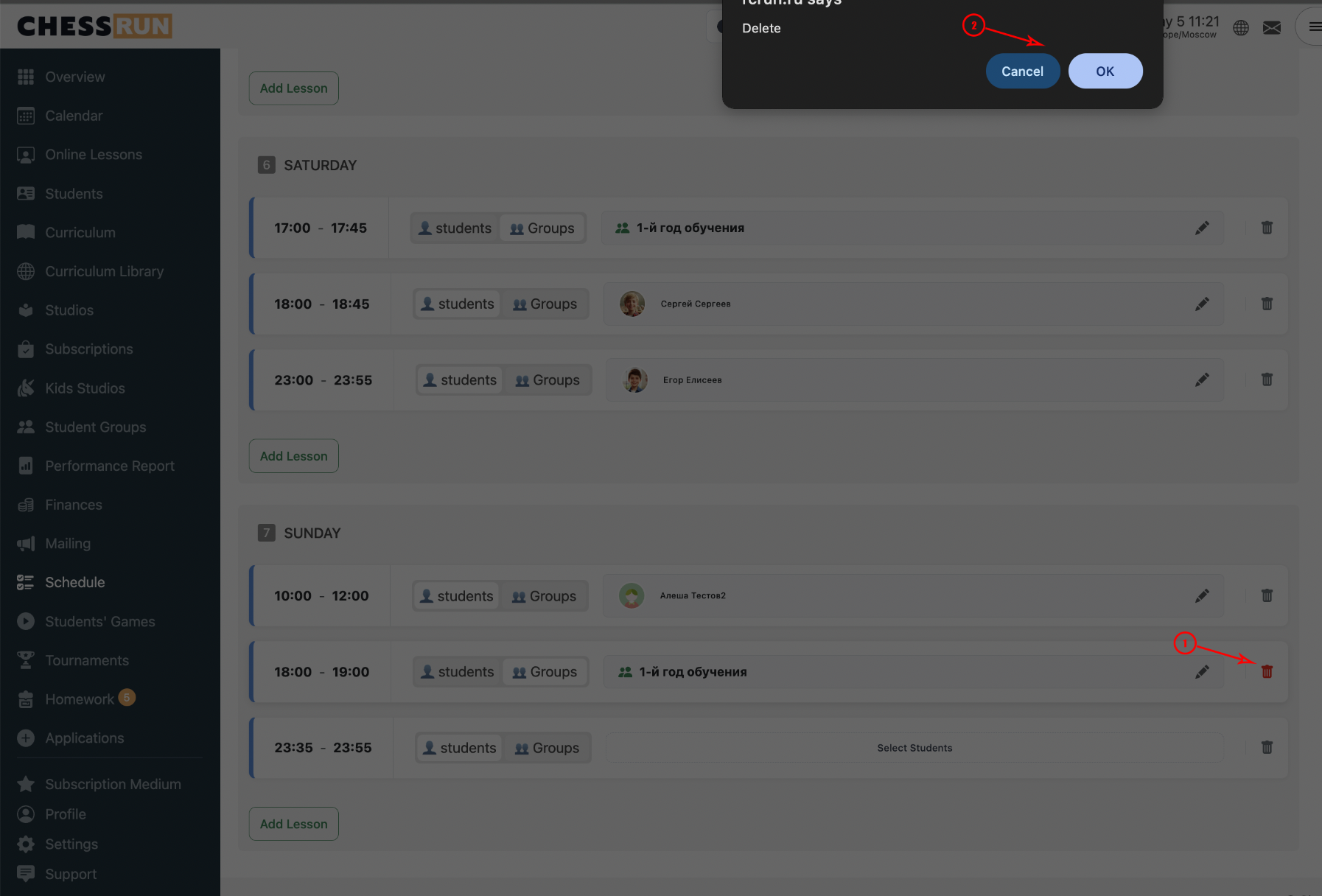
To remove a lesson, click the trash can icon next to it and confirm deletion. The lesson will be removed from the regular list, but already confirmed lessons will stay in the calendar.
Lessons from the regular schedule are automatically confirmed for only the next two days (today and tomorrow). Changes or deletions affect only future (not yet confirmed) lessons. Already confirmed lessons will remain in the calendar and are not changed automatically. We recommend checking the 'Calendar' tab after making changes to your schedule.
FAQ
What if a student no longer attends a regular lesson?
Edit the lesson in the schedule and uncheck the student—they will no longer be automatically added to new lessons.
Can I create several lessons on the same day?
Yes, you can add multiple different lessons on any day of the week in the regular schedule.