
Encouraging Children in Lesson
How to use the rewards panel
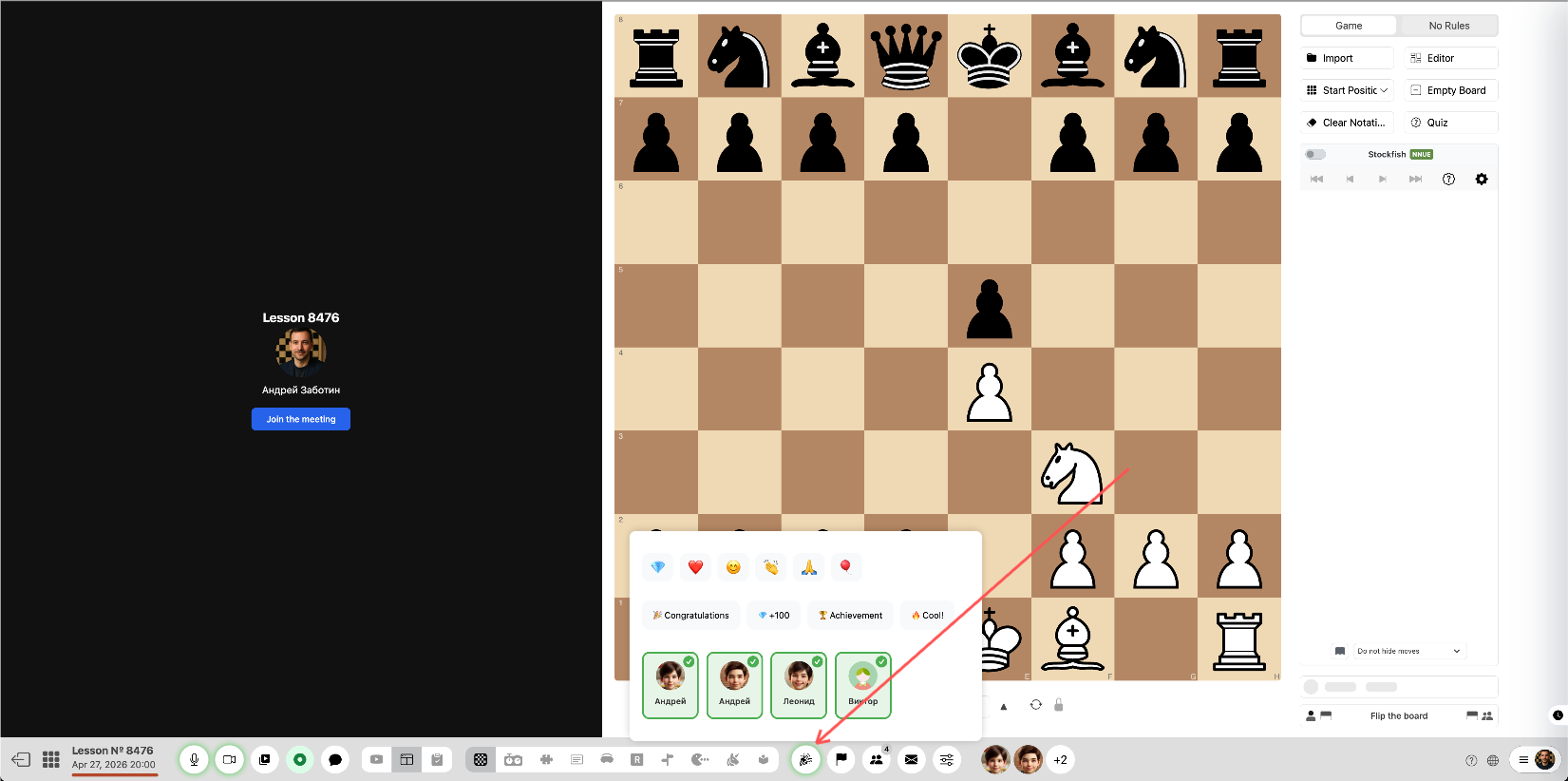
1Open the rewards panel
Click the button to open the rewards panel on your screen.
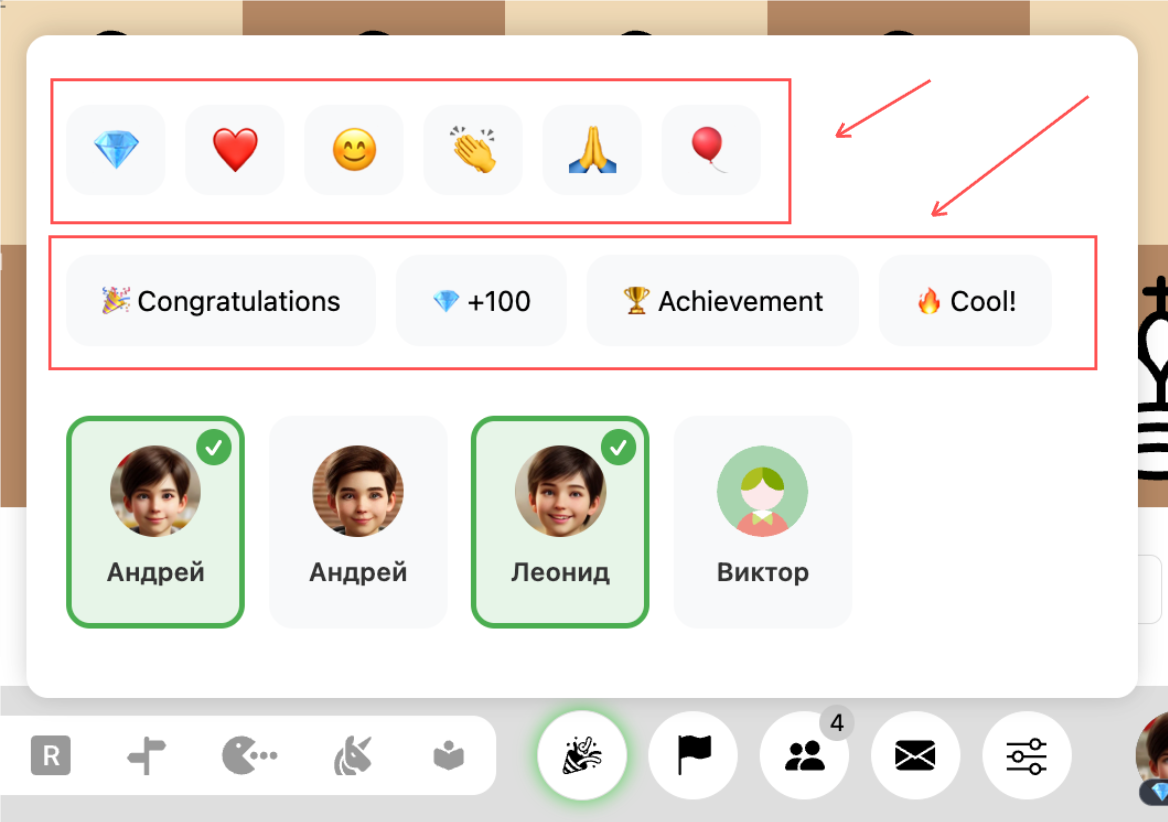
2Select an animation
Choose the type of animation (balloon, heart, etc.) and the corresponding message for the student.
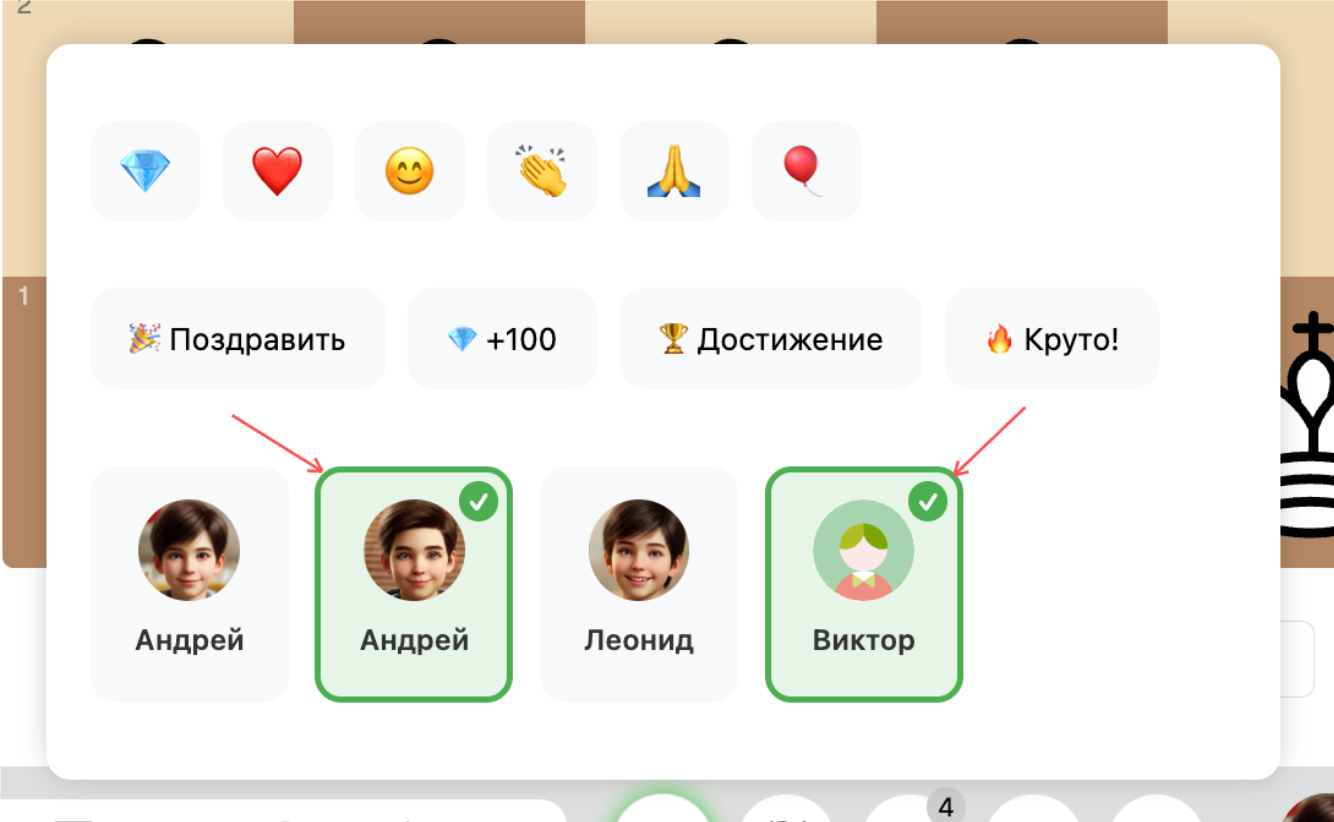
3Select a student
Select a student or multiple students to send the encouragement.
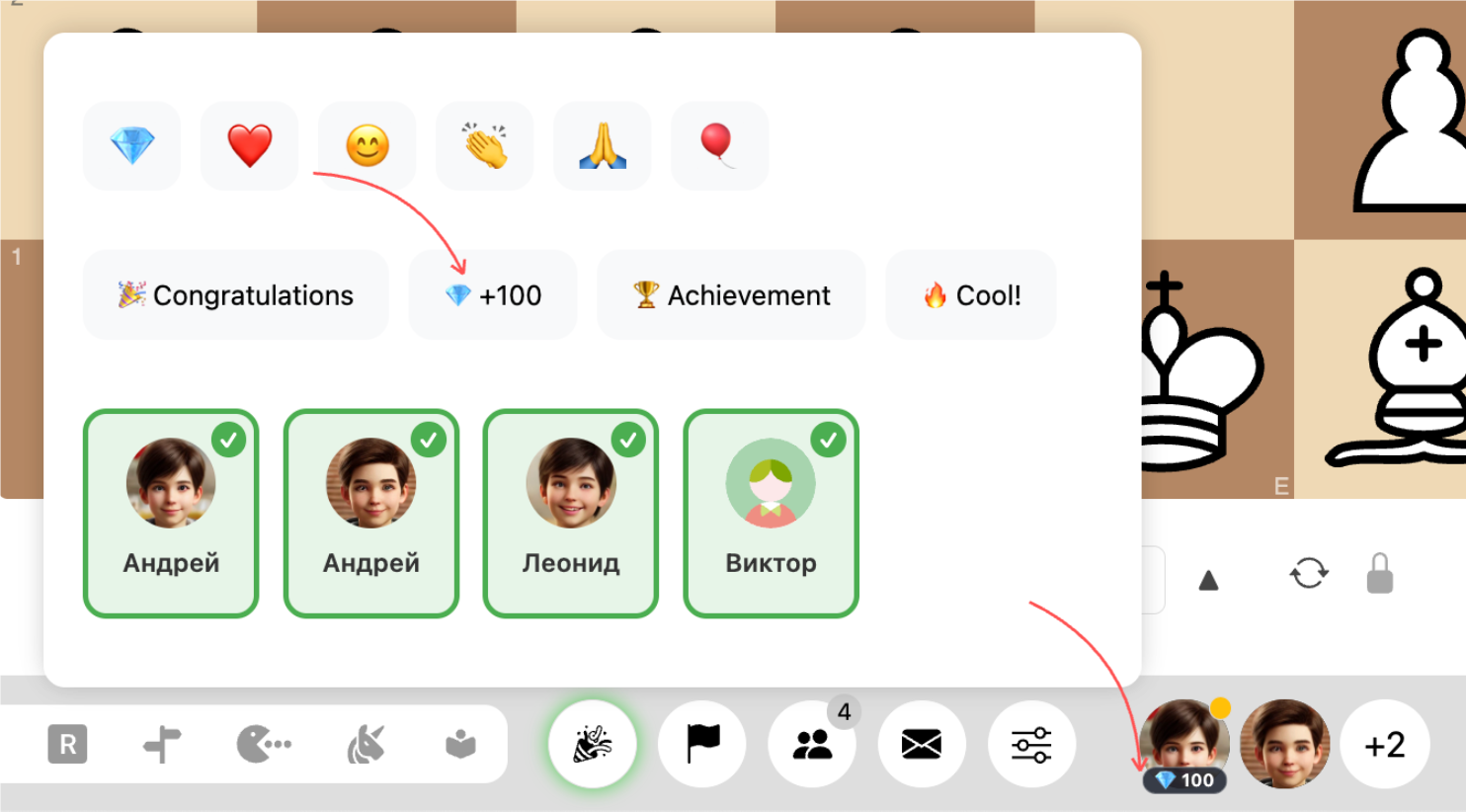
4Add diamonds
Click the +100 diamonds button to add diamonds to the student's account.
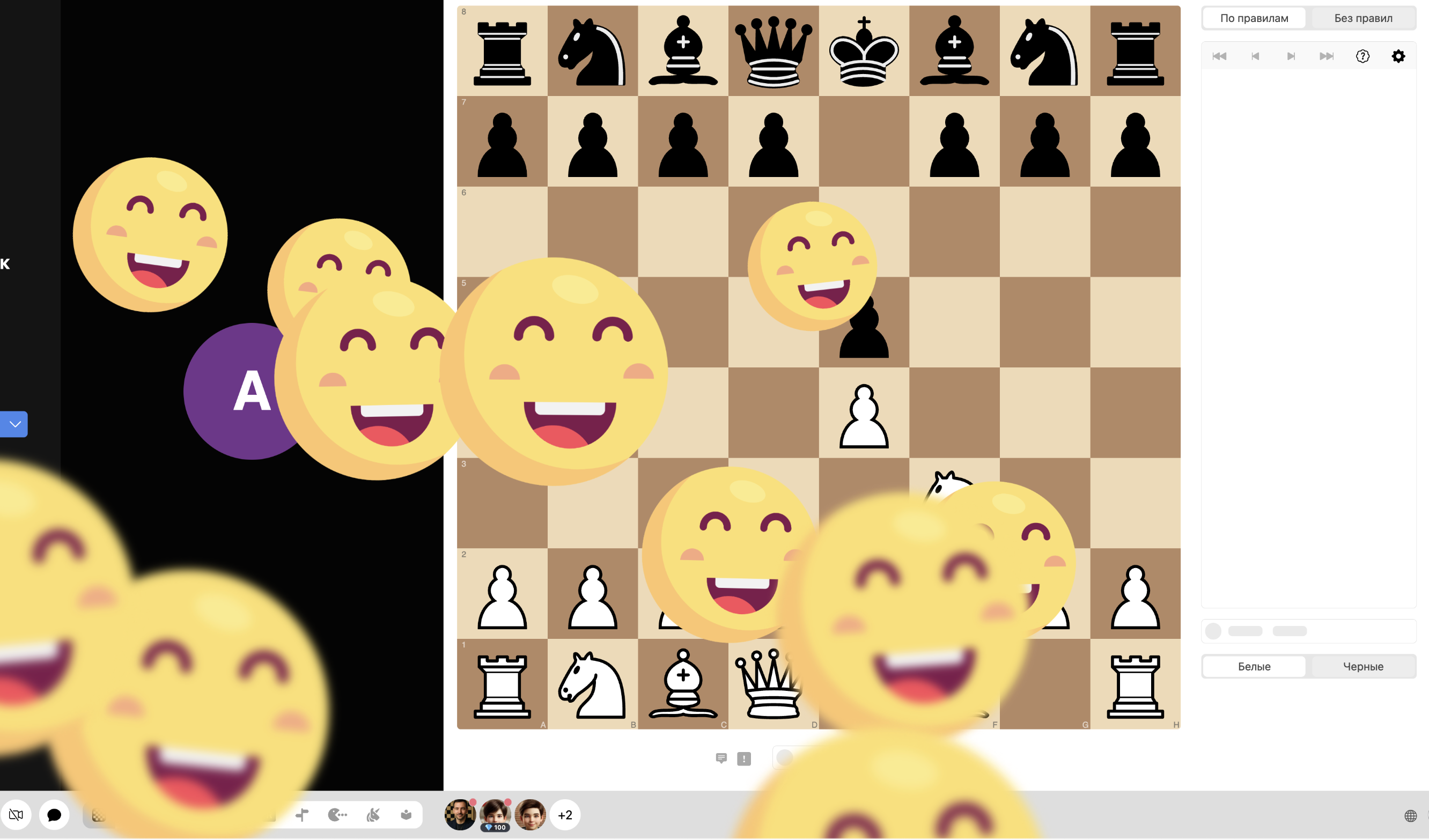
5See how it looks for the student
Switch to the student's device to see the animations they receive.
How can I select multiple students?
Click on the names of the students to select them from the list.
How does the diamond reward system work?
Diamonds are automatically awarded for completing tasks and can be added manually through the rewards panel.
FAQ
How can I select multiple students?
Click on the names of the students to select them from the list.
How does the diamond reward system work?
Diamonds are automatically awarded for completing tasks and can be added manually through the rewards panel.