
How to process a student enquiry on the school board
From enquiry to student record
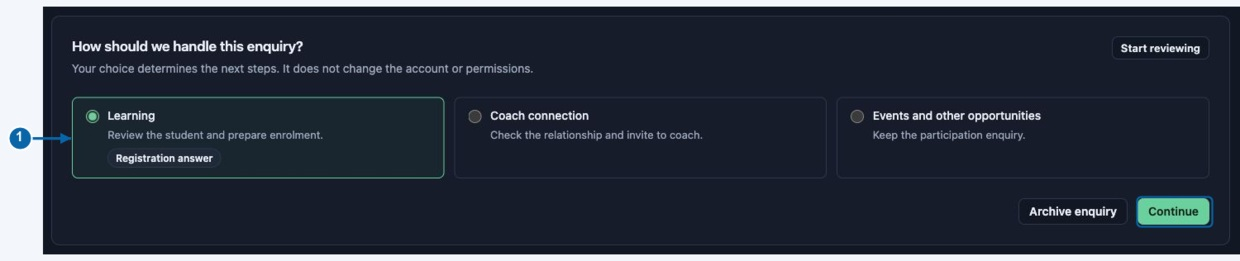
In the school menu, open Enquiries and select Unsorted. Search by name, email or phone and open the enquiry. Under How should we handle this enquiry?, choose Learning and click Continue. The enquiry moves to To students. I already study at the school is the student’s answer. Check it against the school roster.
Under Learning scenario, choose Wants to start learning and click Continue. Review the Student record details, assign a Primary coach if needed, and click Add this user to the school students. This enrols the account shown in the enquiry.

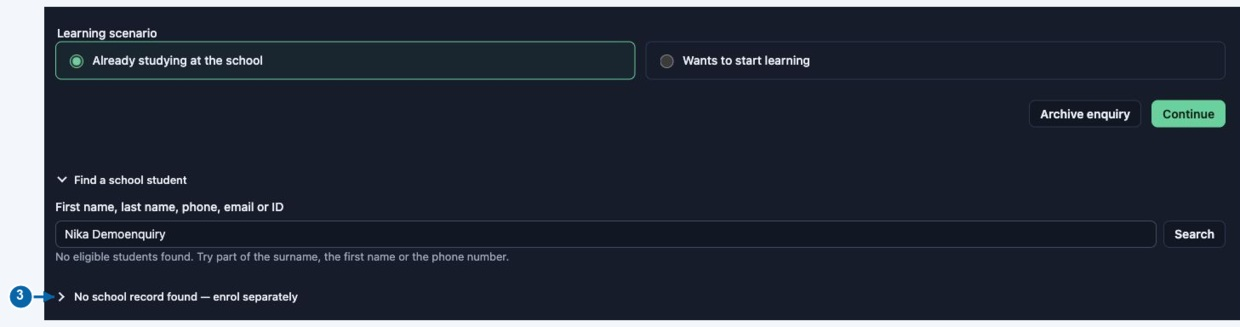
Choose Already studying at the school and click Continue. Open Find a school student and search by first name, last name or phone. If no eligible matches appear, also check Students. Once you have verified that there is no school record, open No school record found — enrol separately and add the user to the school students.
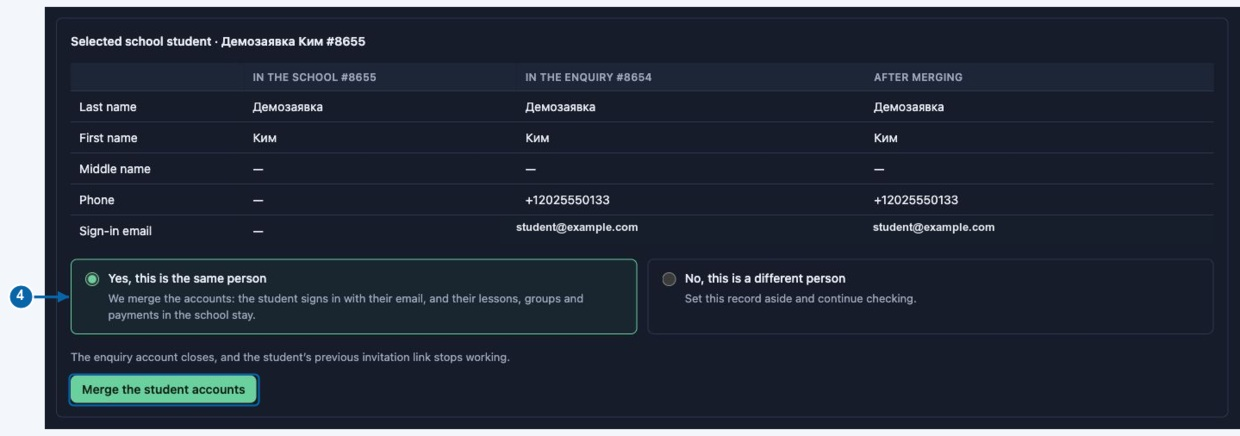
If you find a record, click Compare and review In the school, In the enquiry and After merging. Select Yes, this is the same person after verifying the details, then click Merge the student accounts. The school record keeps the lessons, groups and payments. The student signs in with the email from the enquiry. The previous invitation link will stop working.
The enquiry shows Connection completed. Click Open student and review the record. After a merge, this opens the student’s original school record.

Before a merge, the student needs to confirm their email and create a password using the registration email. Pause if the school record already has its own login, the email differs, or you are unsure about the match. Contact support if the accounts conflict.