
How to record online lessons and where to find the recording
How to record an online lesson and find the recording
1Start recording during the lesson
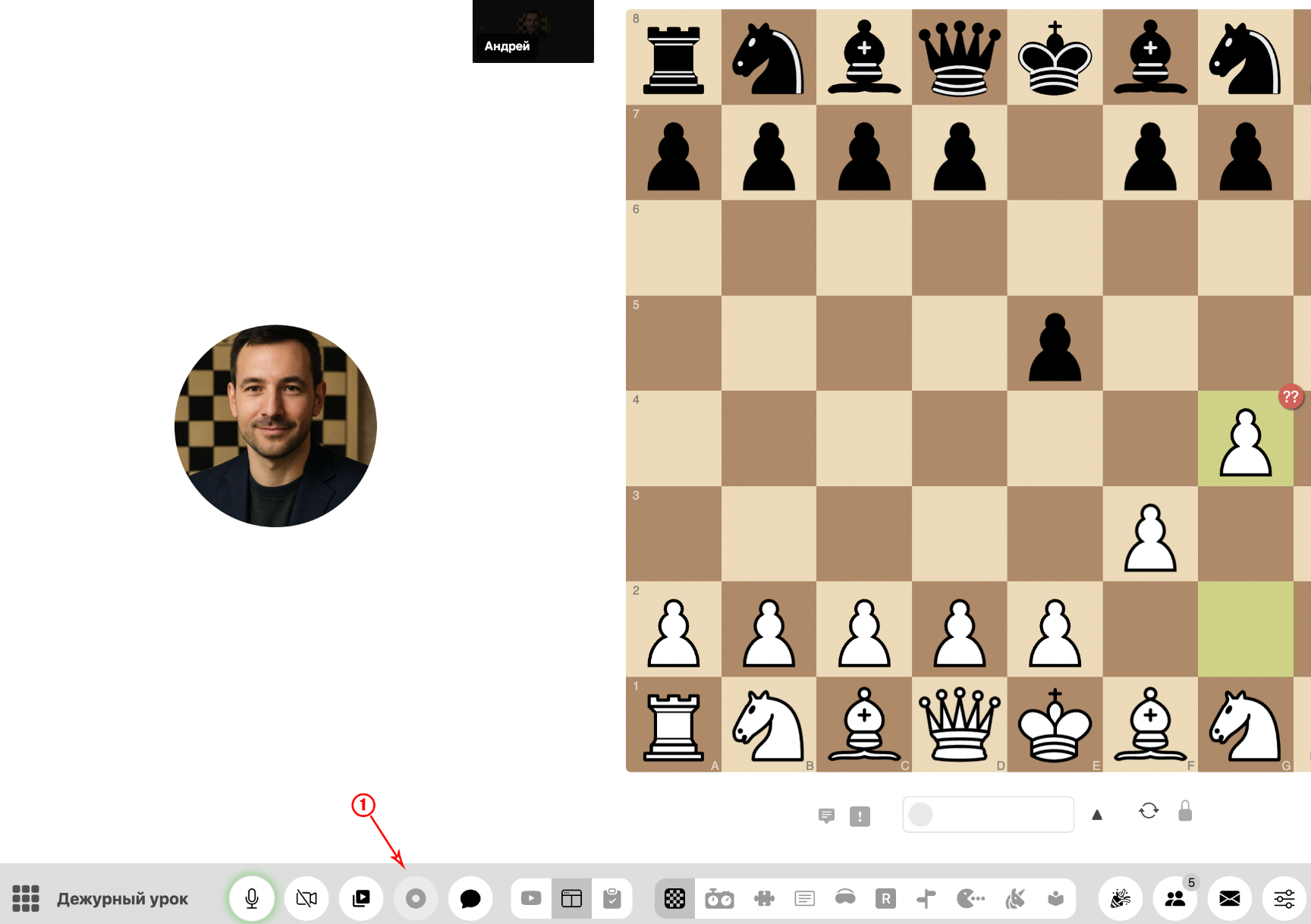
During an online lesson, locate and click the 'Record' button below the video conference block to start recording the session.
2Stop recording when the lesson ends
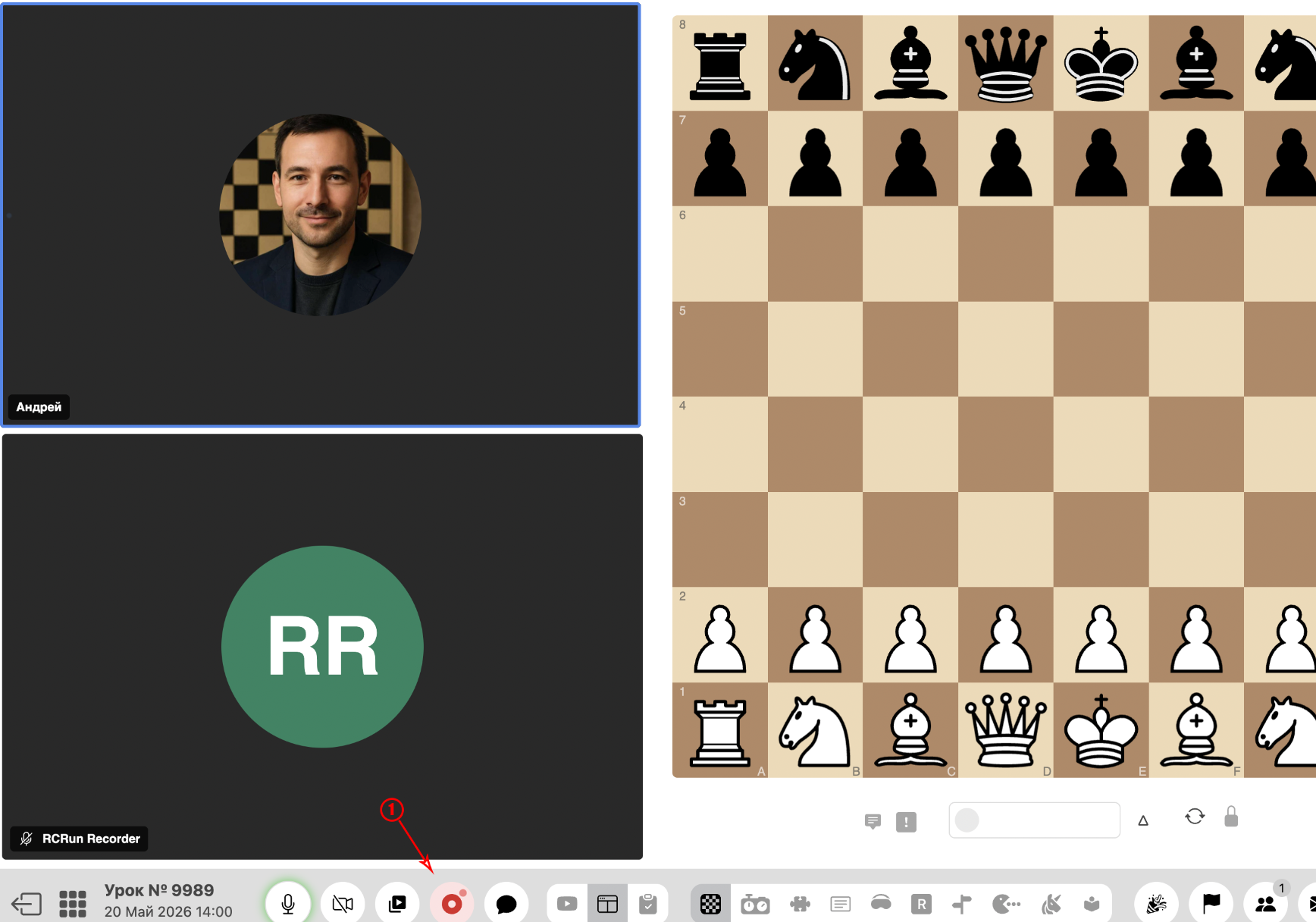
After the lesson, click the 'Stop recording' button to save the lesson video.
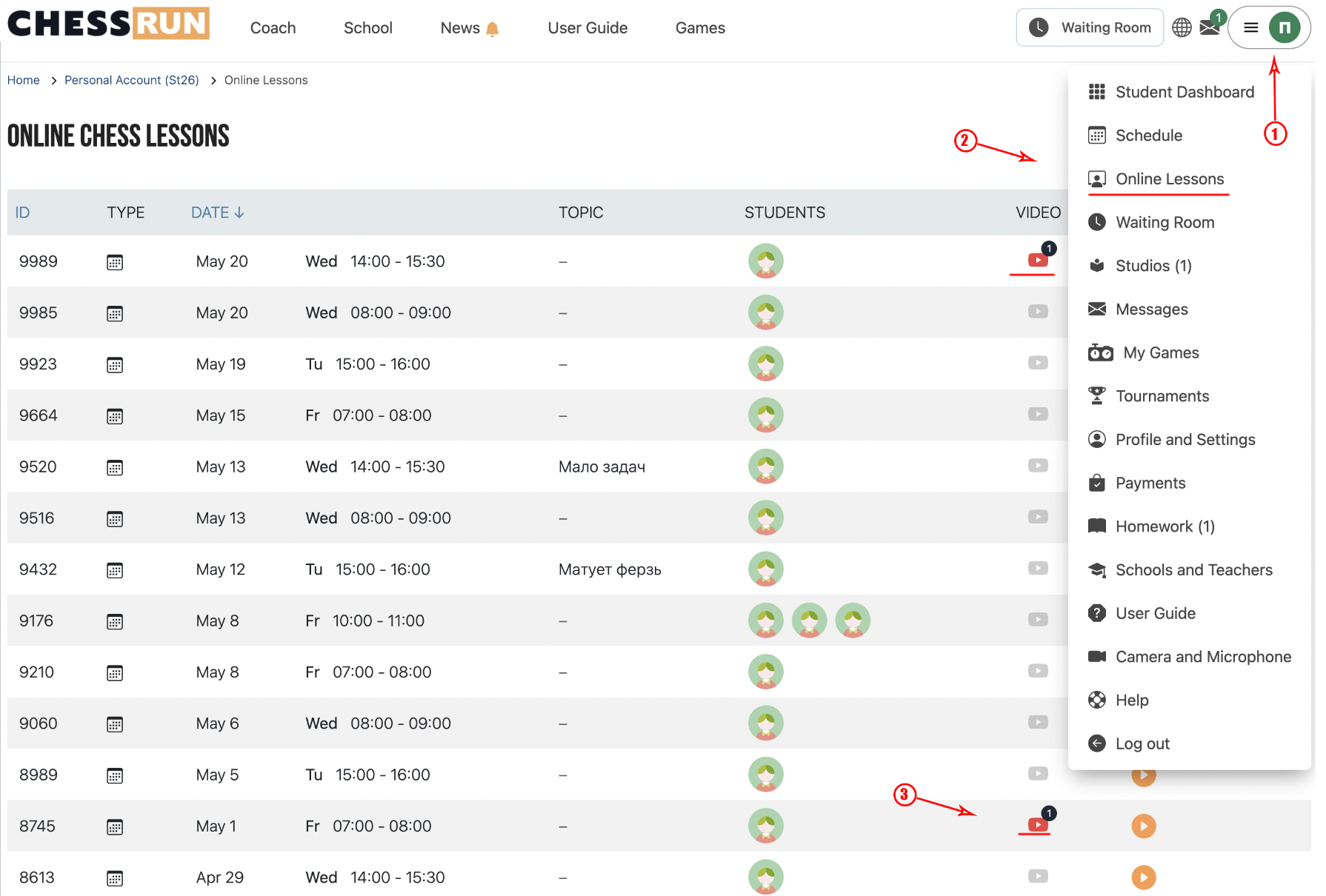
3Find the recording in your completed lessons list
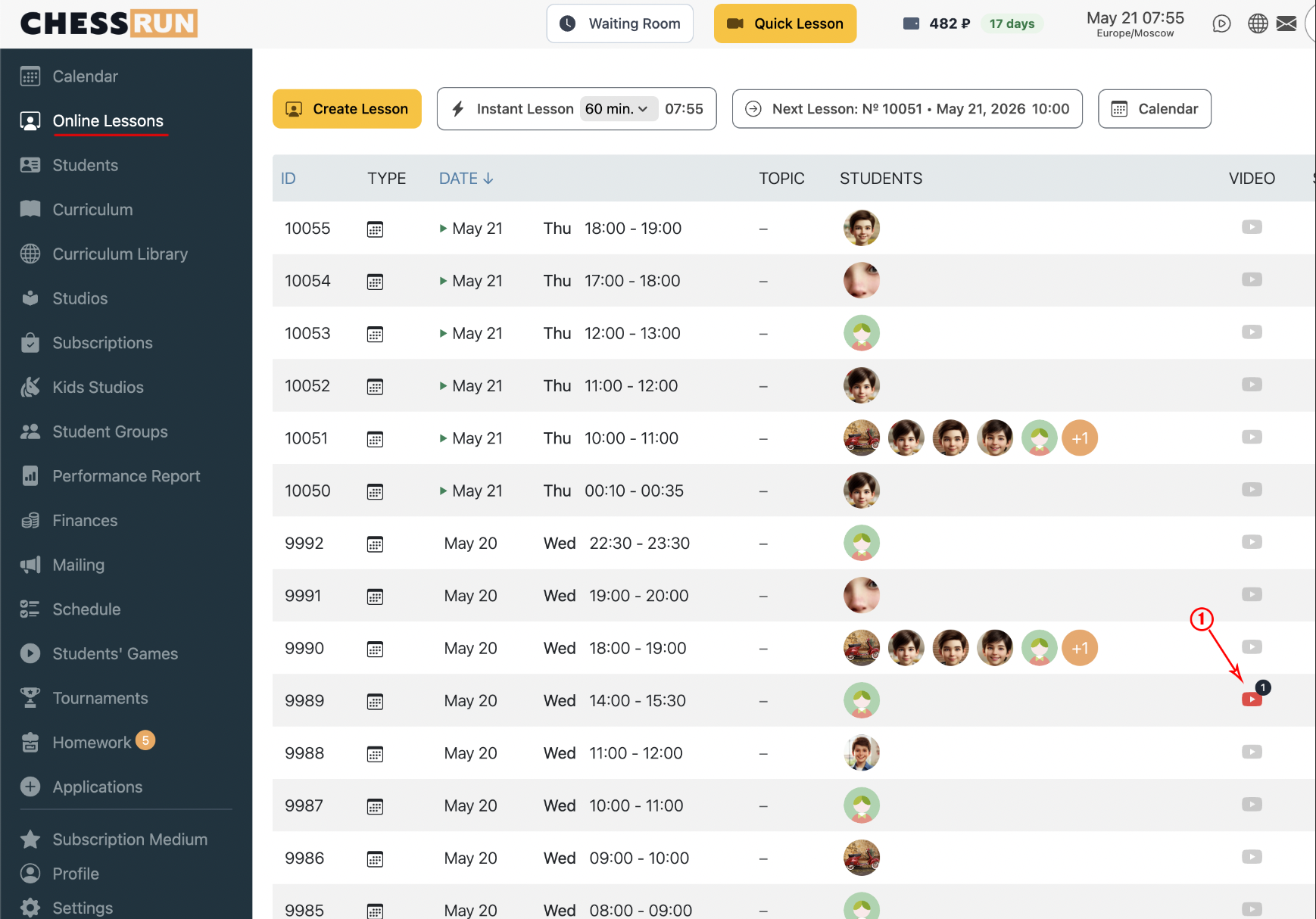
After the lesson, access the video in the 'Completed lessons' section on the platform.
4Access the recording in the lesson calendar
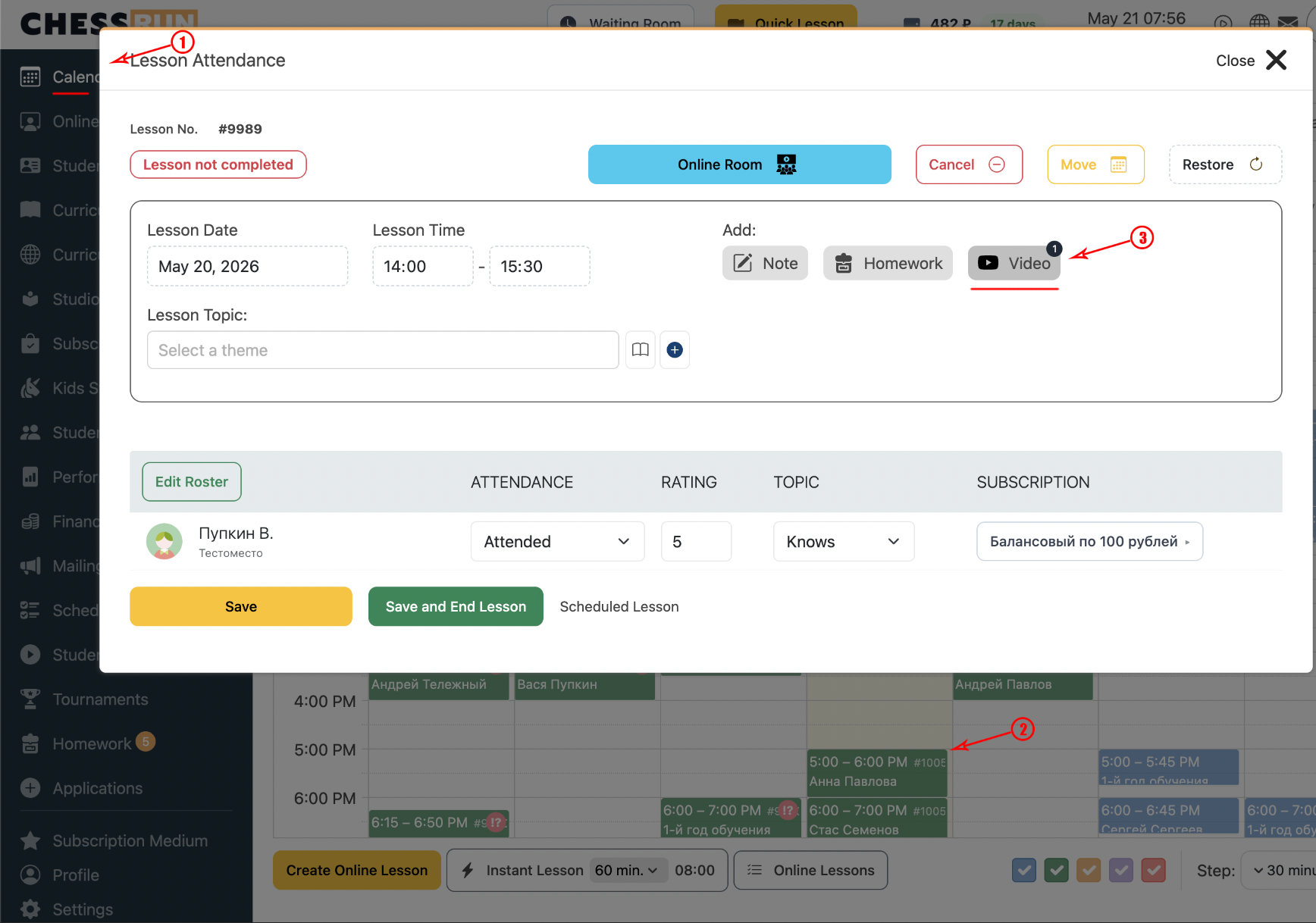
You can also find the video in the calendar by opening the details of a completed lesson.
5Where students can see the recording
Students can access the video from their personal accounts in the lesson list.
FAQ
Can students download the lesson recording?
Download availability depends on your school and platform settings. Usually, students can only view the recording in their account.
How soon after the lesson is the recording available?
The video is typically available right after the lesson ends, though processing may take a few minutes.