
How to create a quick lesson
How to create a quick lesson
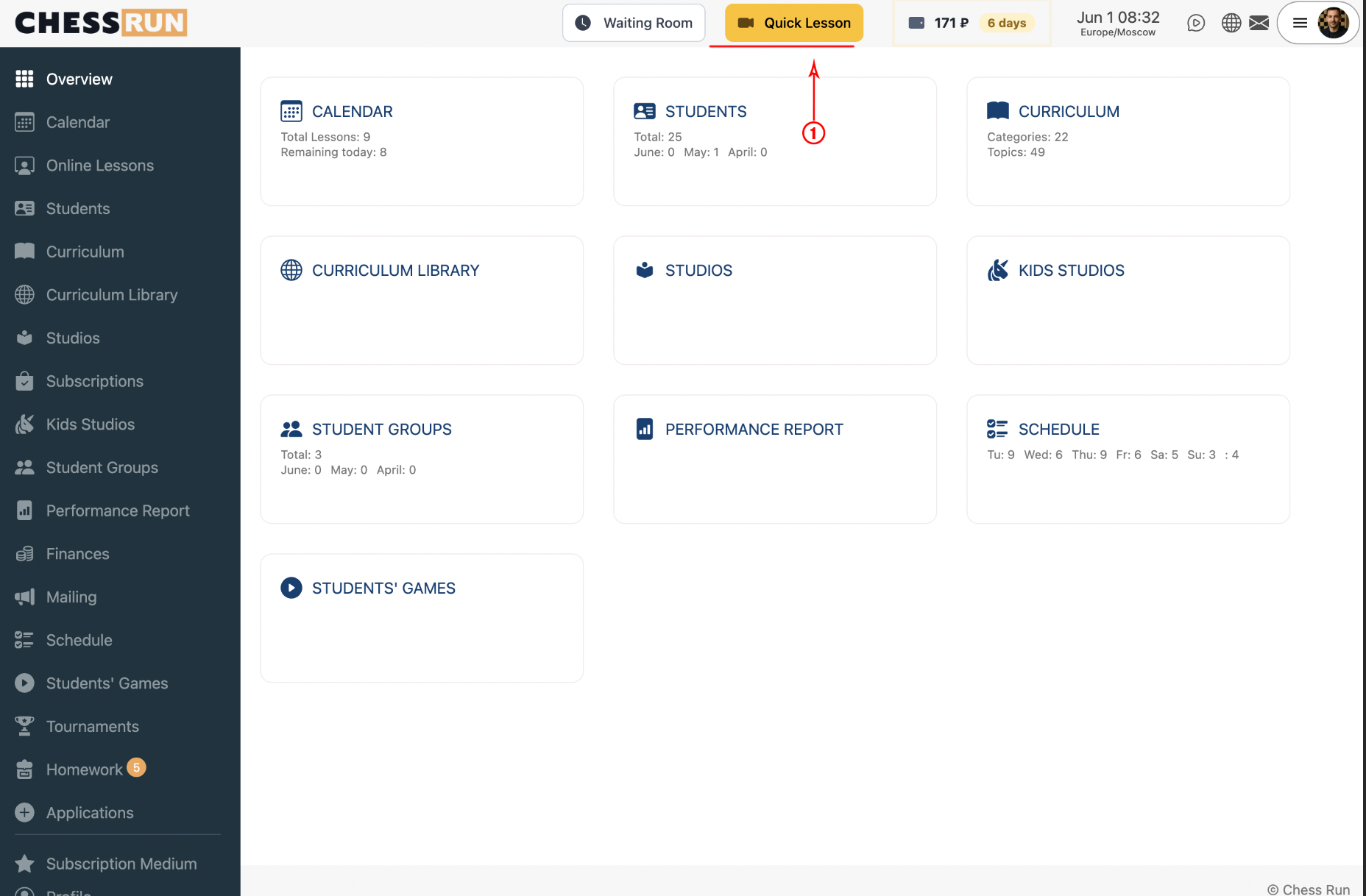
The Quick Lesson button is always available at the top of the coach panel. Click it to instantly start a new lesson.
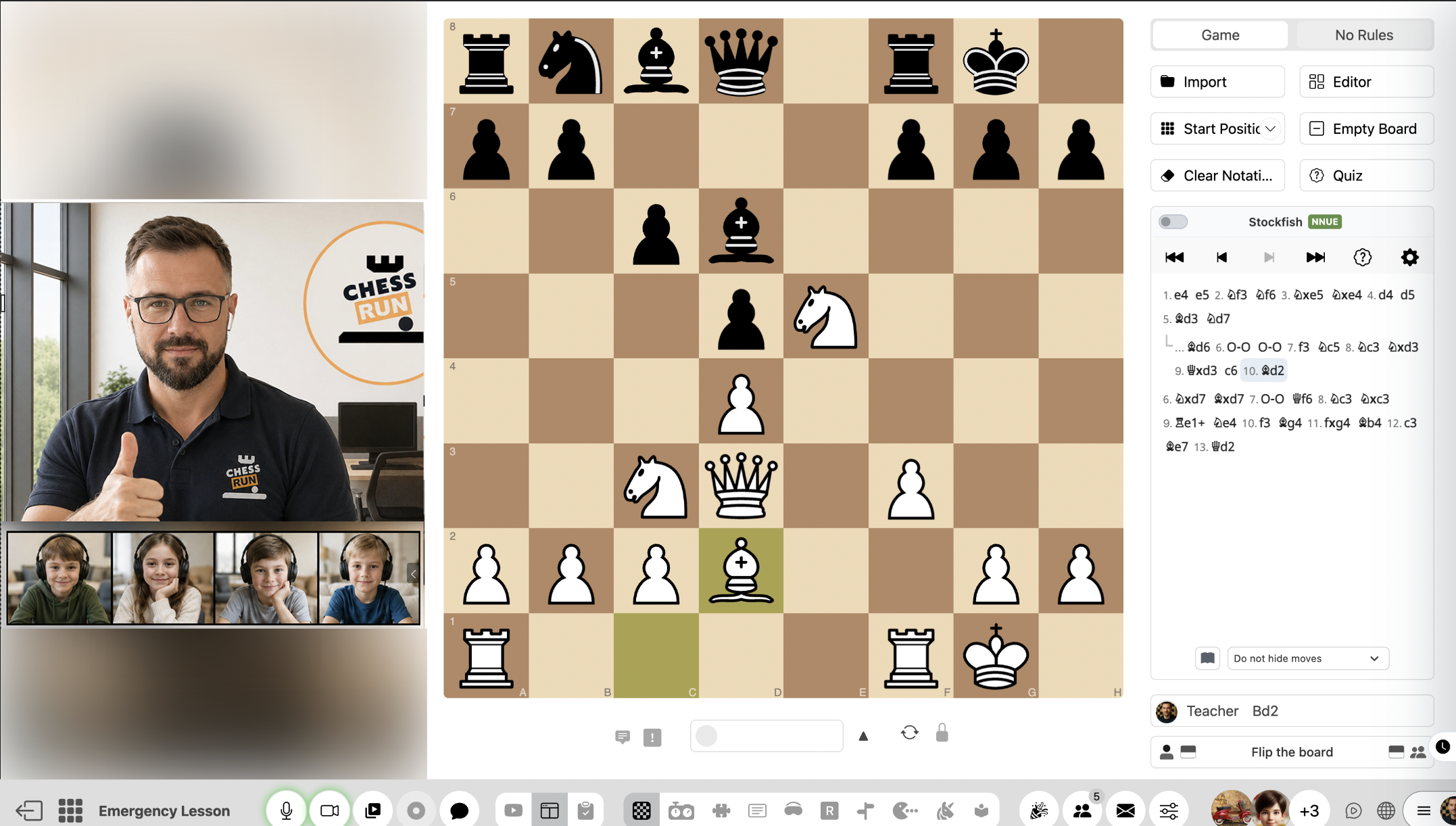
Once the lesson is created, the workspace opens with video conferencing, a shared chessboard, puzzles, studios, and other teaching tools.
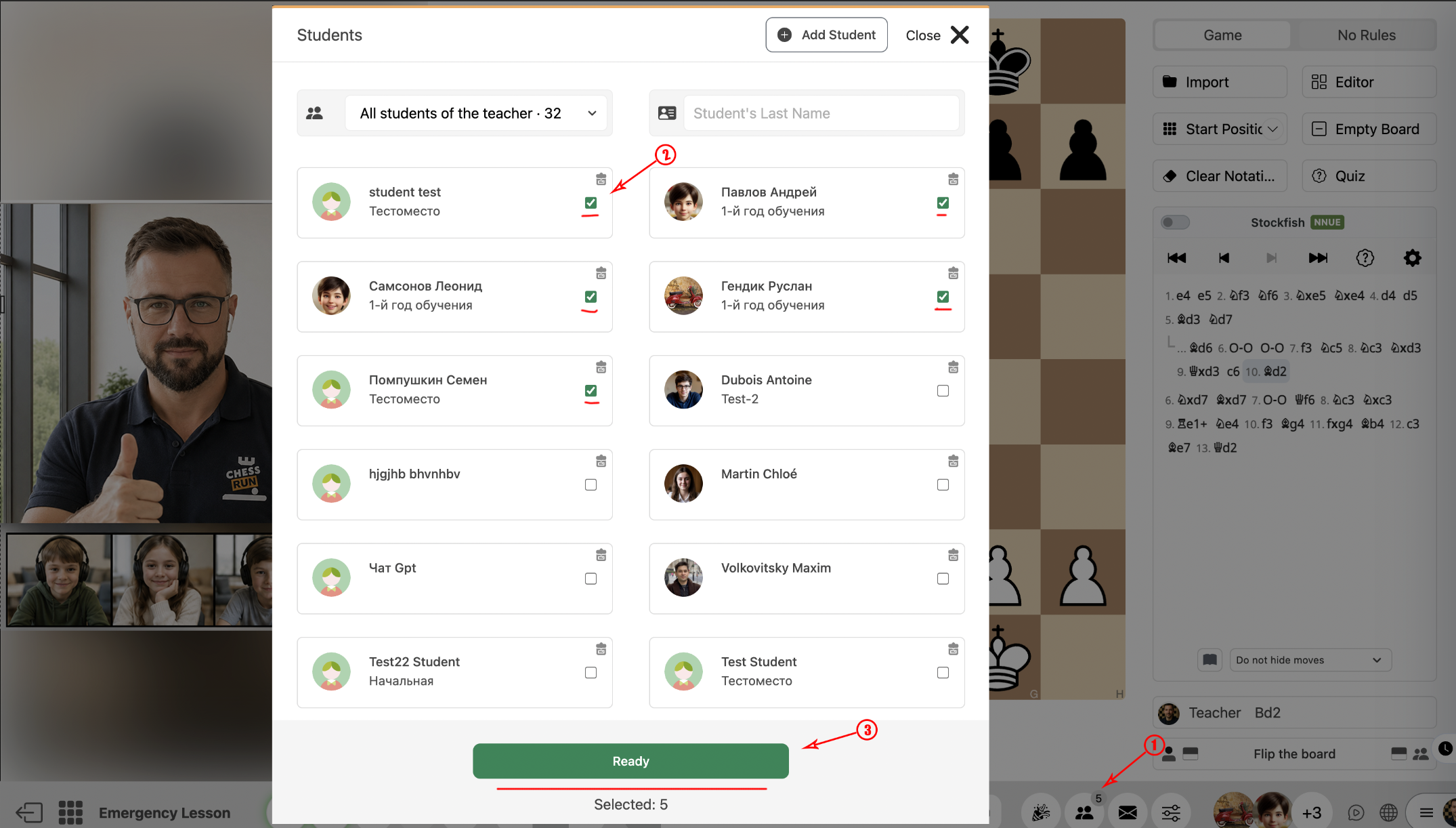
Open the student list for the lesson. Use checkmarks to select the students you want to add, then click 'Add' to invite them.
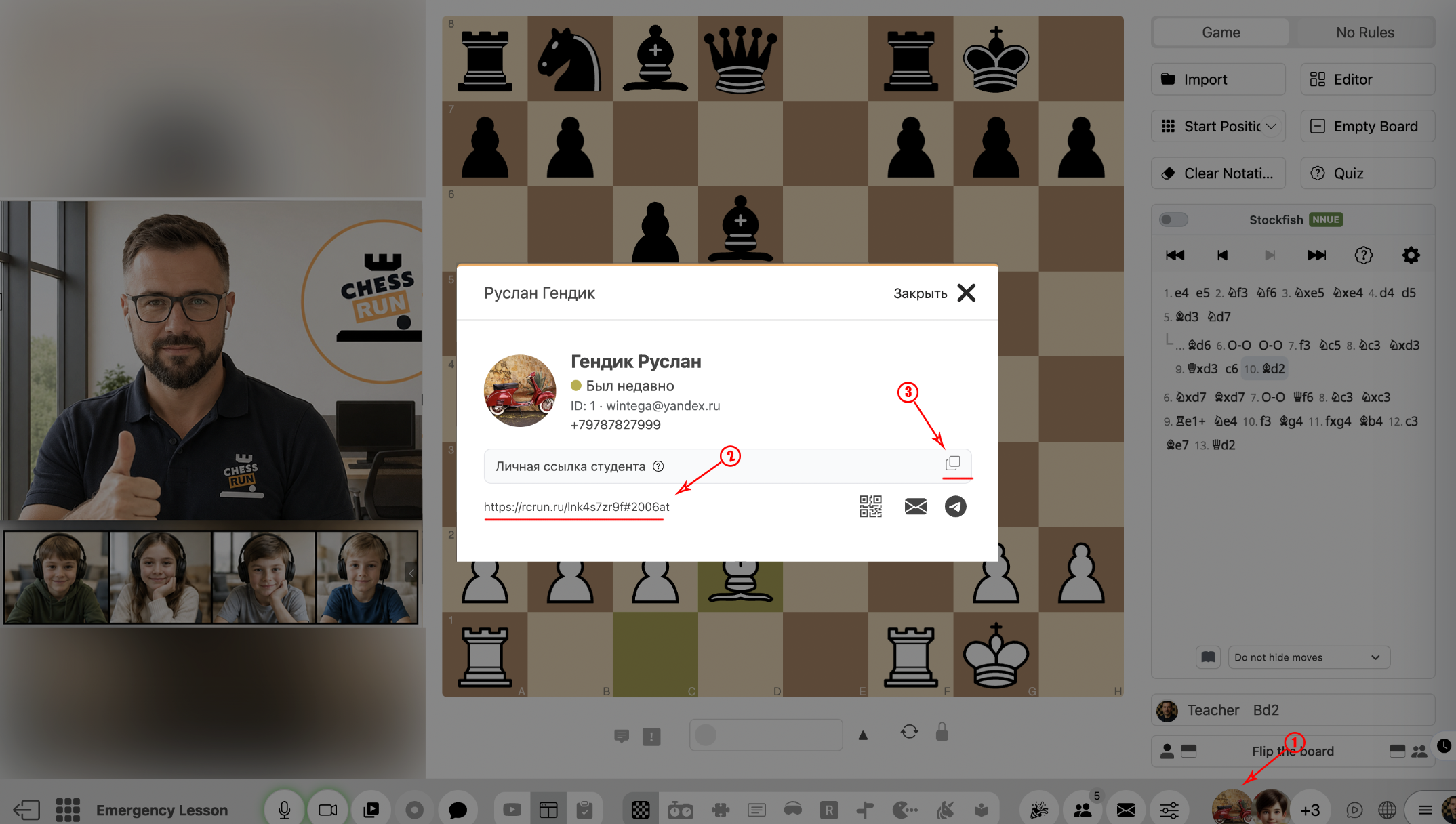
To invite a student individually, click their avatar in the list. In the opened window, copy the lesson link and send it to the student.
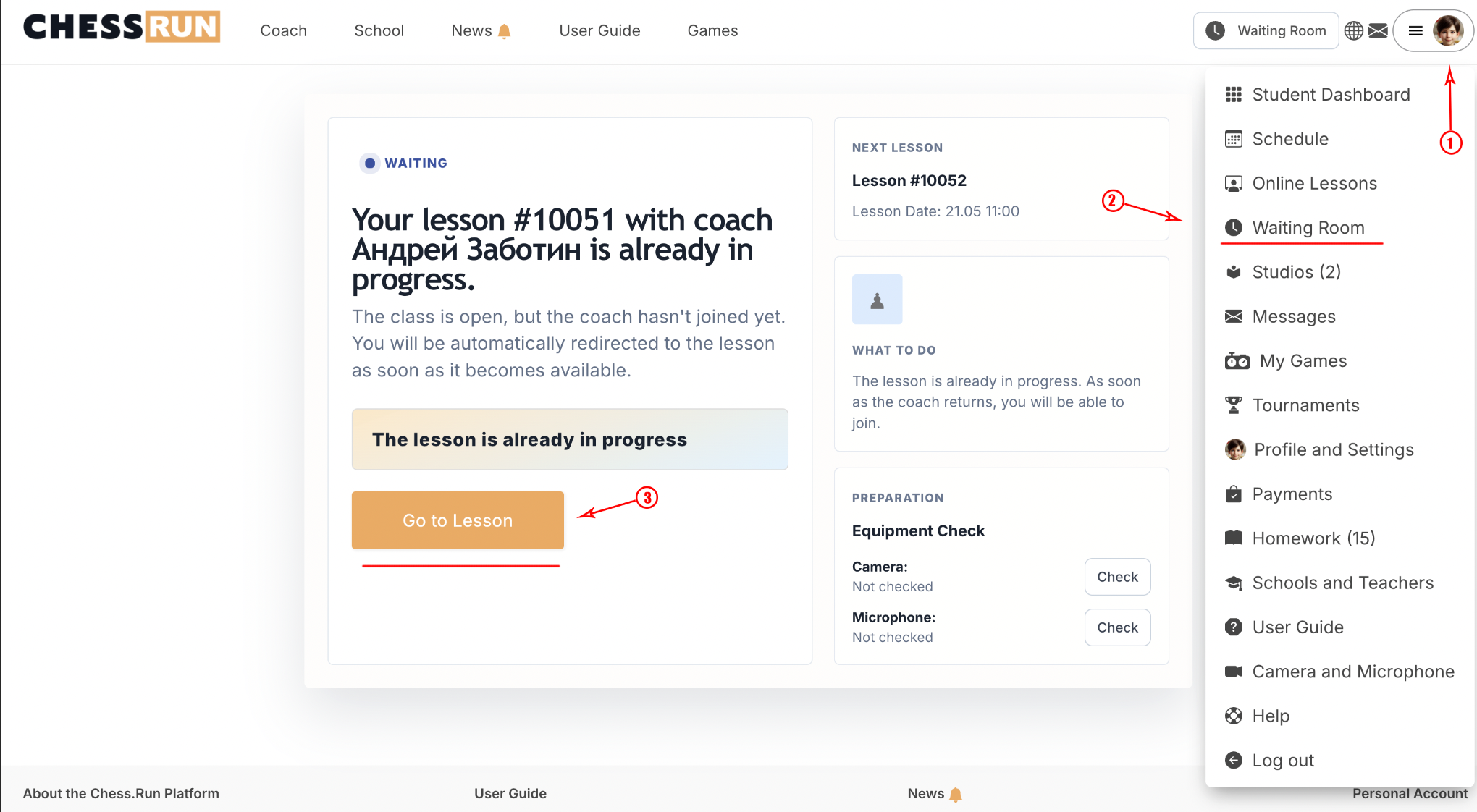
When a student follows the link, they'll enter a waiting room. If the teacher is in the lesson, the student will automatically join the session. The student will also see a 'Join the lesson now' button.
FAQ
What if a student cannot join the lesson via link?
Check the link is copied fully and the student is logged into the correct account. Make sure the lesson is open and you're present in the workspace.
How many students can I add to a quick lesson?
The number of students may depend on your organization's subscription plan. Check your plan settings or contact your platform administrator.