
How to create a student vs student game during an online lesson
How to set up a pair game or assign games to students
In an online lesson, find the participants panel. Here you’ll see all connected students.
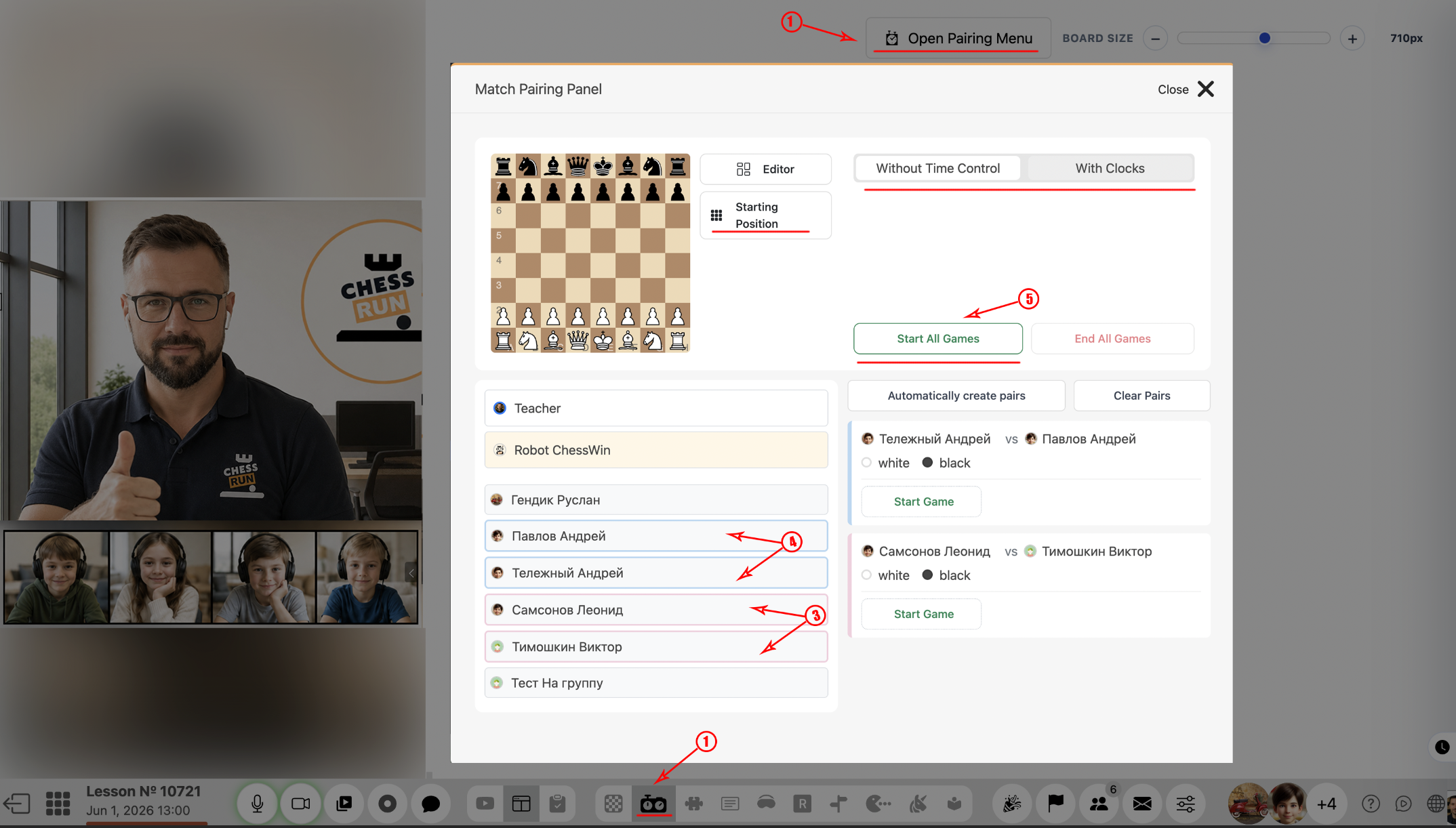
Select two students you want to pair for a game. Click the create game button. Both students will receive an invitation to start their match.
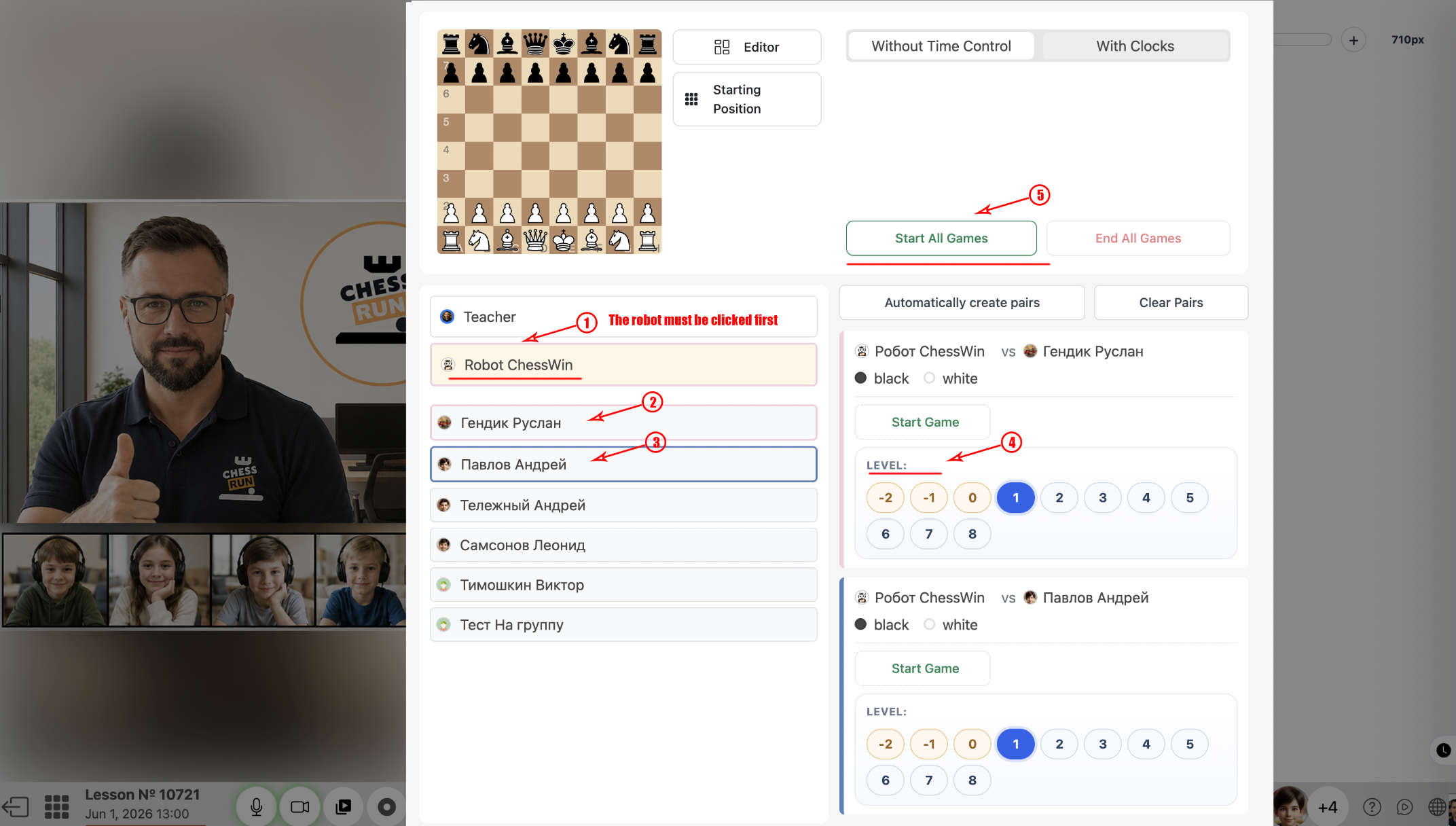
Select Stockfish (the computer engine) as the first opponent. Then select the students and choose a difficulty level from -2 to 8 (levels -2, -1, 0 are for handicaps and youngest students). Click to create the games – students will face the selected Stockfish level.
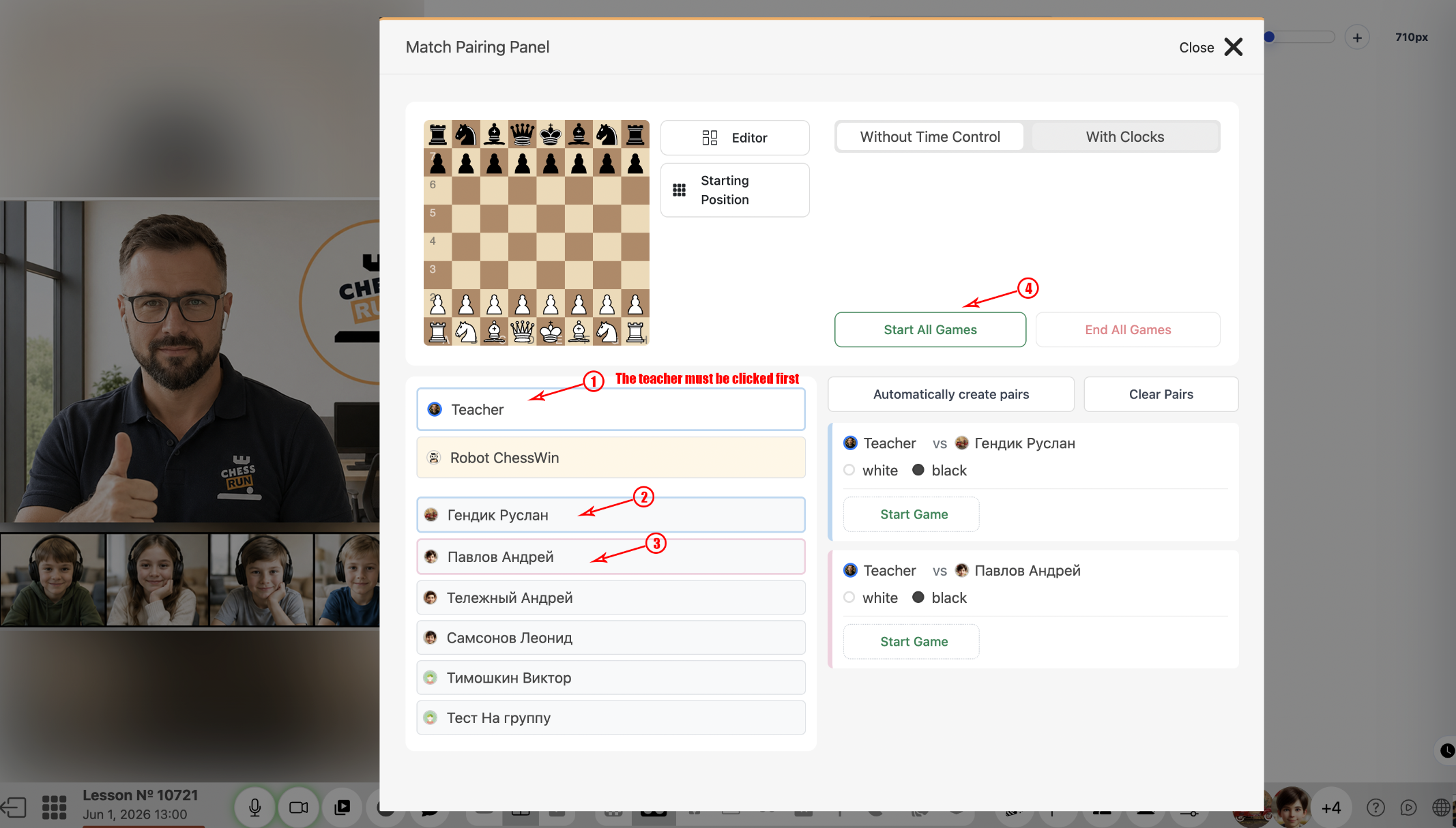
The coach can play against any student or multiple students simultaneously. Select the desired students and start the corresponding games.
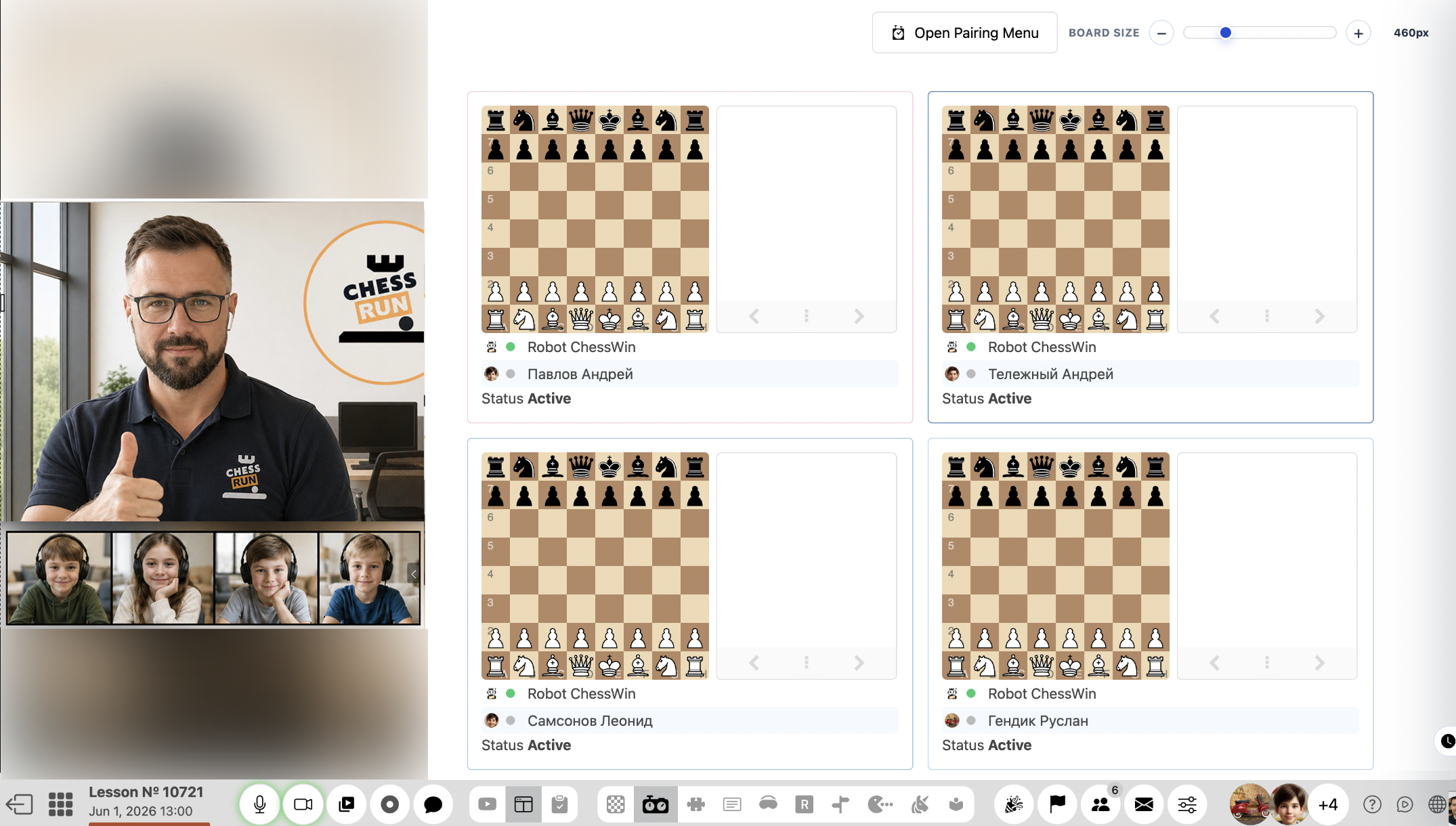
All active games appear in the coach’s panel. You can open each student's board and use drawing tools such as arrows and markers directly in their games.
Stockfish difficulty levels: -2 to 0 are for handicaps and youngest students; 1 to 8 are standard difficulty, matching Lichess levels.
FAQ
Can I organize several games at once?
Yes, the coach can start several games for different students, or play against multiple students at the same time.
How should I use Stockfish levels -2, -1, 0?
These are meant as handicaps and for the youngest students, making the computer play much weaker.