
How to reschedule a lesson
How to reschedule a lesson
Find the lesson in the calendar and click its card.
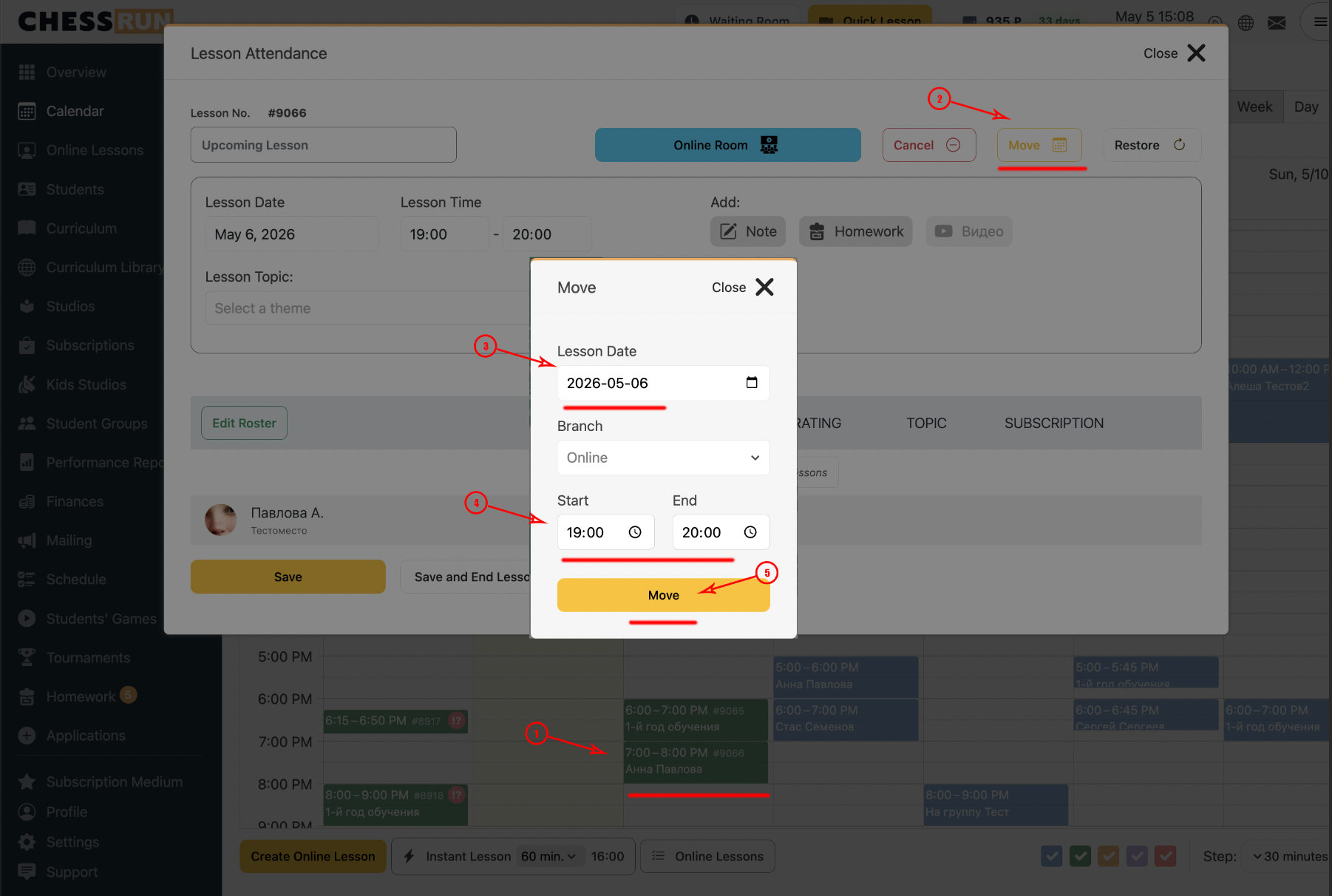
In the lesson window that opens, select the 'Reschedule' button.
Choose a new date and/or time for the lesson and confirm by clicking 'Reschedule'. Please note, you cannot select a time slot already occupied by another lesson.
If the lesson has not been confirmed yet and is in the future: open the unconfirmed lesson card in the calendar, make the necessary changes and click Save lesson. After that, the lesson can be freely rescheduled for any other time.
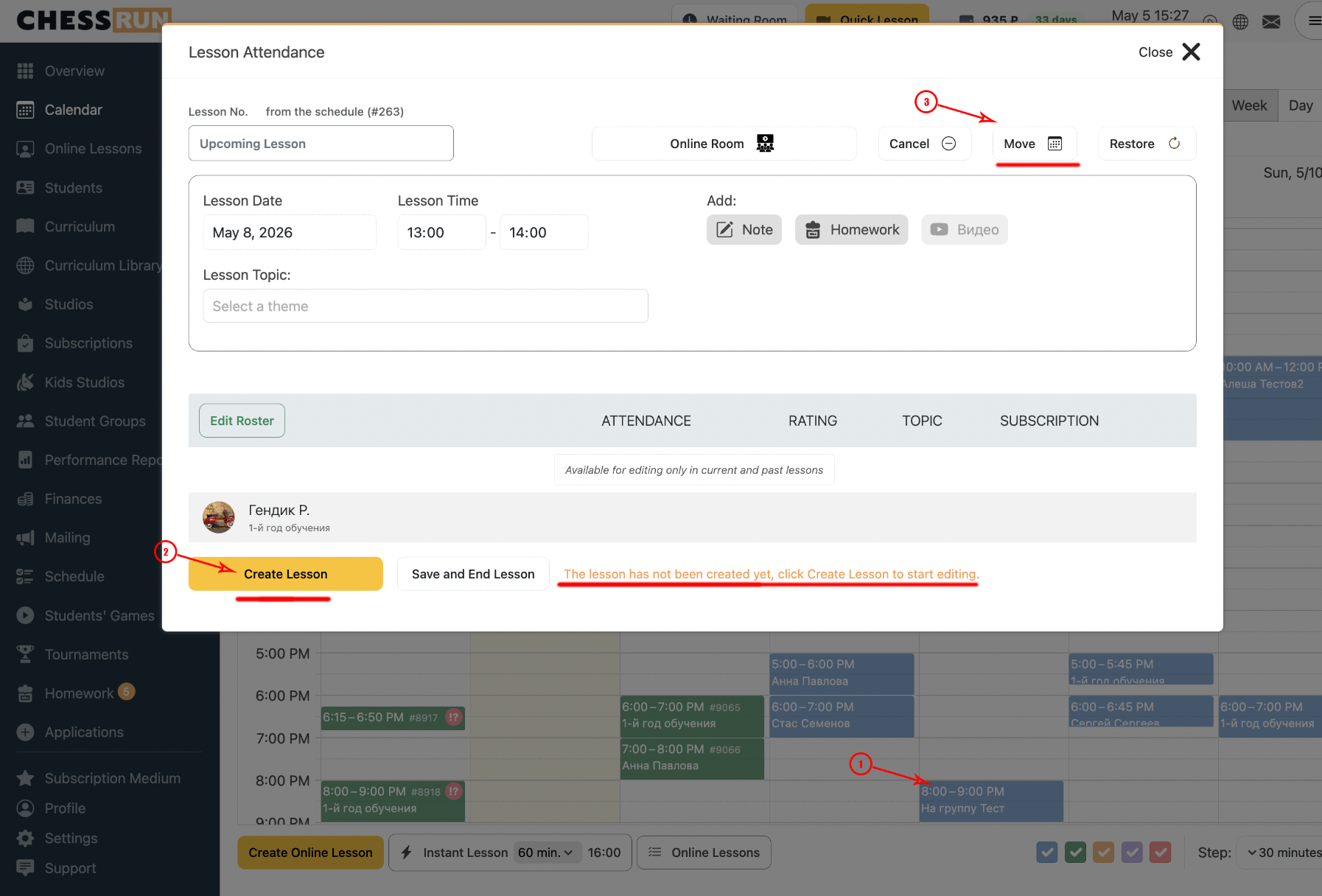
You cannot reschedule a lesson to a time slot already occupied by another lesson.
FAQ
Which lessons can be rescheduled?
Only already created and confirmed lessons can be rescheduled.
How do I reschedule a lesson in the repeating schedule?
Go to the Schedule section and change the time or day of the lesson.
What is the difference between confirmed and unconfirmed lessons?
A confirmed lesson is one that is either automatically created for the next two days from the schedule, or added/saved manually.