
How to choose a lesson topic when completing a lesson?
How to choose or add a lesson topic at completion
When finishing a lesson, open the topic selection field. Use the search bar to quickly find a topic or section by typing the first letters of its name. You can also browse and select topics manually from sections. If multiple topics were covered, click the button to select more than one.
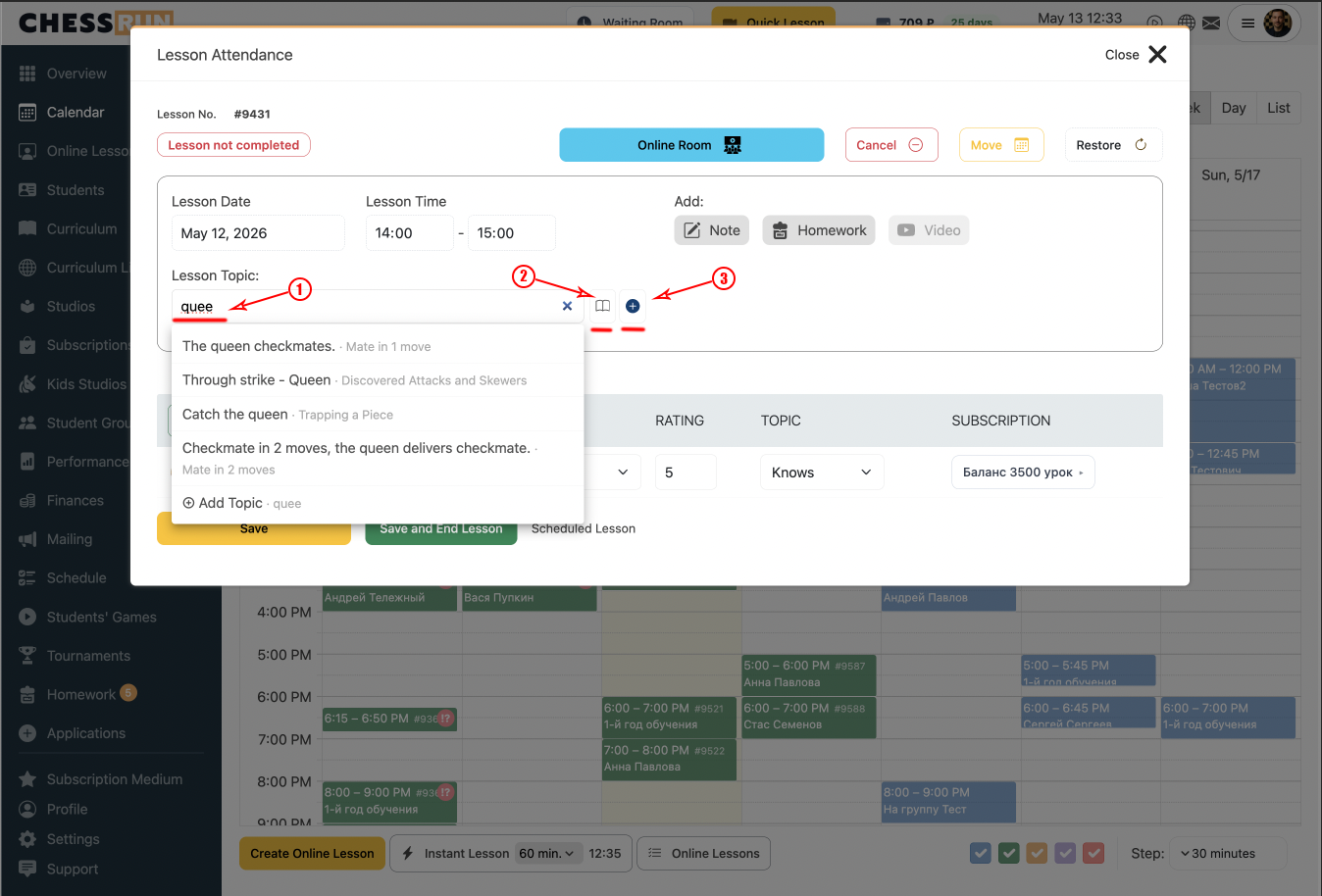
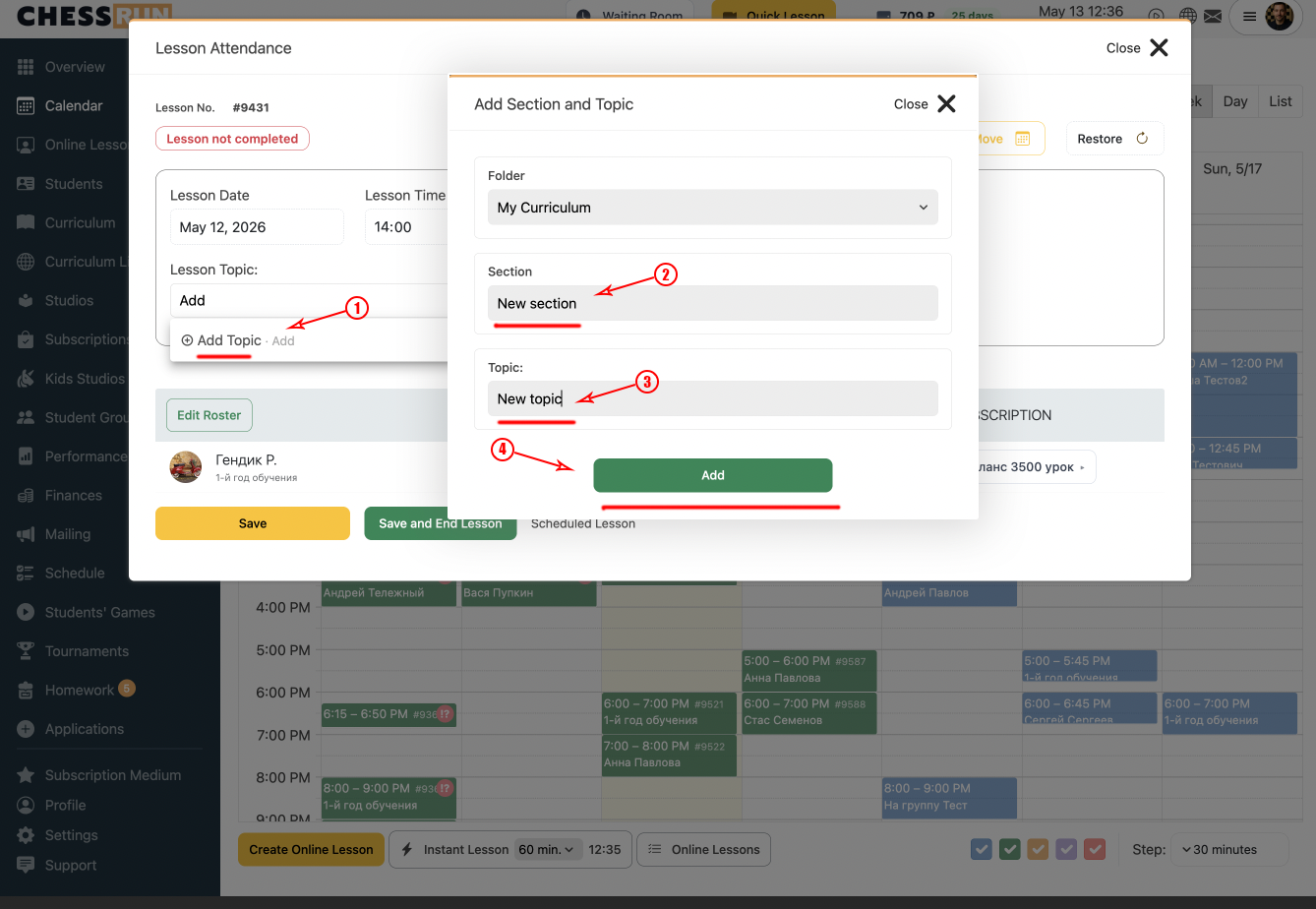
If the topic does not exist in your materials, type the topic name in the add prompt and click 'Add Topic'. Then choose the section, enter the topic name, and confirm to add it.
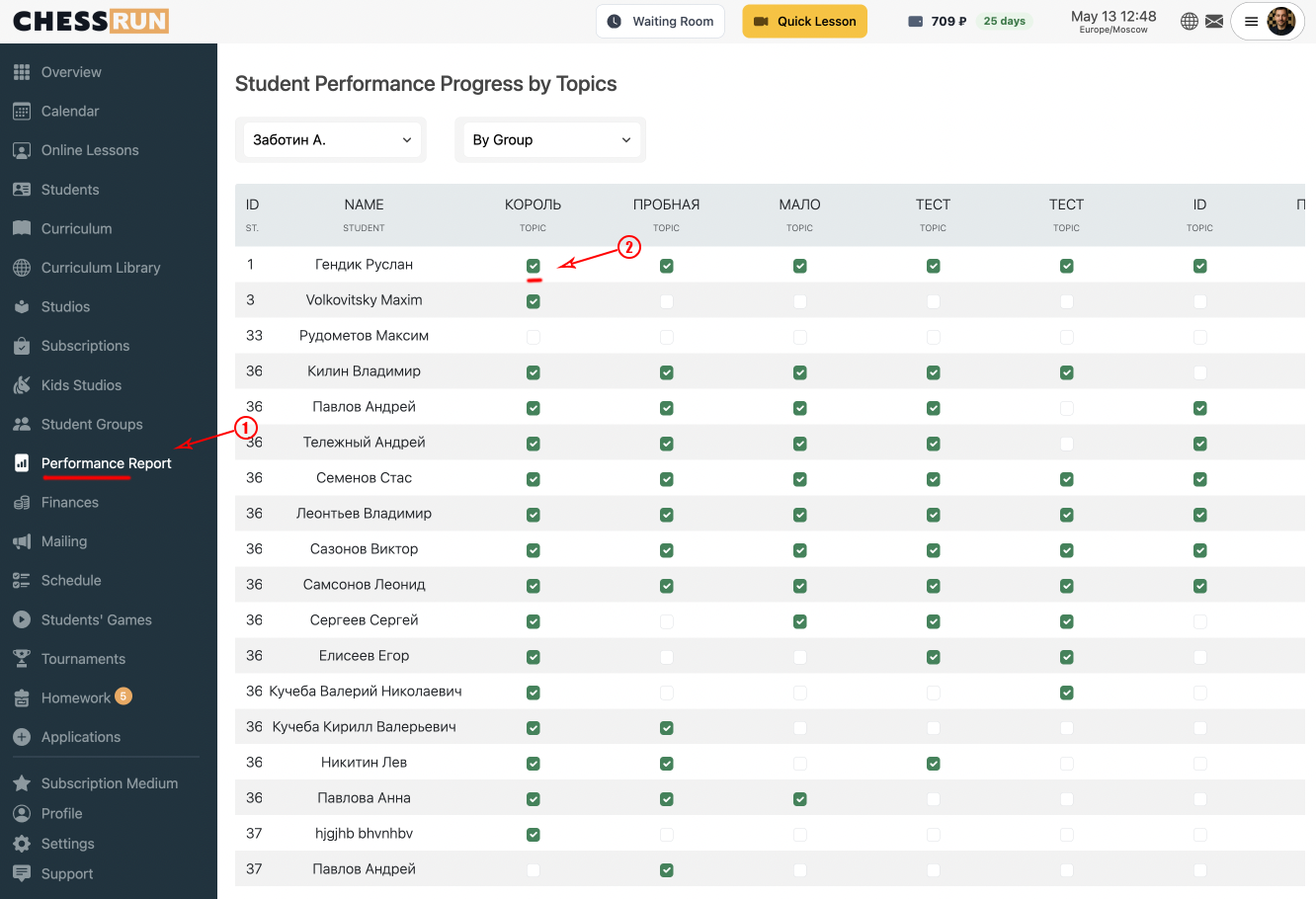
Go to the 'Progress' section to view which topics this student has already completed. You can also mark topics manually here.
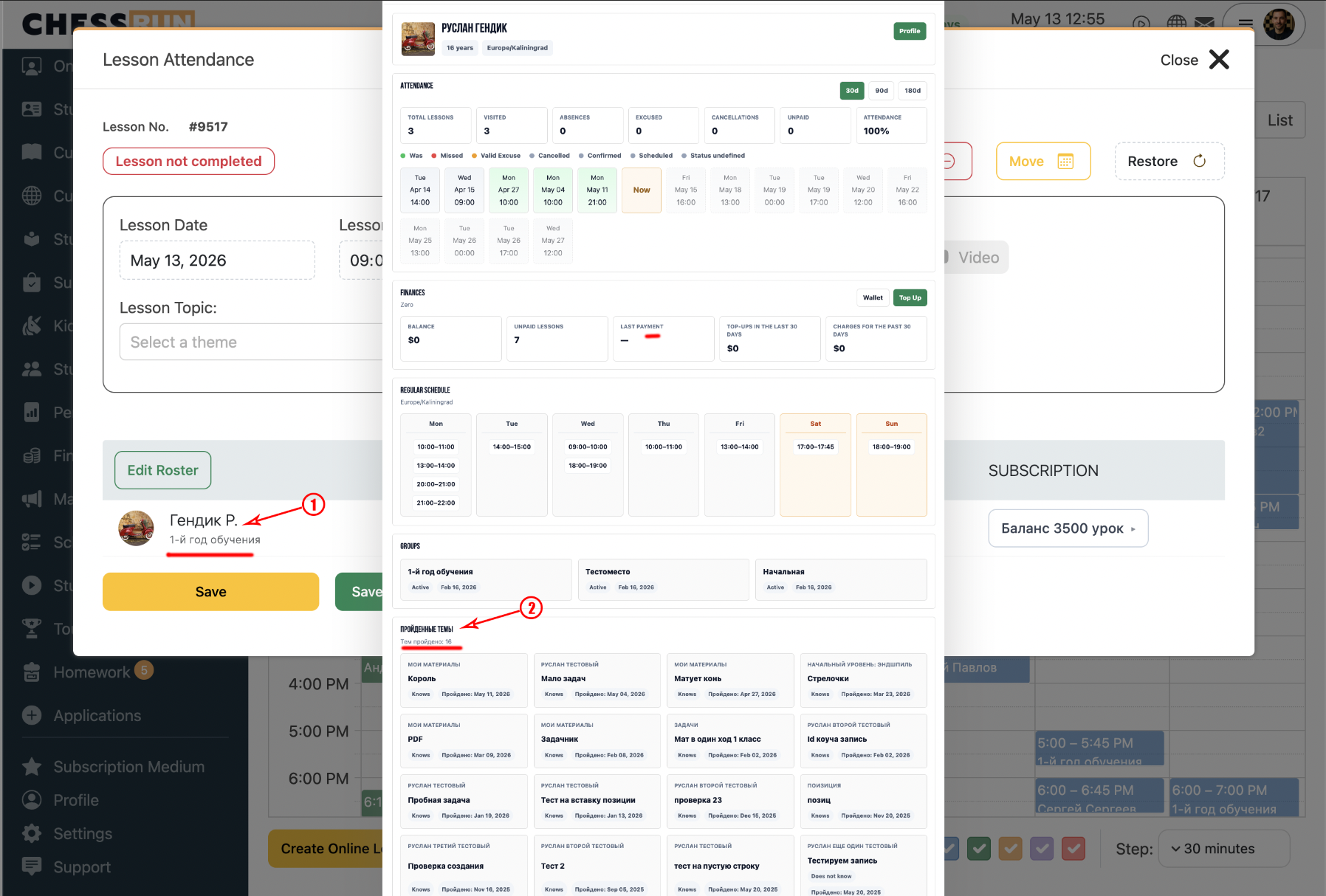
Click on the student's name to open their activity card. Scroll down to the block showing completed topics.
Can I select multiple topics for one lesson?
Yes, you can select several topics if more than one was covered during the lesson.
What if I can't find the needed section for a topic?
First, add a new section via your materials library, then use it when adding the topic.
FAQ
Can I select multiple topics for one lesson?
Yes, you can select several topics if more than one was covered during the lesson.
What if I can't find the needed section for a topic?
First, add a new section via your materials library, then use it when adding the topic.