
How to add a student payment to their balance
How to add a student payment to their balance
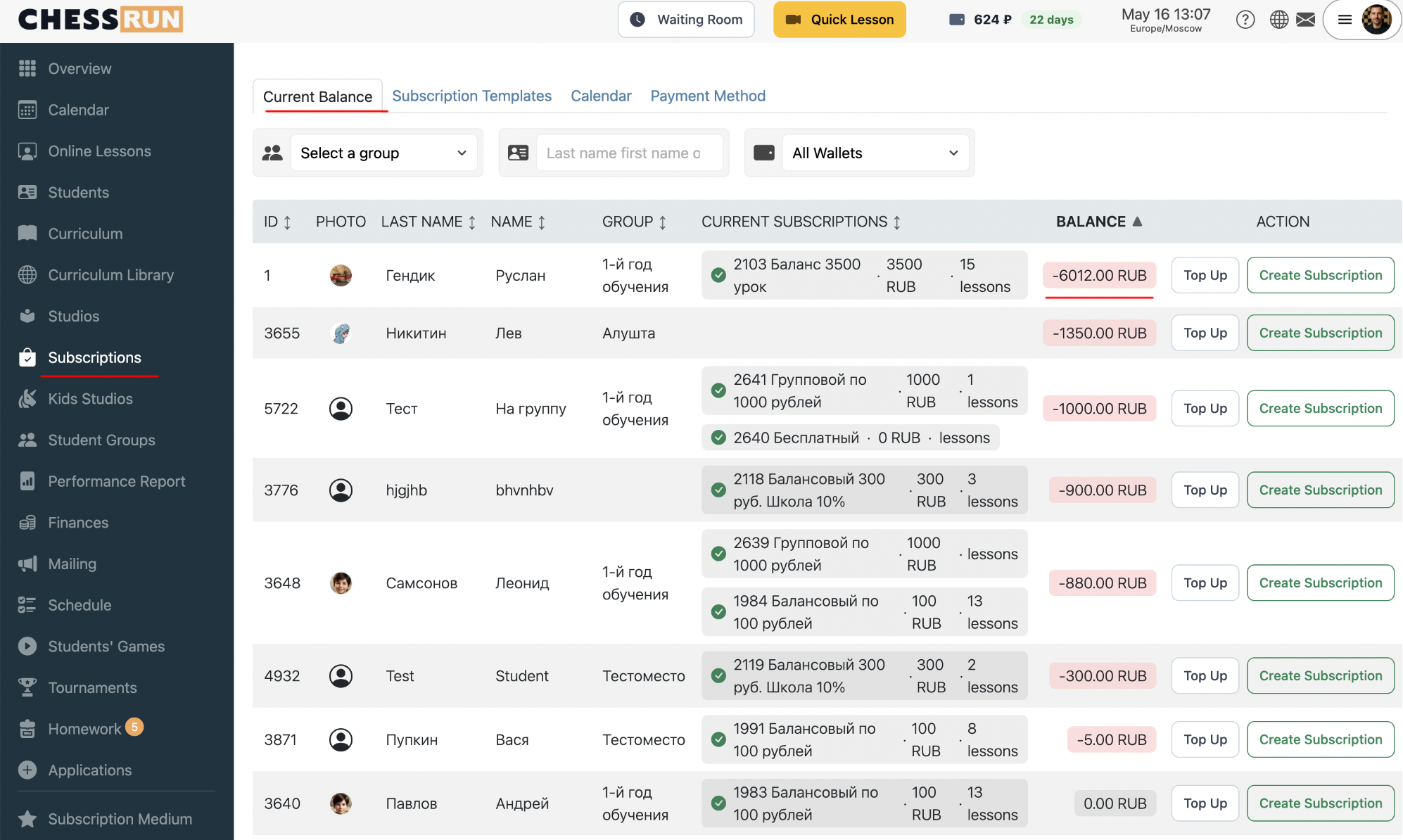
Go to the 'Subscriptions' section and find the relevant student in the list. The table displays current balance, active subscriptions, and account status.
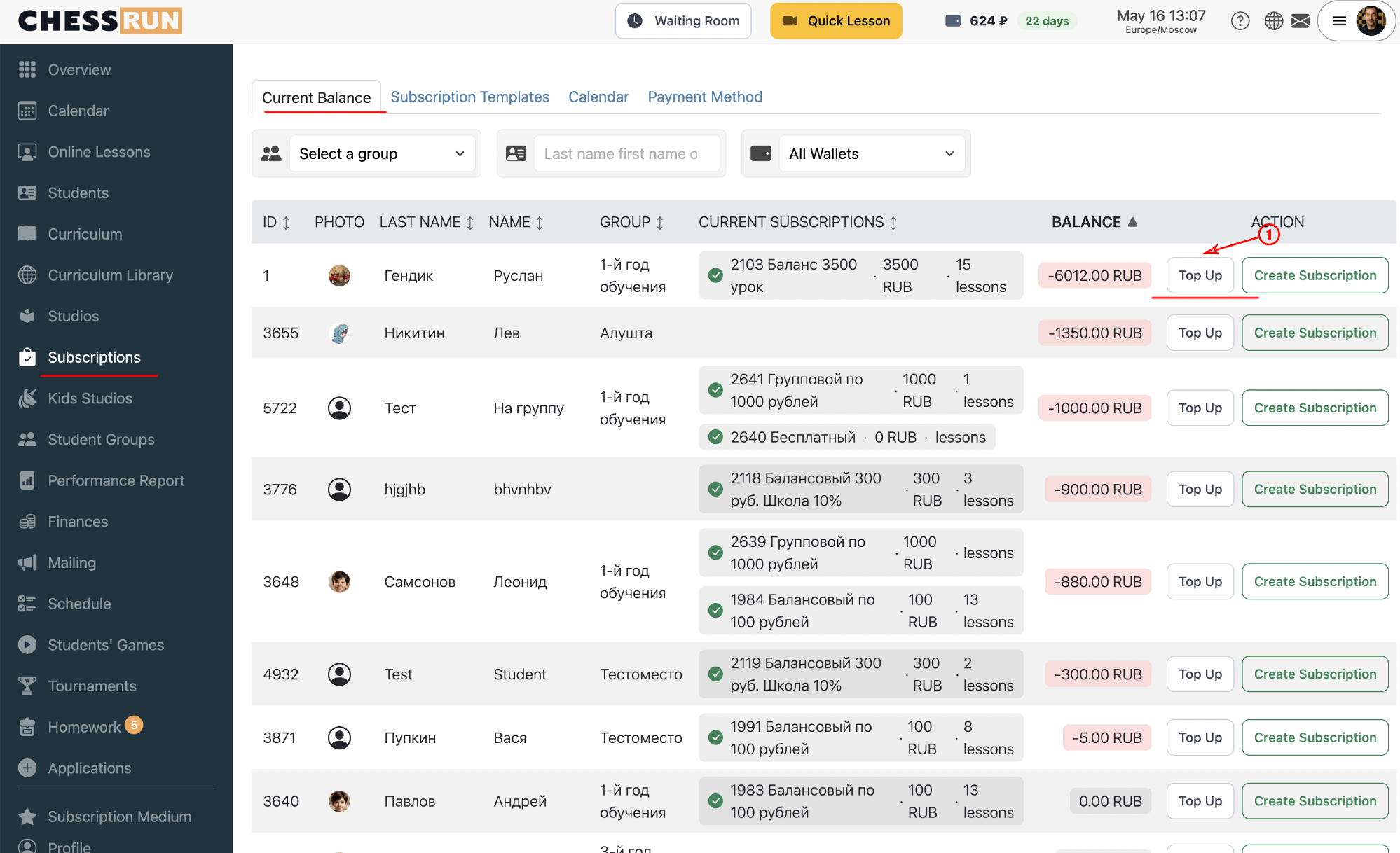
Next to the student's name, click the 'Top Up' button. A modal for the balance operation will open.
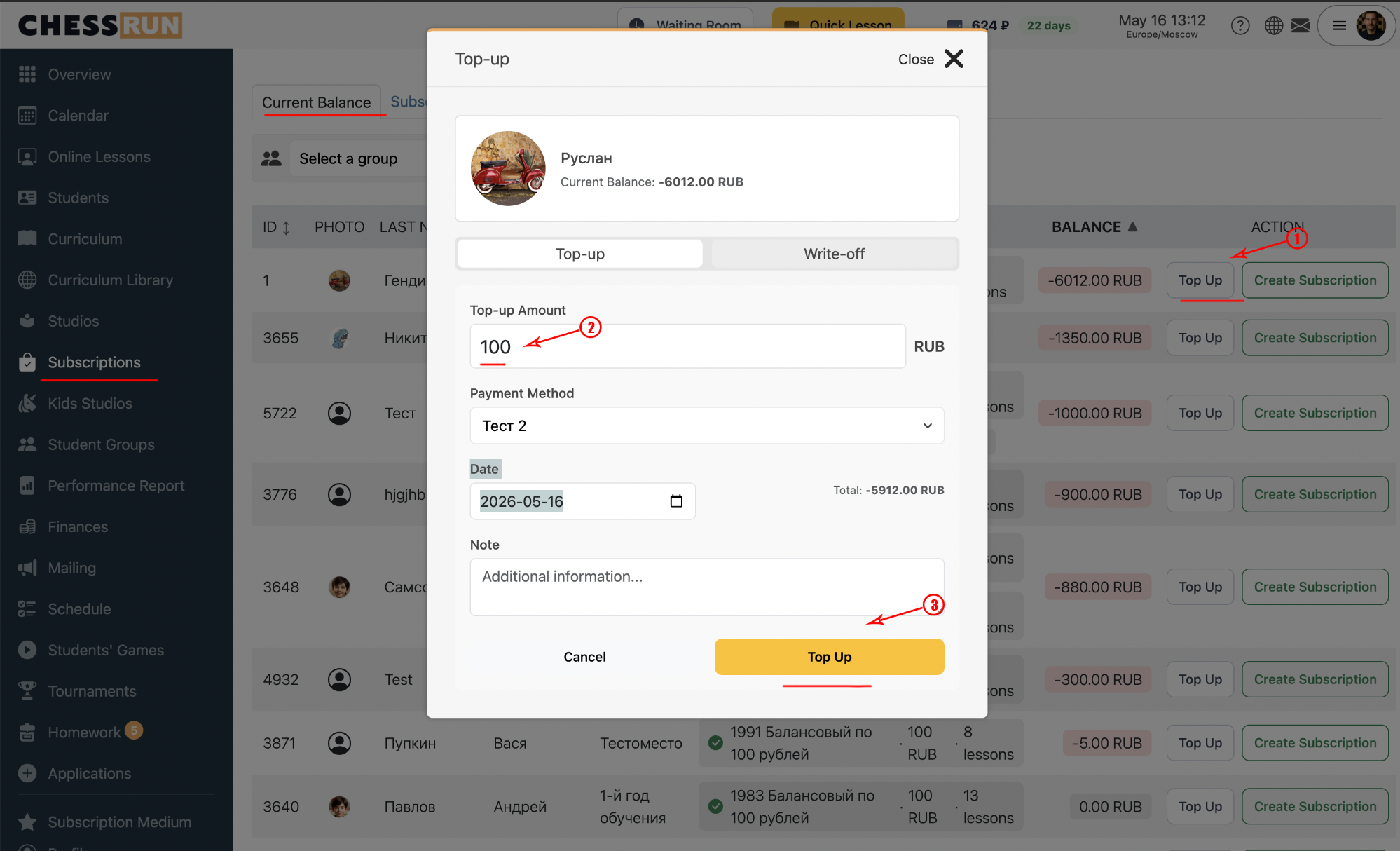
In the opened form, select the 'Top Up' mode, enter the amount, payment method, and an optional comment.
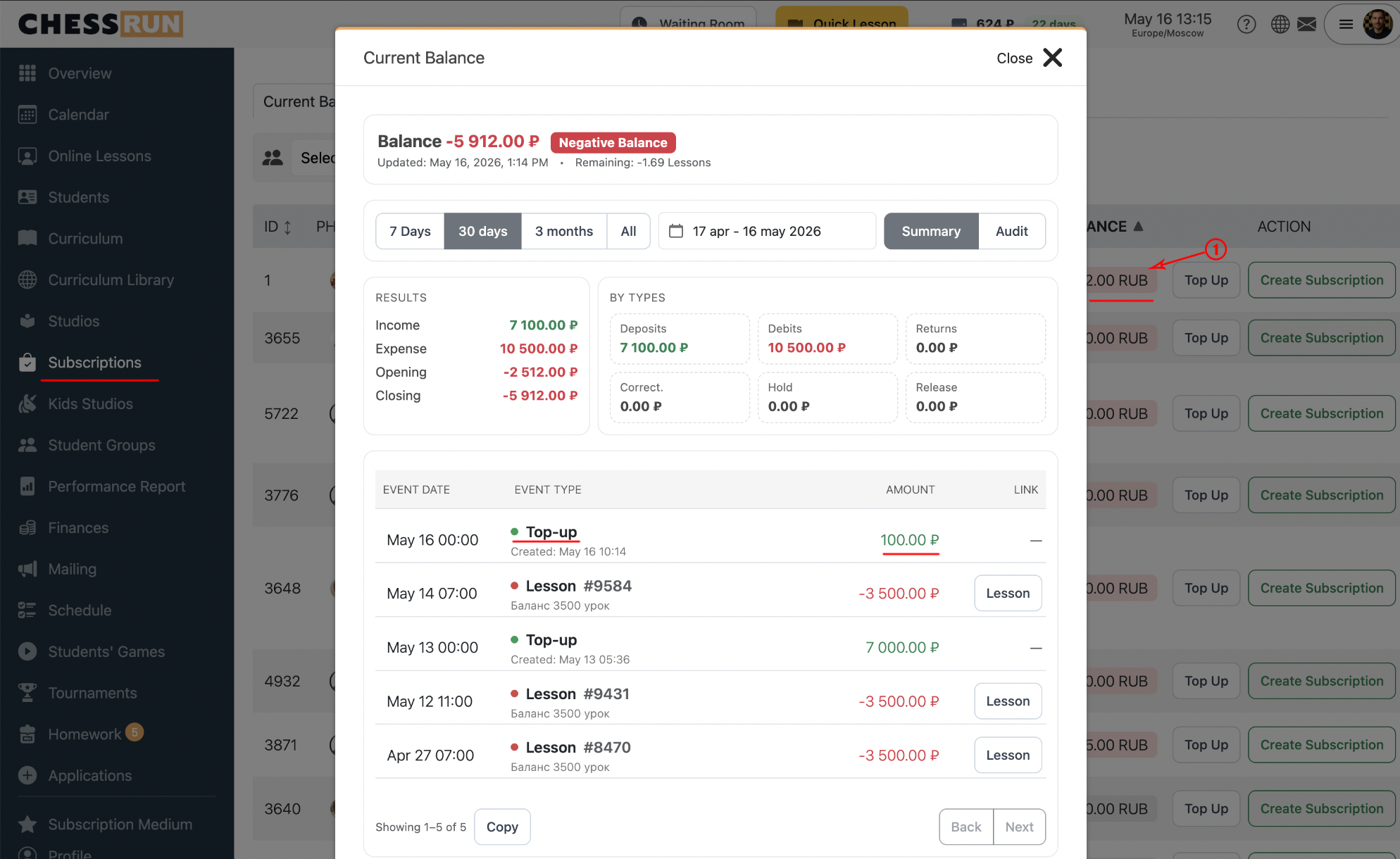
After saving the operation, the student's balance will update automatically. This transaction will also appear in the student's balance history.
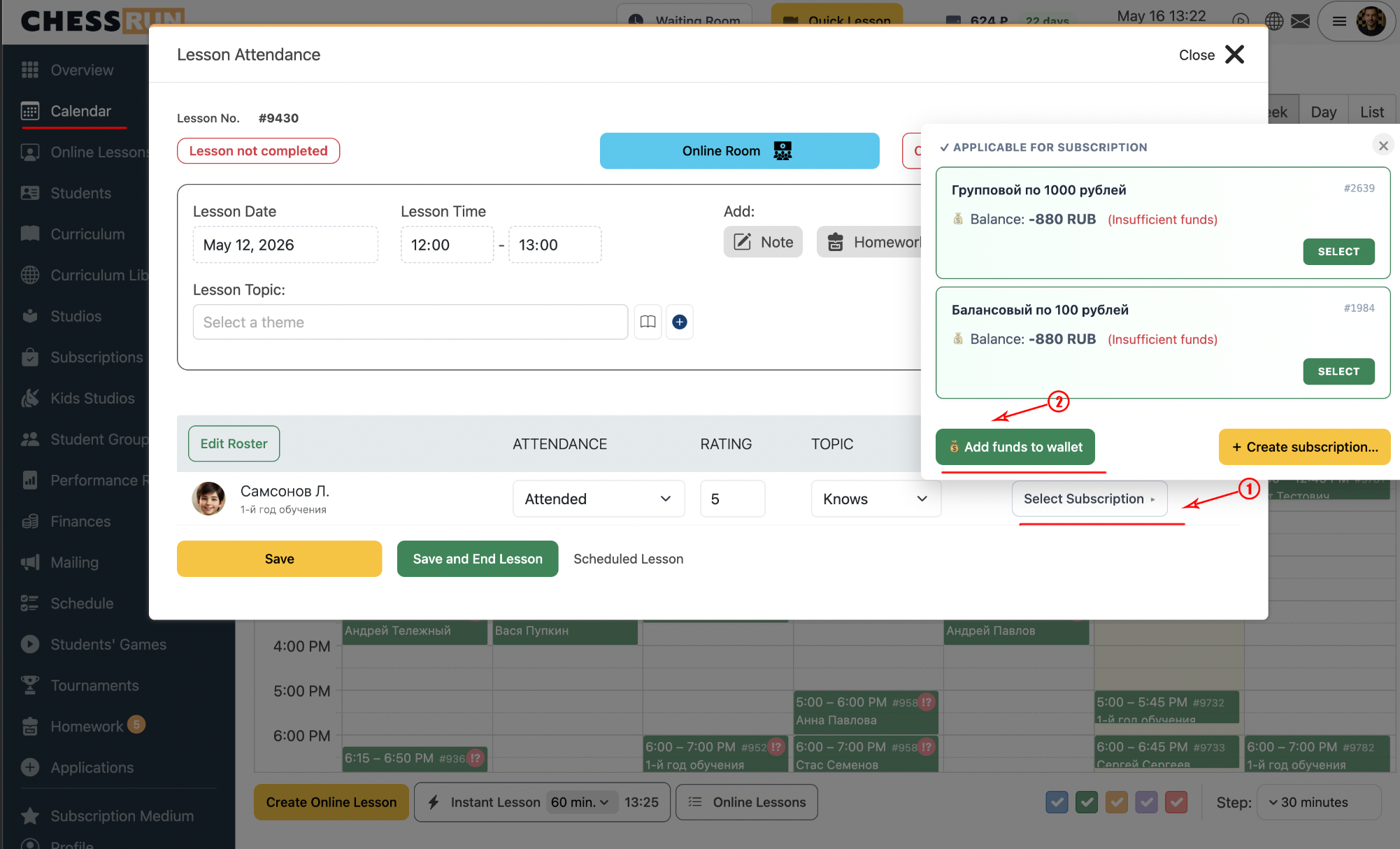
If you need to top up when closing a lesson, in the lesson completion modal click 'Select subscription' then 'Top Up wallet'.
FAQ
Can I automatically top up a student's balance through the platform?
No, the platform is used only for recording and tracking top-ups. The coach must confirm the payment after receiving real funds.
Where can I view the full top-up history?
The history of all operations is available on the student's balance transaction history page.