
How to mark attendance at lesson completion and how it affects the subscription
How to mark attendance and how it affects the subscription
After finishing the lesson, open the completion screen for the group or individual student.
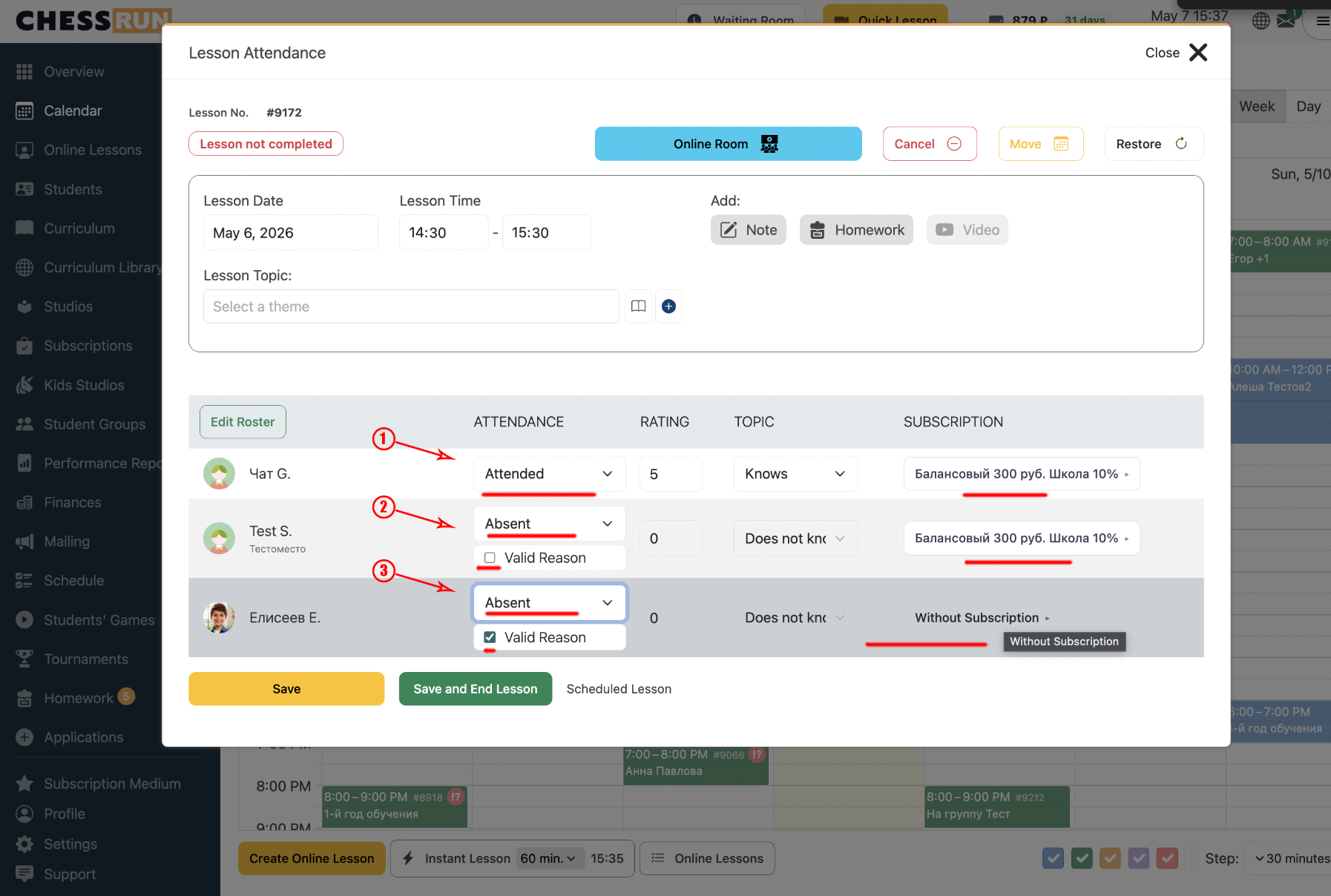
For each student, choose one of three options: 'Present', 'Absent without valid reason', or 'Absent for valid reason'.
If 'Present' or 'Absent without valid reason' is selected, a visit will be deducted from the subscription. If 'Absent for valid reason' is selected, no deduction will occur.
Once you have selected attendance statuses, click the save button to complete the lesson and apply the deductions.
Note: A deduction only happens if you select 'Present' or 'Absent without valid reason'. If you mark as 'Absent' and tick 'Valid reason', there will be no deduction.
FAQ
How do I deduct a visit if the student was absent?
Mark the student as 'Absent' and make sure the 'Valid reason' checkbox is unchecked. The lesson will be deducted from the subscription.
How do I avoid deducting a visit for an absent student?
Mark the student as 'Absent' and check the 'Valid reason' box. In this case, the lesson will not be deducted from their subscription.