
How a coach tracks student payments and updates their balance
How to track payments and top up a student's balance
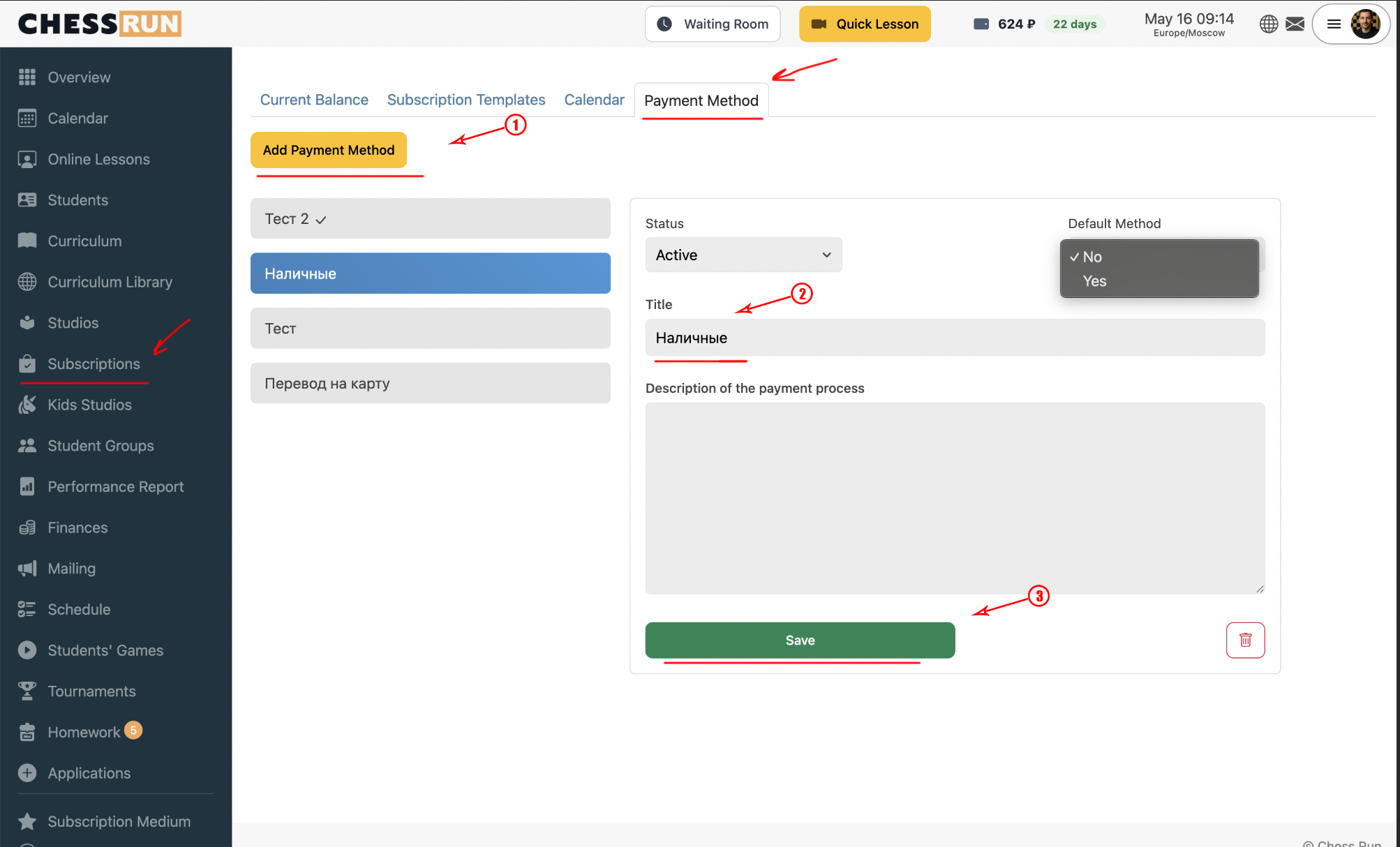
Open the payment methods page and select an existing option or add your own (for example, cash, card transfer, or another method). This list is for internal bookkeeping purposes only and does not connect to real online payment processing.
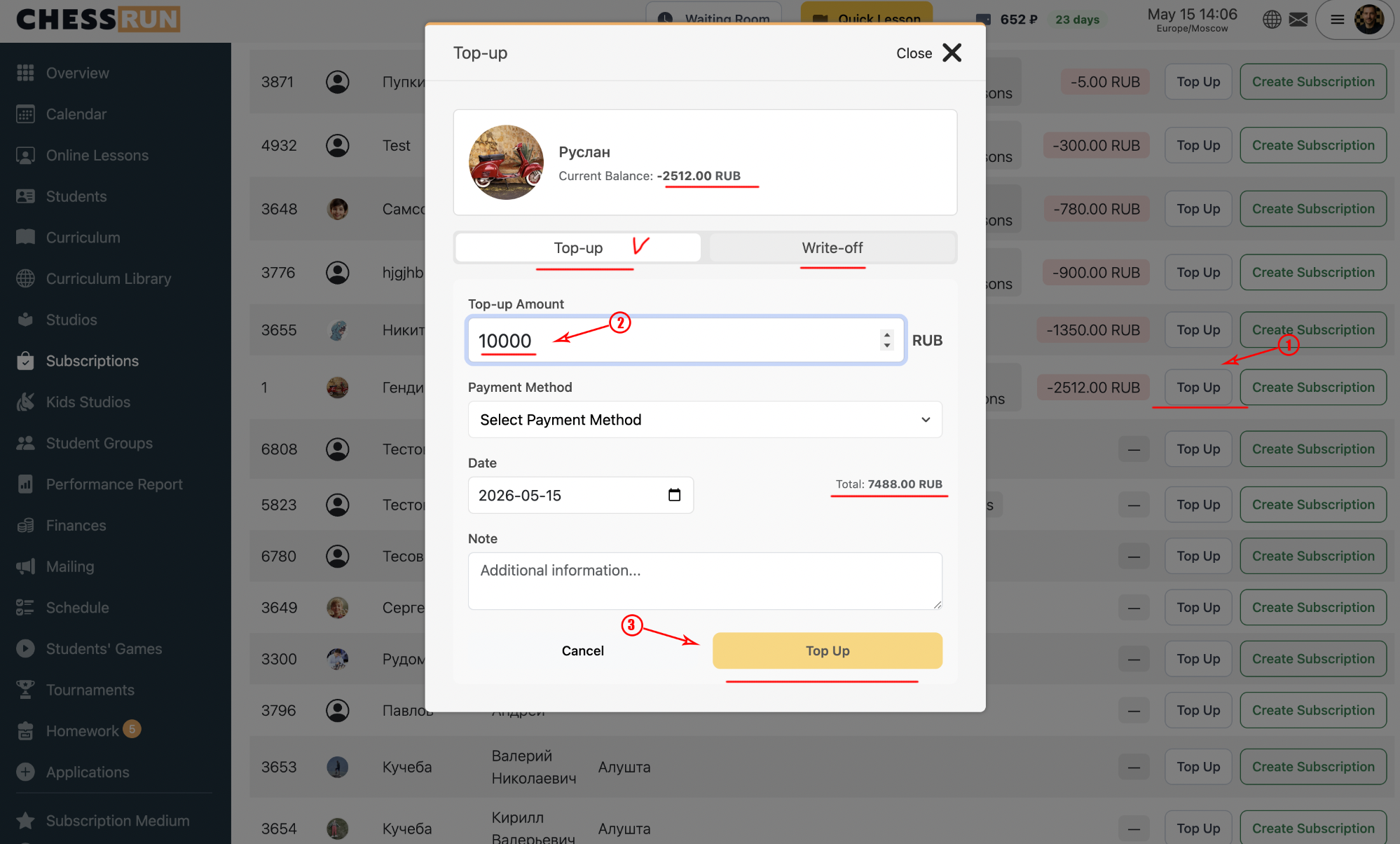
Go to the student subscriptions section and click 'Top up' next to the relevant student. In the pop-up window, enter the amount received, select the payment method, and (as needed) add a comment. For corrections (deductions), you must specify the reason for the deduction.
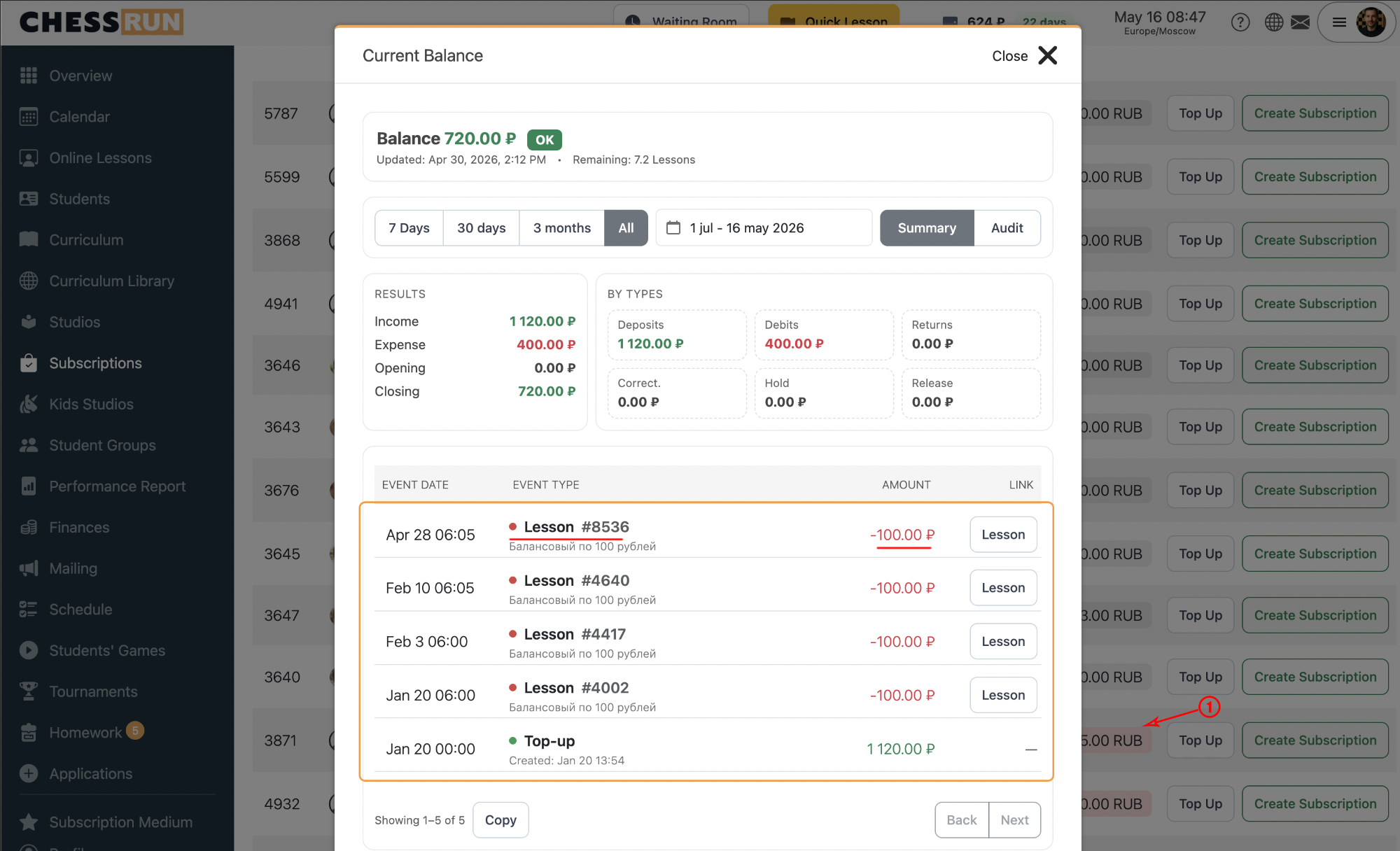
Open the student's balance history to view all payments, deductions, and refunds. This helps track all activity, debts, or overpayments for each student.
The list of payment methods is for internal bookkeeping only and does not enable online payment processing on the platform. All payments are made externally by students and manually recorded by the coach.
FAQ
Can I accept payments directly through ChessWin?
No, the system is not connected to online payment processing. Payments are logged for internal records manually.
What if there was a mistake when updating the student's balance?
Use the deduction/correction tool in the top-up window to adjust the balance. Always specify the reason in the comment.
Can students see their own payment history?
Usually, the transaction history is available to coaches and administrators only. Check access settings if you want students to have such visibility.