
How to Assign Chess Puzzles to Students During a Lesson
How to assign chess puzzles to students
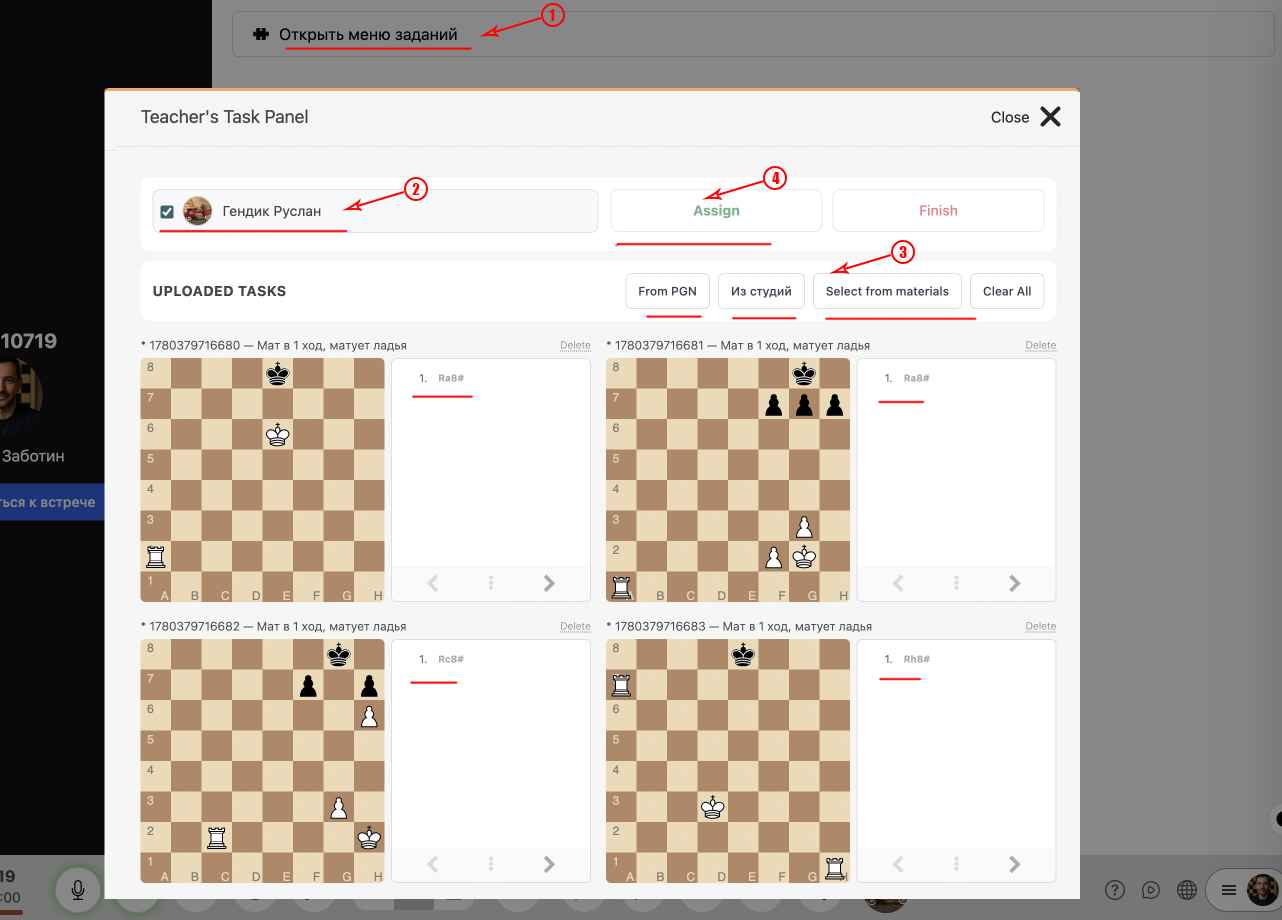
Enter the online lesson where you are teaching students.
Open the lesson toolbox and go to the 'Puzzles' or 'Chess Tasks' section.
Select one or more puzzles and click the 'Assign' or 'Start' button. The selected puzzles will instantly appear for students.
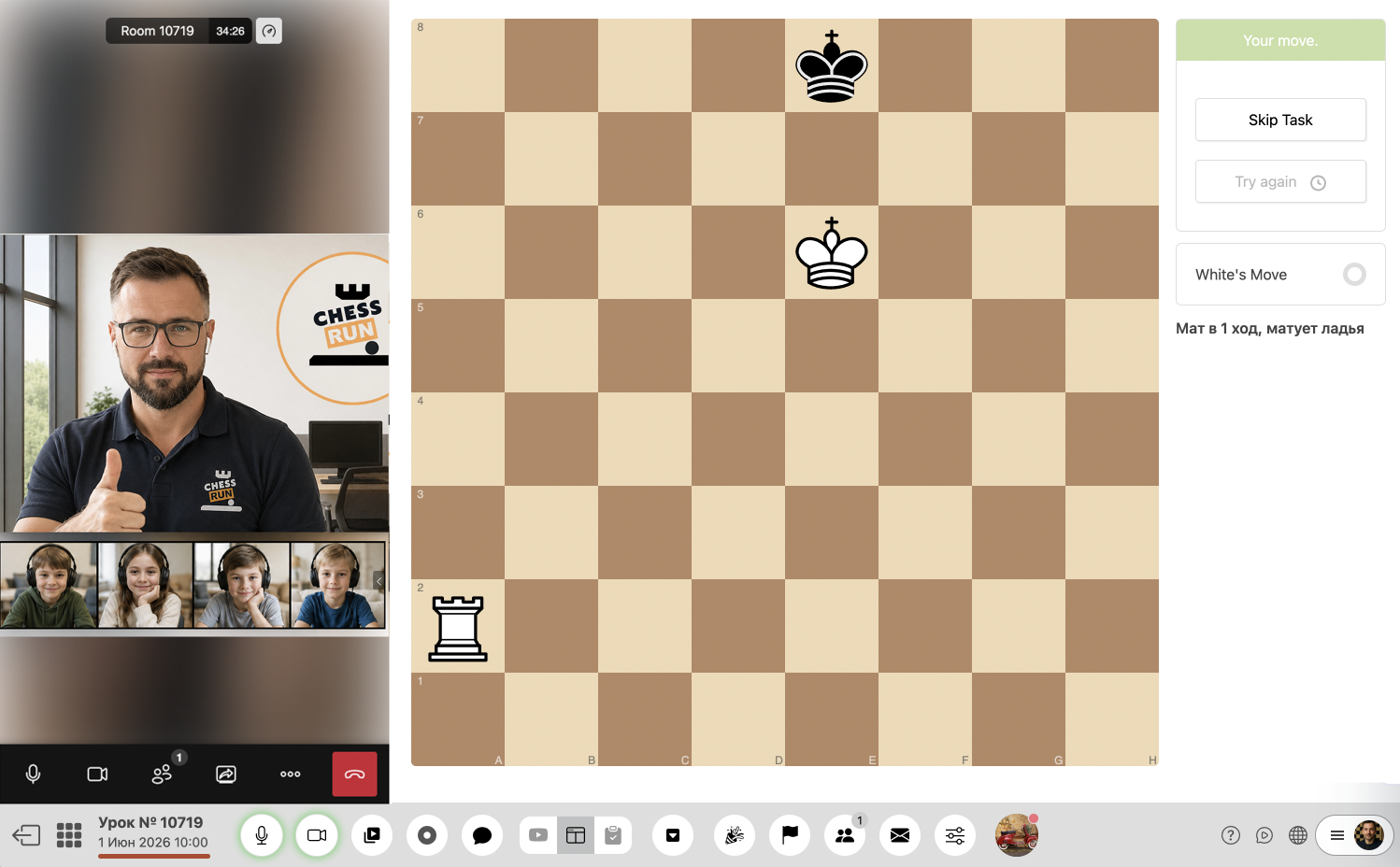
The student sees a chess puzzle ready to solve. After each puzzle is solved, the next one is loaded automatically, allowing the student to work through the entire set in sequence.
You can monitor students’ progress in solving the puzzles via the teacher's puzzle panel. You'll see who has started solving and their results.
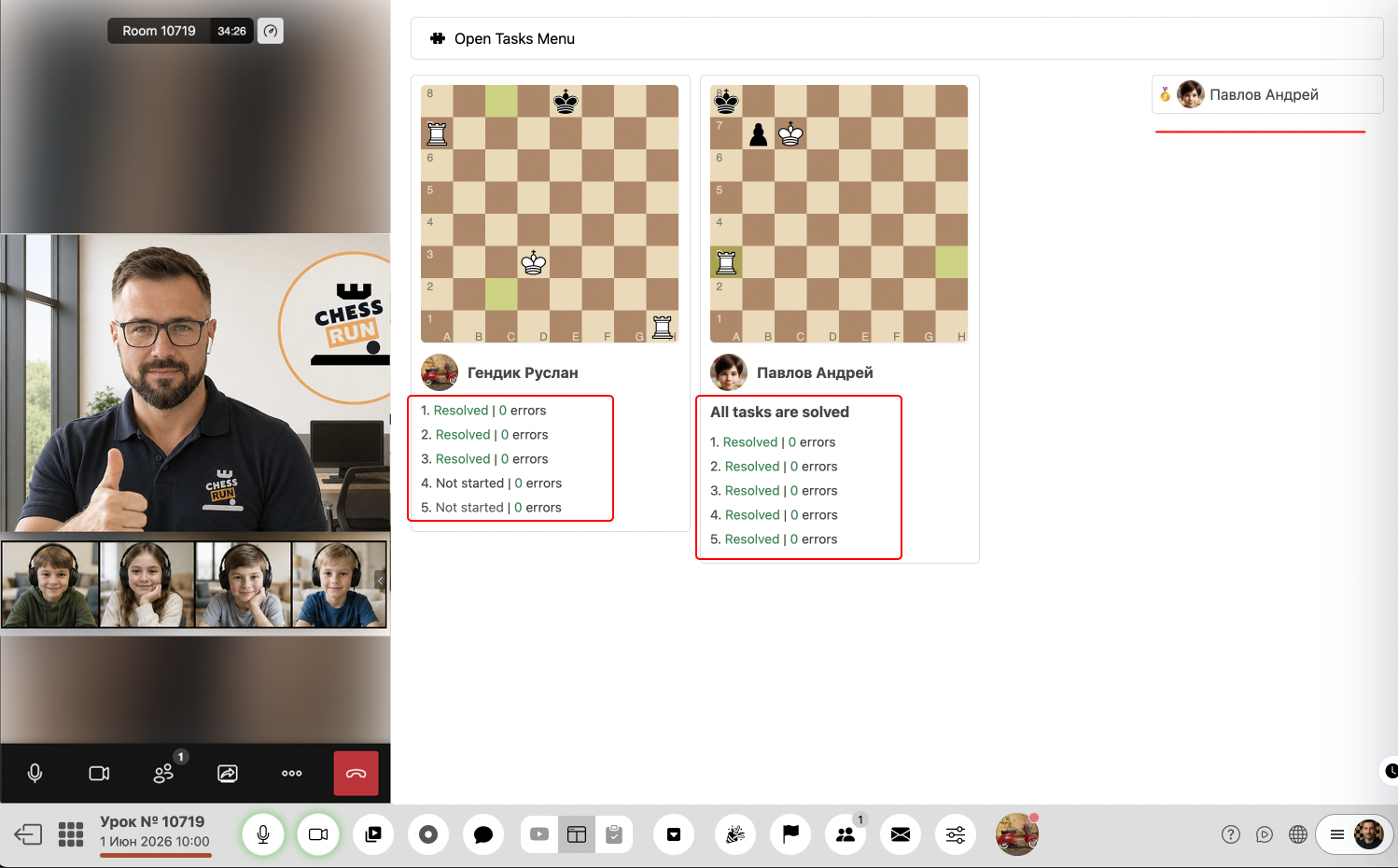
The teacher can see the status of each student's progress on every puzzle in the puzzle panel. This helps quickly identify who is done and who needs help.
FAQ
Can students solve puzzles later, after the lesson?
Puzzles assigned during the lesson are only available to solve while the online lesson is active. For homework use, assign them through the homework feature.
Can I assign puzzles only to specific students?
Currently, puzzles from the lesson panel are usually assigned to all lesson participants. For individual assignments, use separate game modes or the homework assignment feature.