
How to delete a scheduled lesson in the calendar
How to delete a lesson in the calendar
Go to your calendar and click on the scheduled lesson you want to cancel.
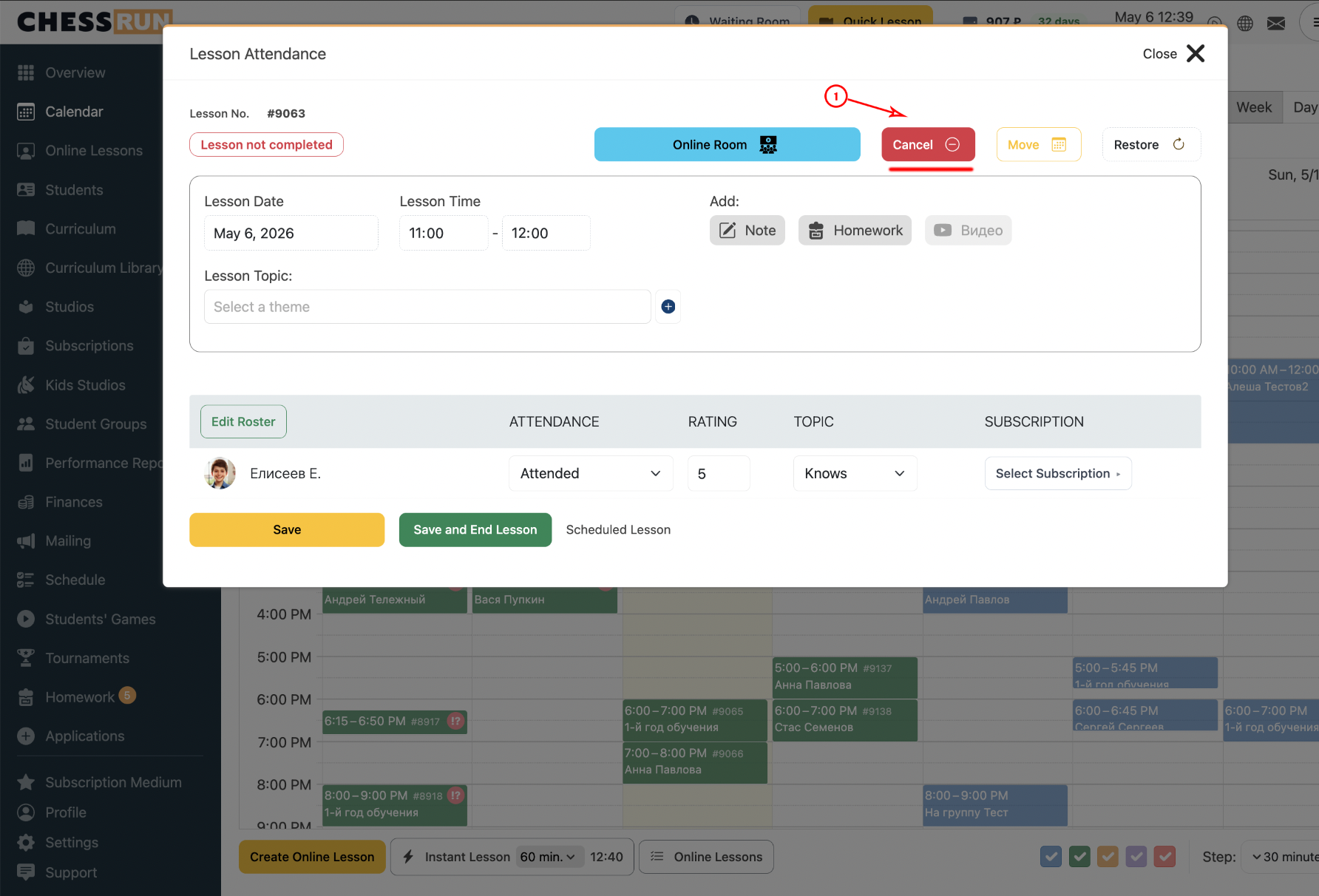
In the opened window, click the "Cancel" button and confirm your action. The lesson will be canceled immediately.
If the lesson is unconfirmed (for example, a recurring lesson next week): open the lesson in the calendar, click "Save lesson." After saving, the "Cancel" button will be active—now you can cancel the session.
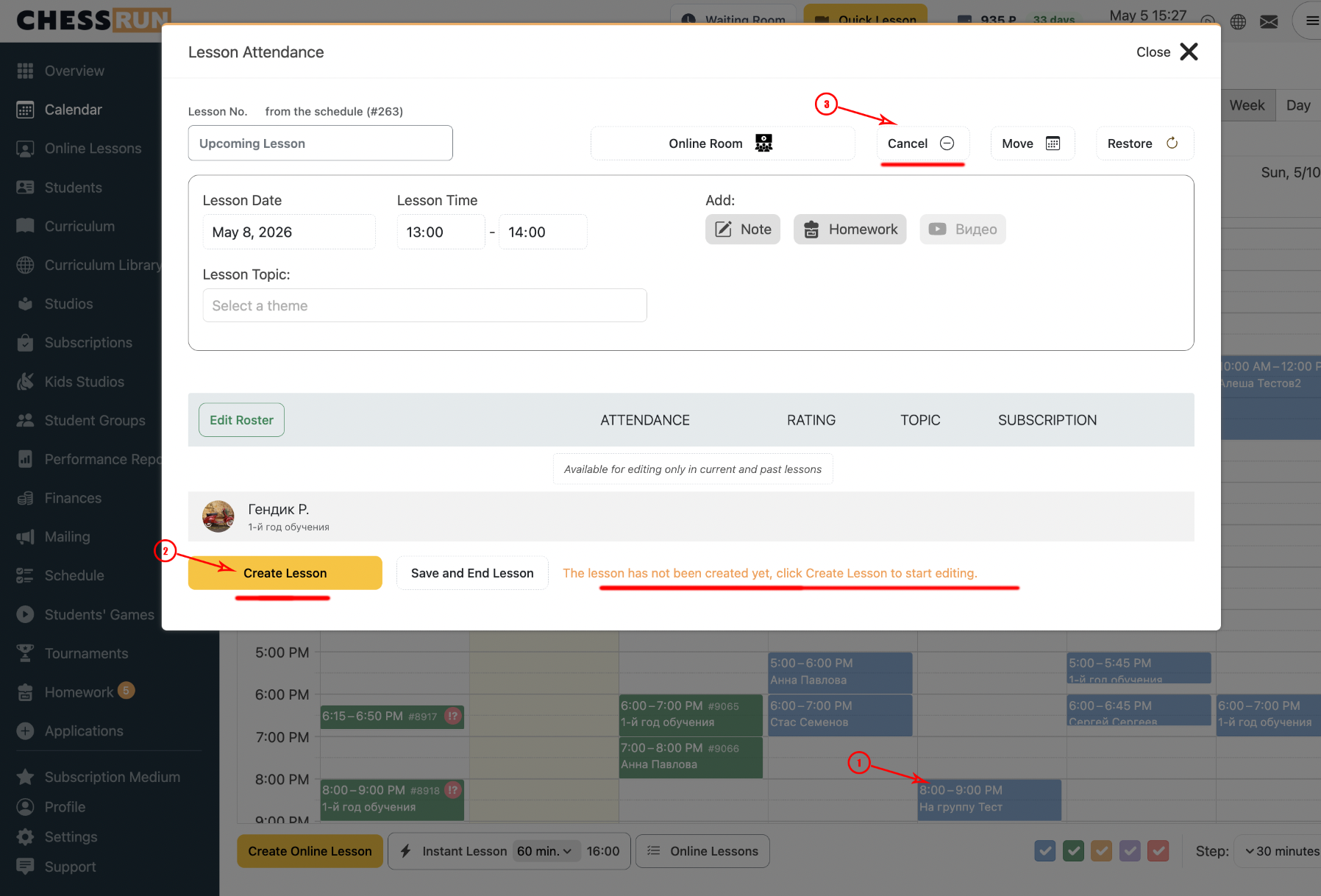
Only already created and confirmed lessons can be canceled. To make one-time changes for a recurring lesson, use the calendar. To delete a recurring template entirely, use the trash icon in the Schedule section.
FAQ
Which lessons can be canceled?
Only already created and confirmed lessons. If a lesson is marked 'unconfirmed,' you must save it first to activate the 'Cancel' button.
How do I cancel a lesson from the recurring schedule?
Go to the Schedule section and delete the template using the trash icon if you no longer want to offer such lessons at all.
What is the difference between confirmed and unconfirmed lessons?
A confirmed lesson is one that was either generated automatically for the next days from the schedule or was manually added or saved. Unconfirmed means not yet created or saved.