
How to complete or edit a lesson
How to complete and restore a lesson
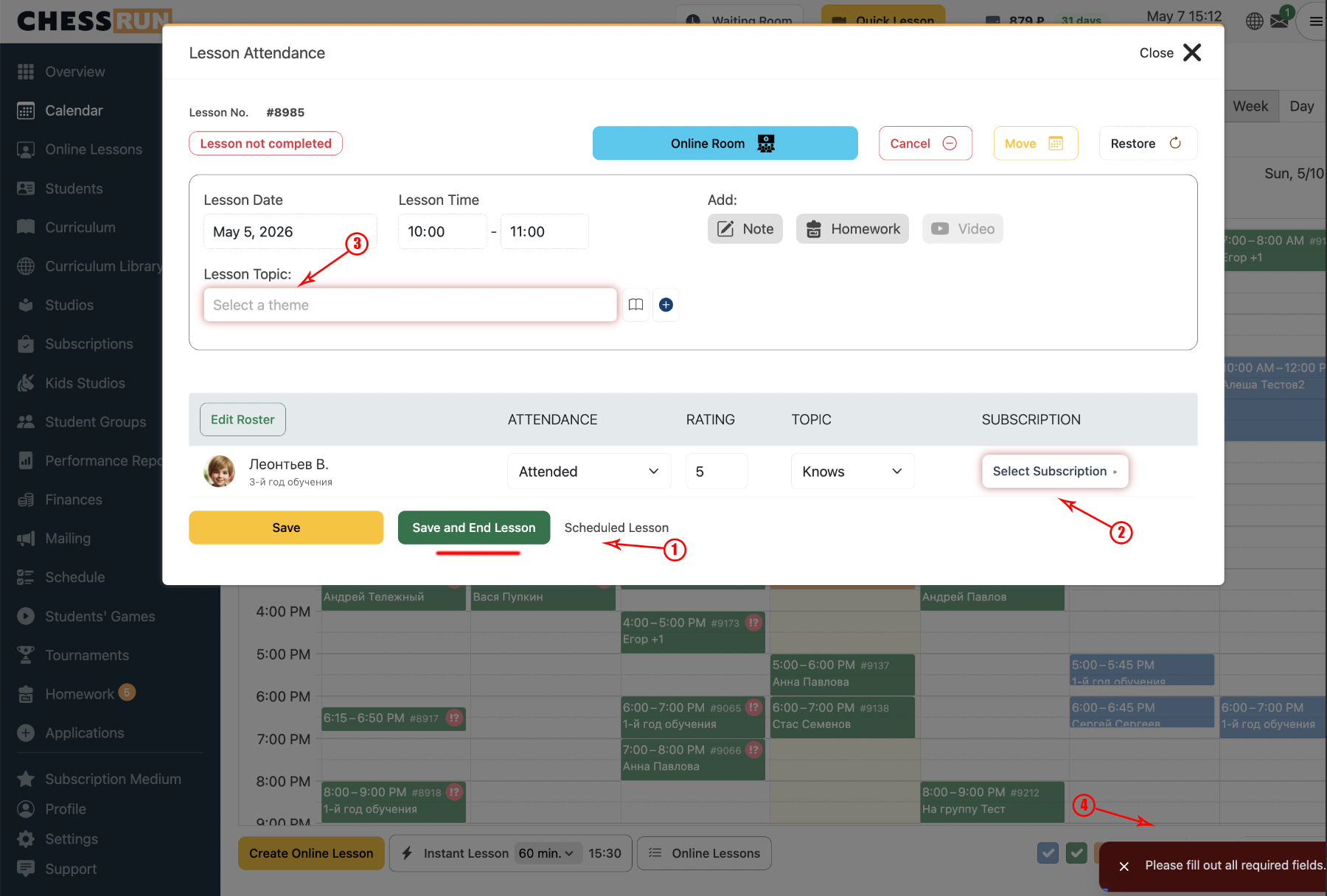
Select the lesson topic and the subscription to charge. Then click the 'Complete lesson' button.
In the calendar, unfinished lessons are marked with an exclamation icon. After completion, this icon disappears from the lesson card.
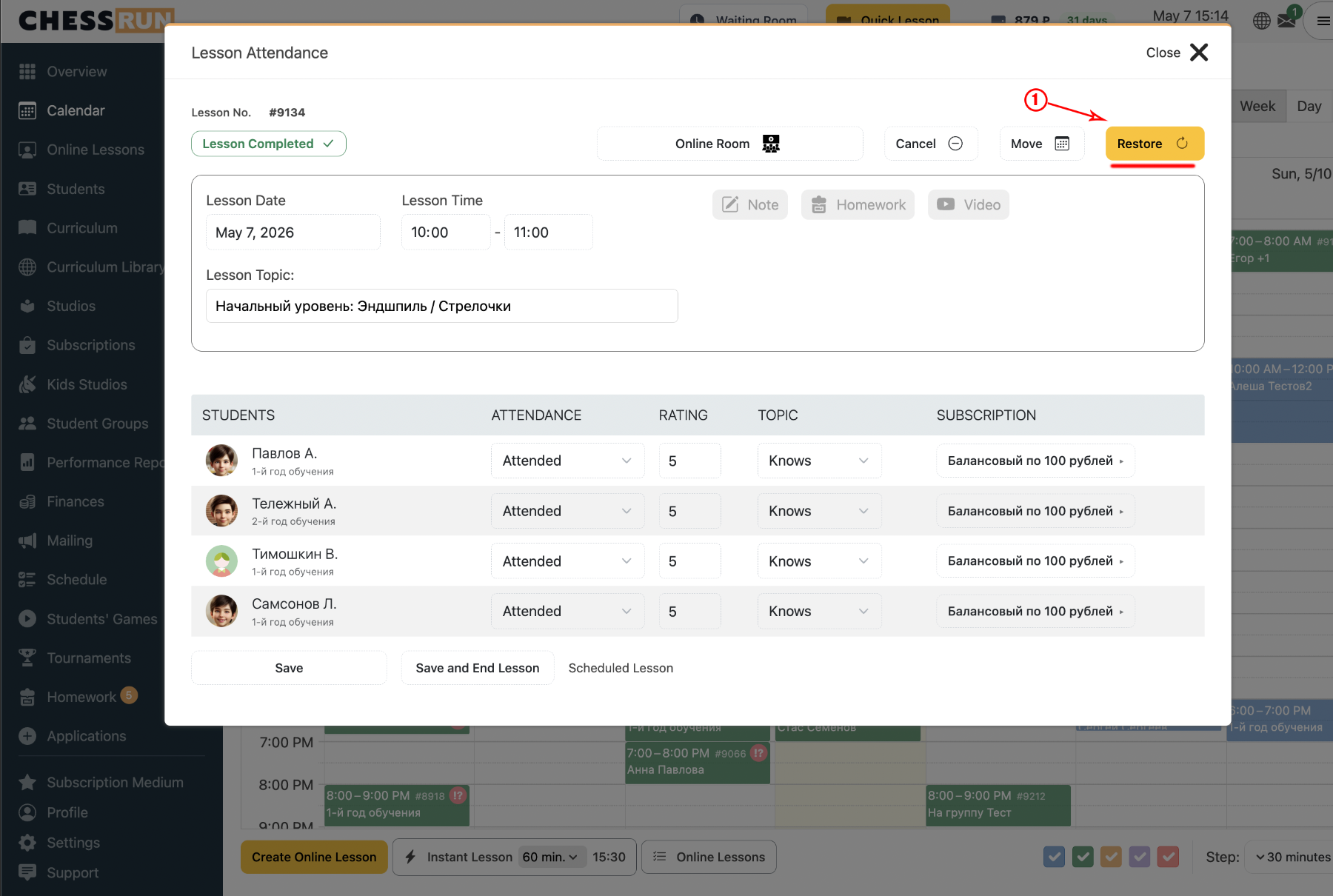
If you wish to make changes, click the “Restore lesson” button. After restoring, you can edit all lesson details.
Note: When restoring a lesson, the previously charged funds are returned to the student's balance and will be charged again when the lesson is closed again.
FAQ
What if the topic or subscription is not selected?
You cannot complete the lesson without selecting both the topic and the subscription. Please check that both options are set.
Are previously charged funds refunded when restoring a lesson?
Yes, after restoring, the charged funds are returned to the student’s balance and will be charged again when the lesson is completed once more.