
How to select a lesson topic when completing a lesson
How to select or add a topic when completing a lesson
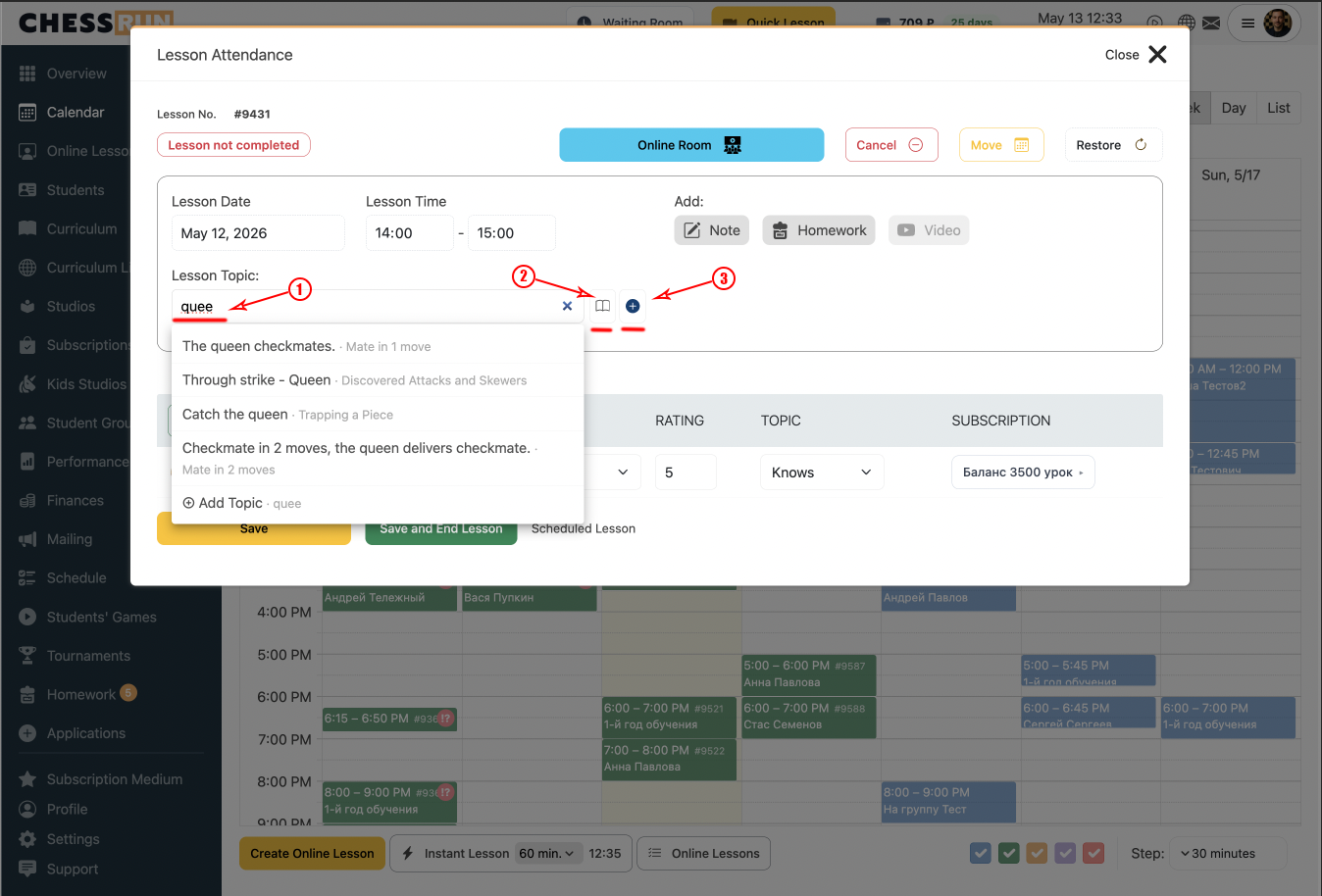
At lesson completion, start typing the topic name in the search field — you’ll see a list of existing topics and sections. You can also manually browse all topics by section and choose what you need. If there were multiple topics in the lesson, use the button to select several.
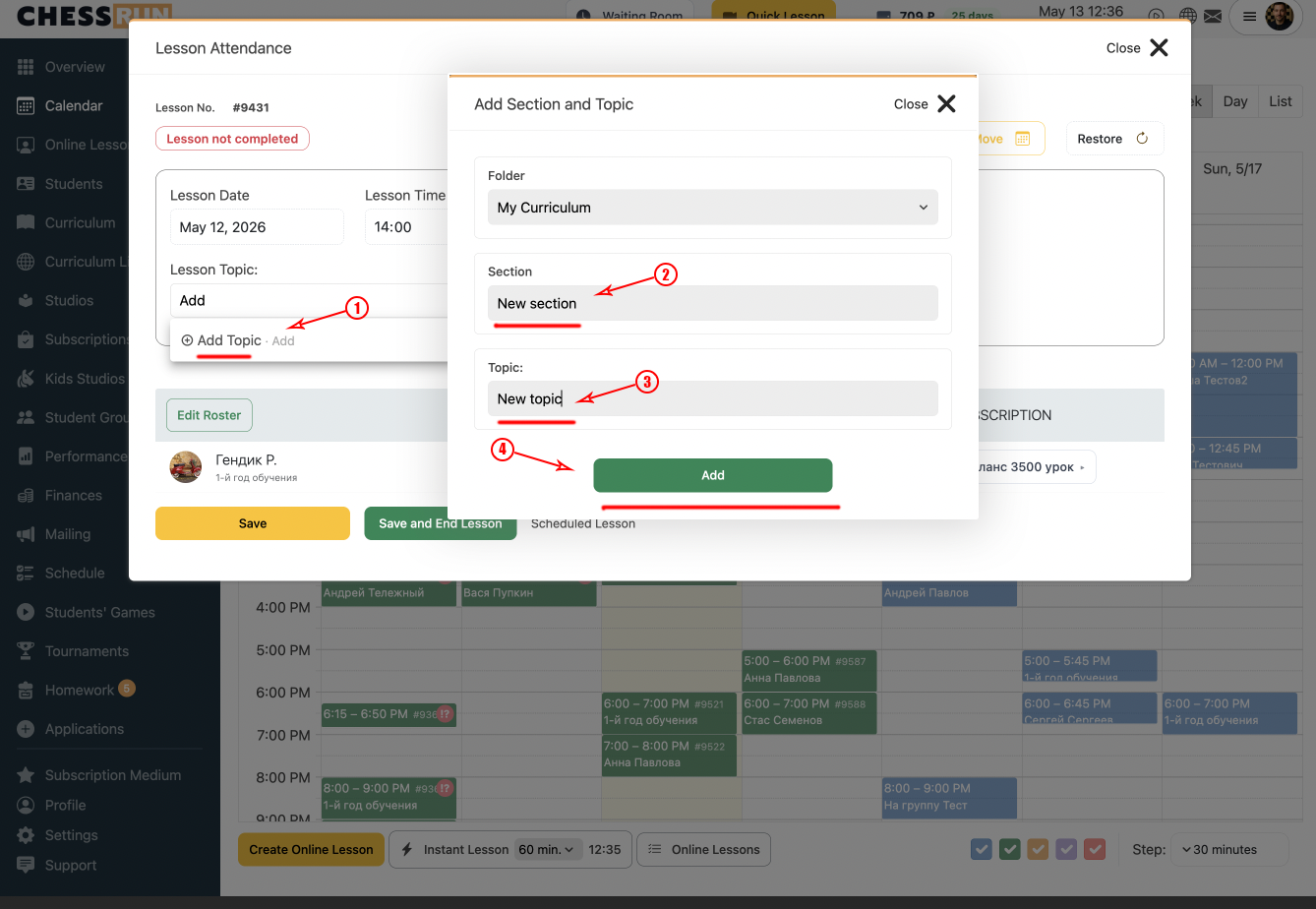
If it’s a new topic, enter its name in the search field and select 'Add topic'. Choose the section for this topic, type its name, and click 'Add'. The topic will appear in the list and can be marked for this lesson.
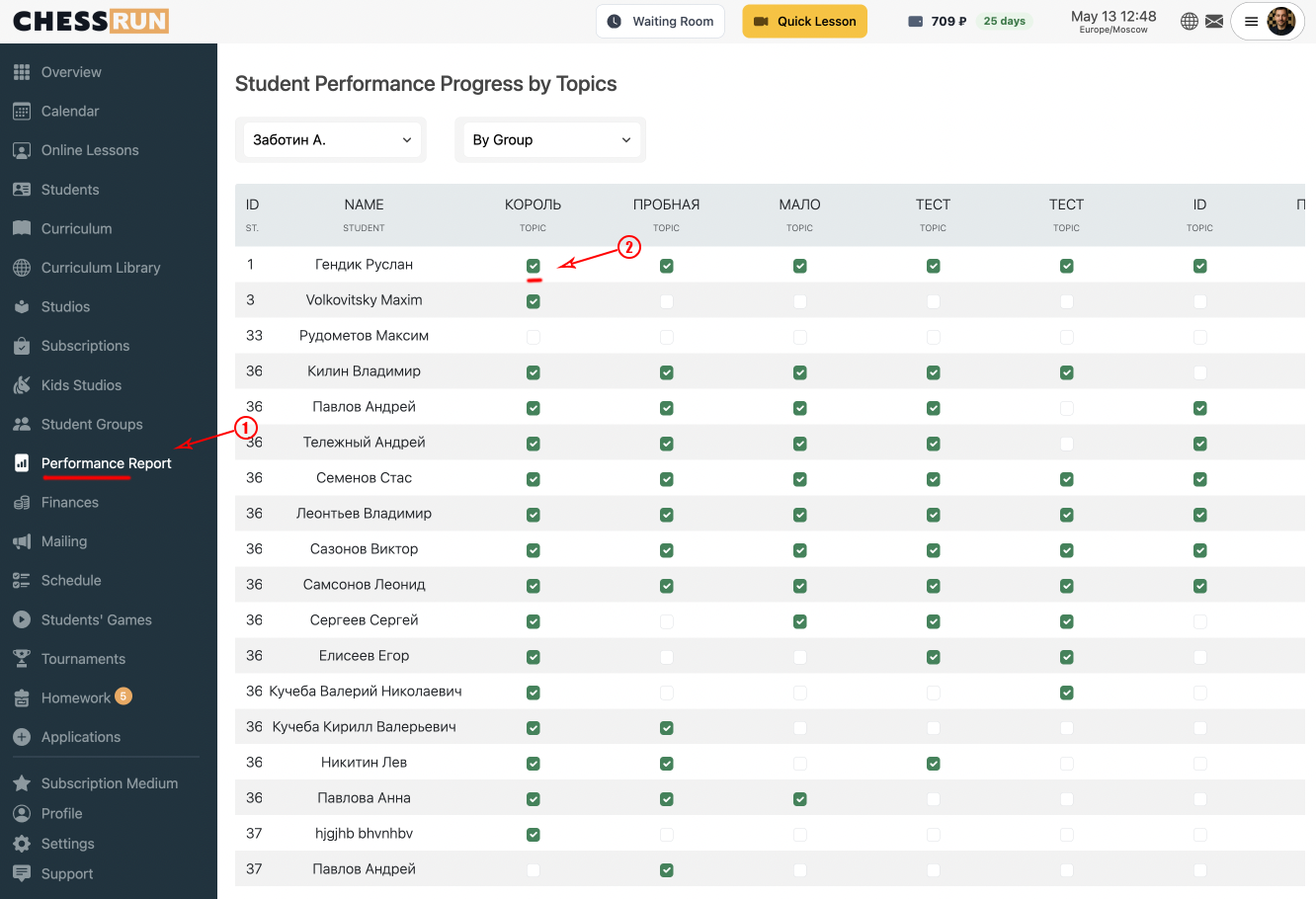
Open the 'Performance' section. Here you’ll see a list of topics marked as covered for the student, and if needed, you can update these manually.
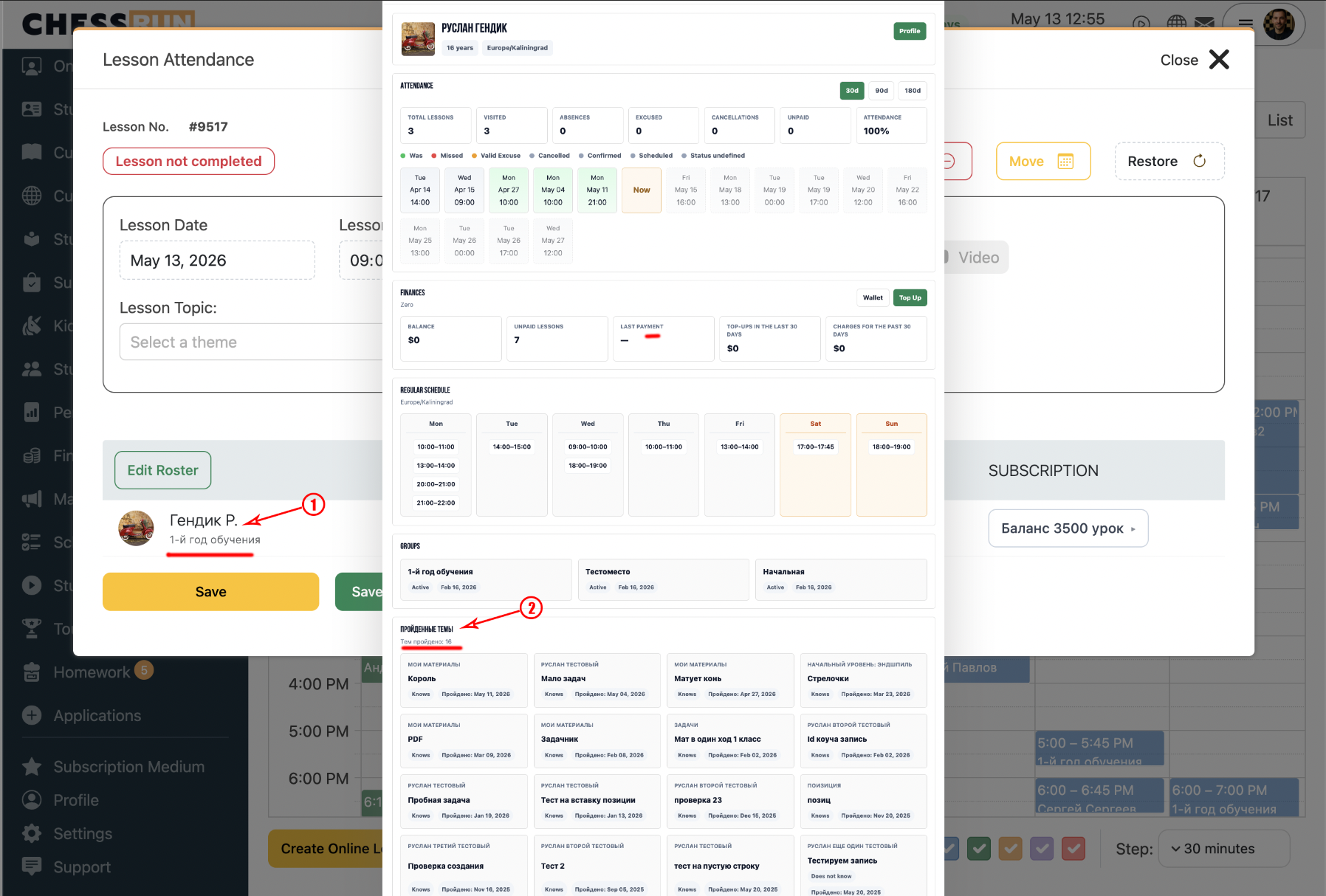
Click on the student’s name to open their activity card, then scroll down to the block with completed topics.
FAQ
Can I mark several topics for one lesson?
Yes, you can select multiple topics for a lesson if several sections were covered.
What if I select the wrong topic?
You can edit marked topics at any time in the 'Performance' section or through the student card.