
How to manually adjust a student's balance
How to manually adjust a student's balance
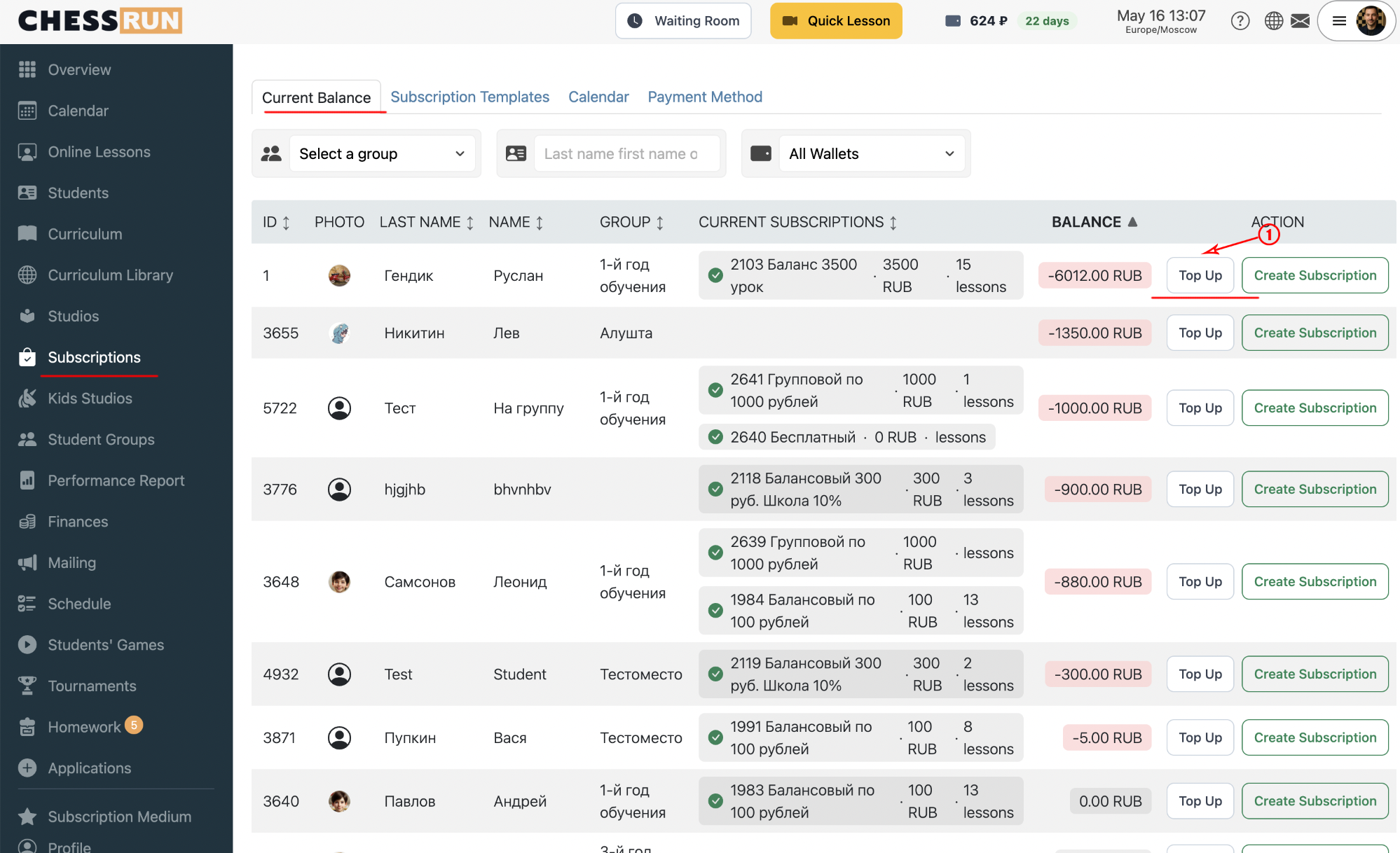
Go to the 'Subscriptions' section, find the student you need, and click the 'Top Up' button next to their name.
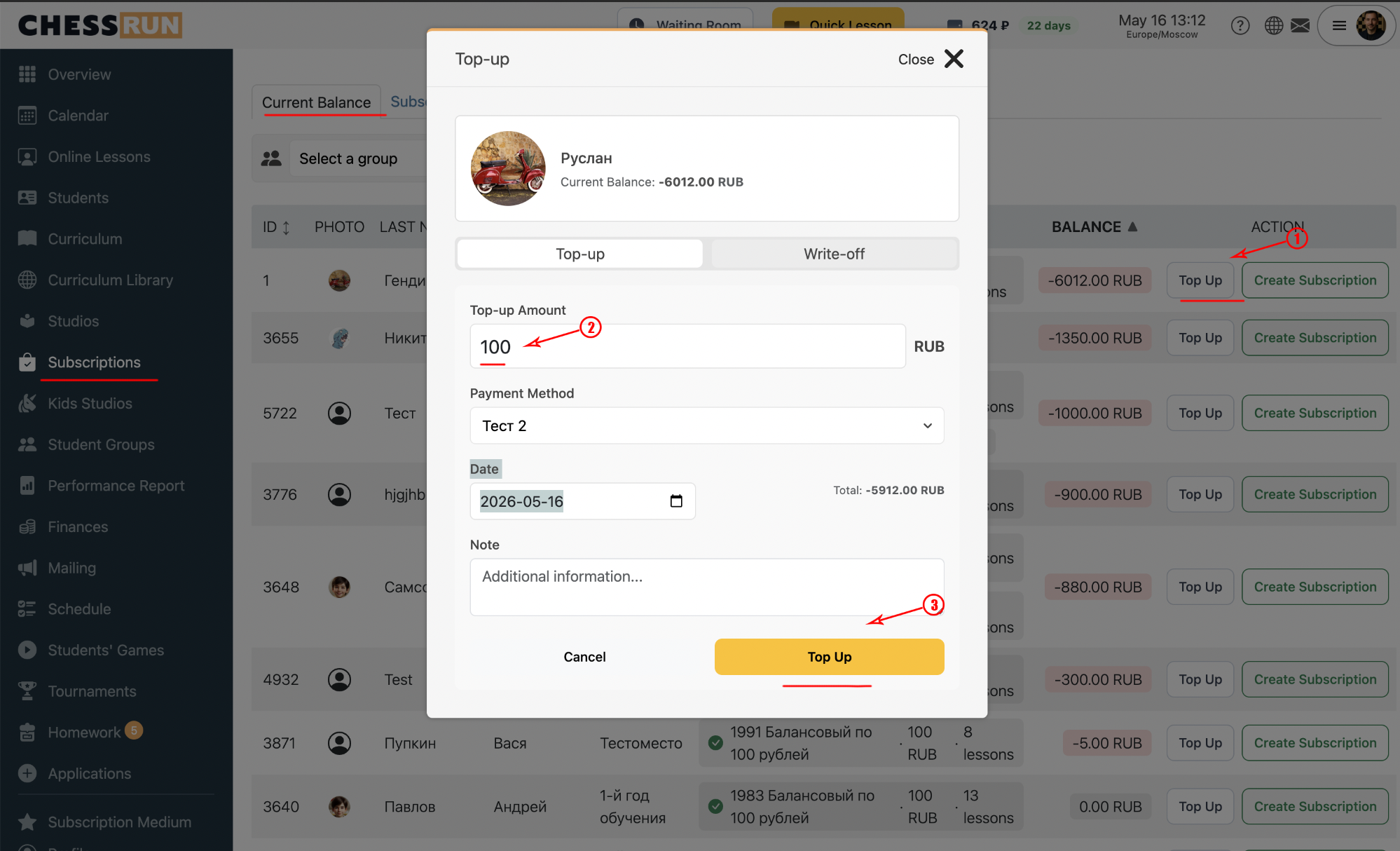
In the window that opens, enter the top-up amount, select the payment method, and adjust the date if needed. You can add a note to explain the transaction. Click 'Top Up' to finish.
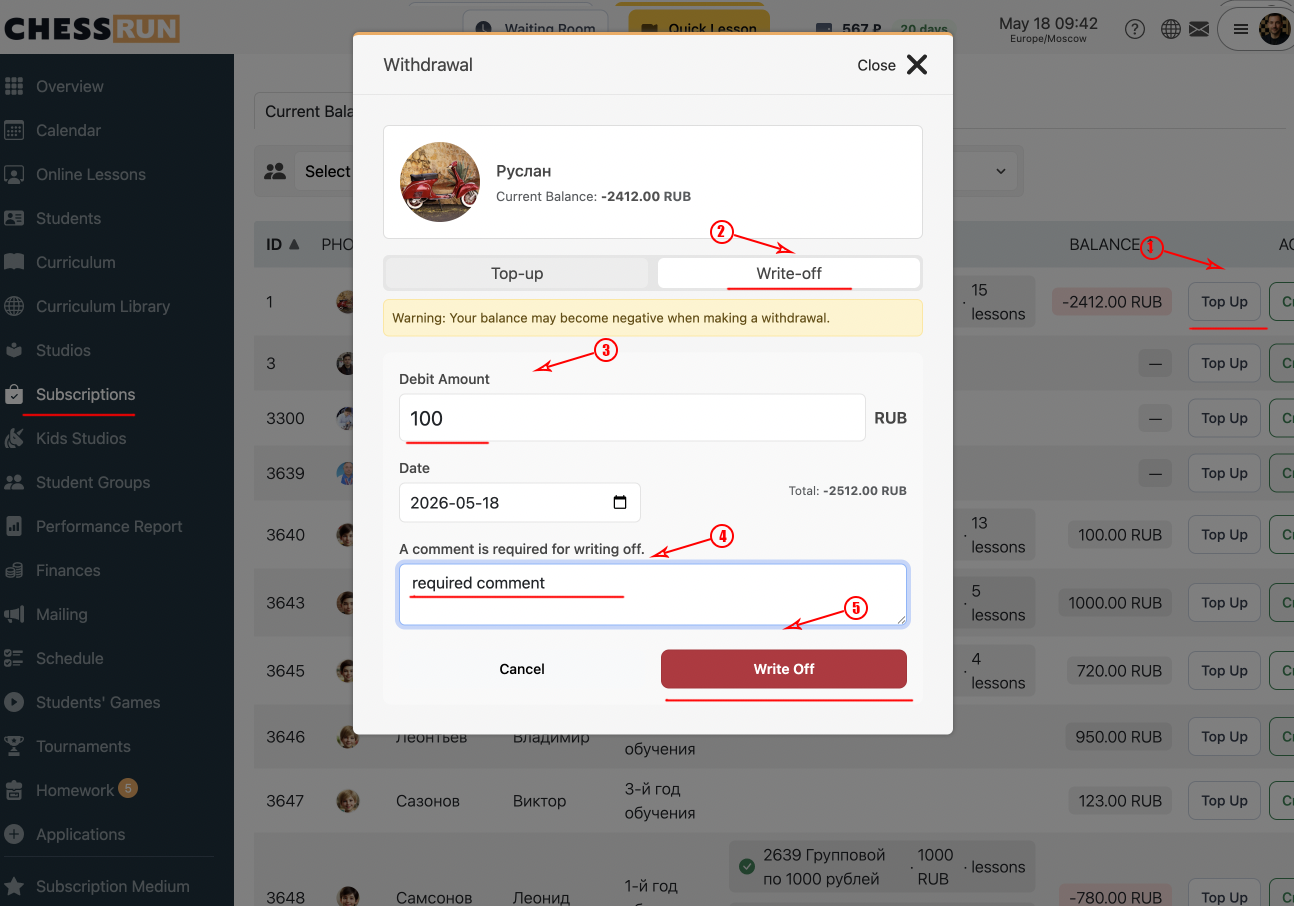
If you need to deduct funds, enter the deduction amount. Adjust the date if necessary. Adding a note is required to explain the reason for the deduction. When ready, click 'Deduct'.
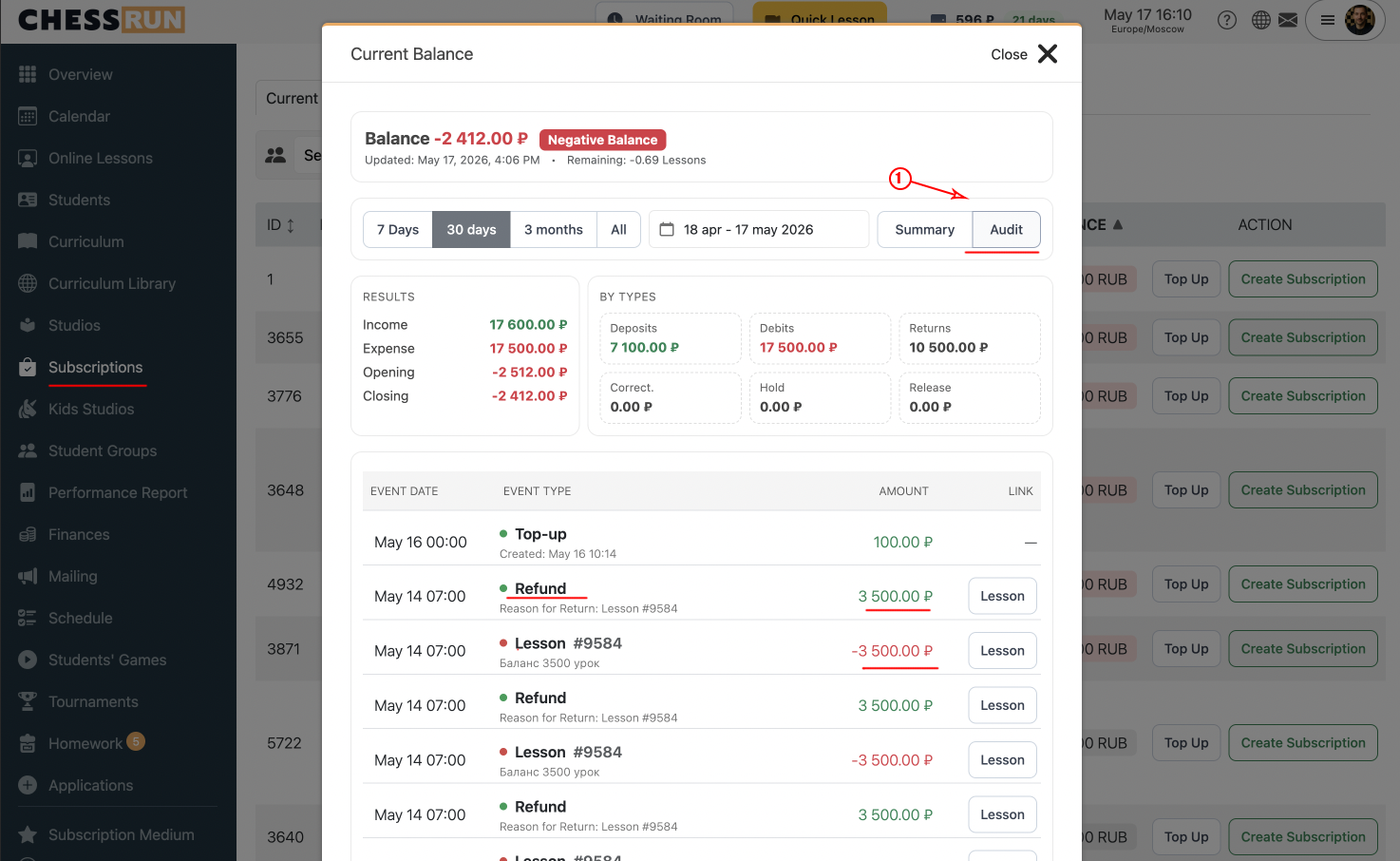
All operations (top-ups and deductions) are immediately shown in the student's balance. For details, go to the 'Audit' section to see a detailed report of all changes.
FAQ
Can a manual balance adjustment be undone?
No, a correction cannot be undone directly, but you can make a reverse operation (for example, deduct if funds were added by mistake, or vice versa).
When should I use manual balance corrections?
Typically, they are used to fix payment errors, apply manual adjustments, or change the balance by special agreement.