
How the Shared Chessboard Works in an Online Lesson
How the shared chessboard works and is used
After launching your online lesson, go to the shared board section or tab. The board will automatically stay in sync for all participants.
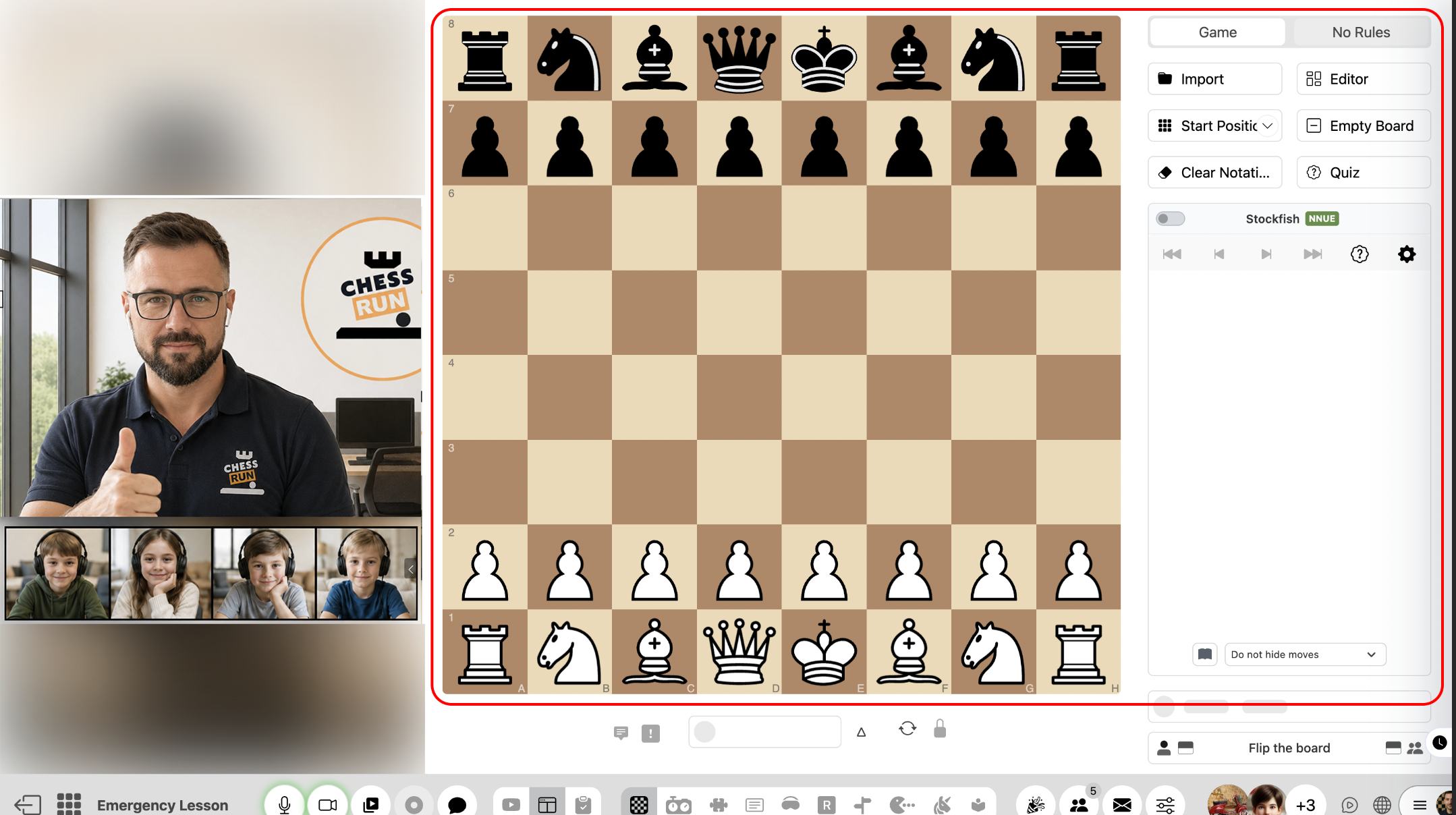
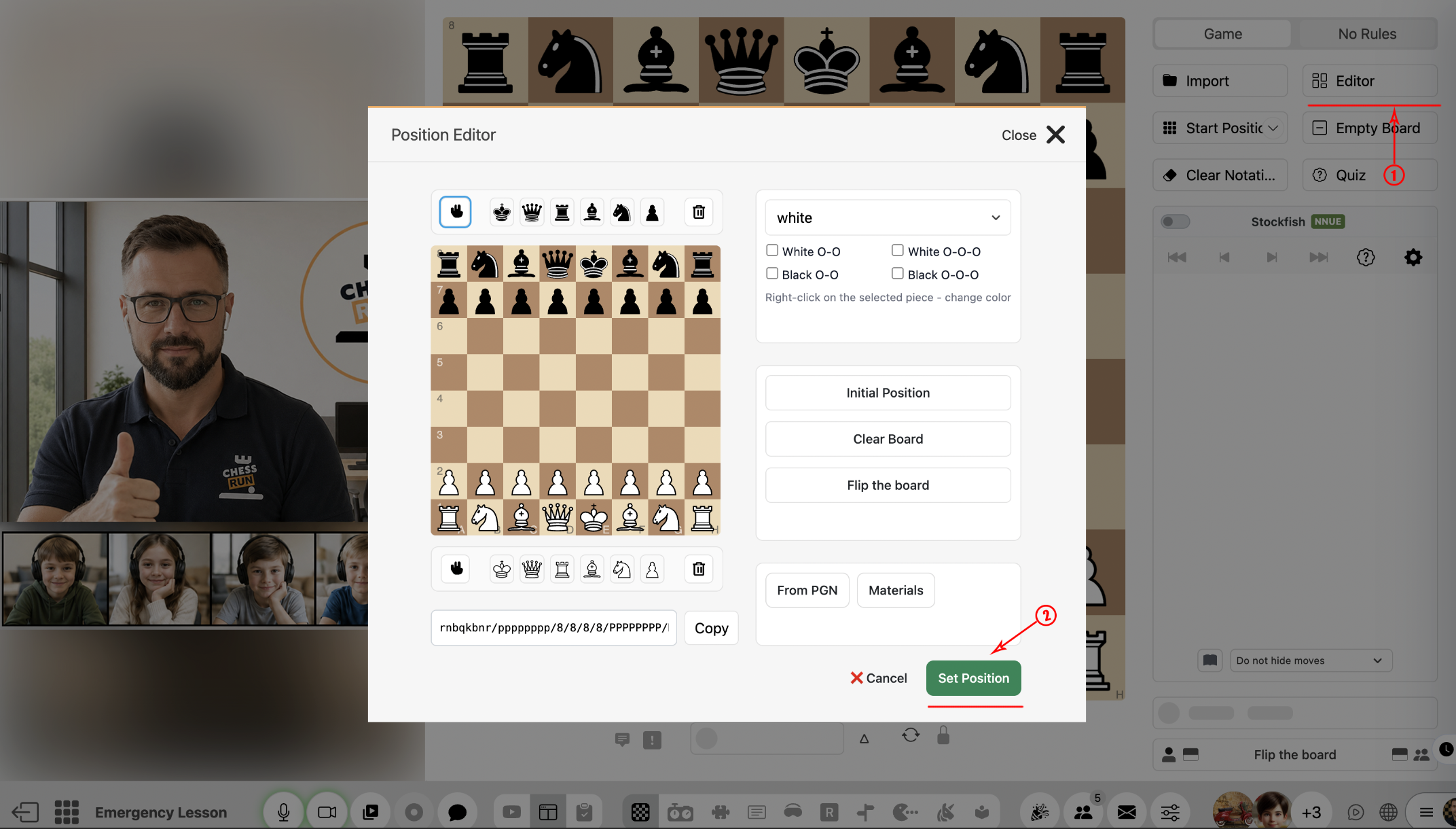
To start your analysis, use the 'Position editor' to arrange pieces by hand, or import a FEN. All participants will see the position you select.
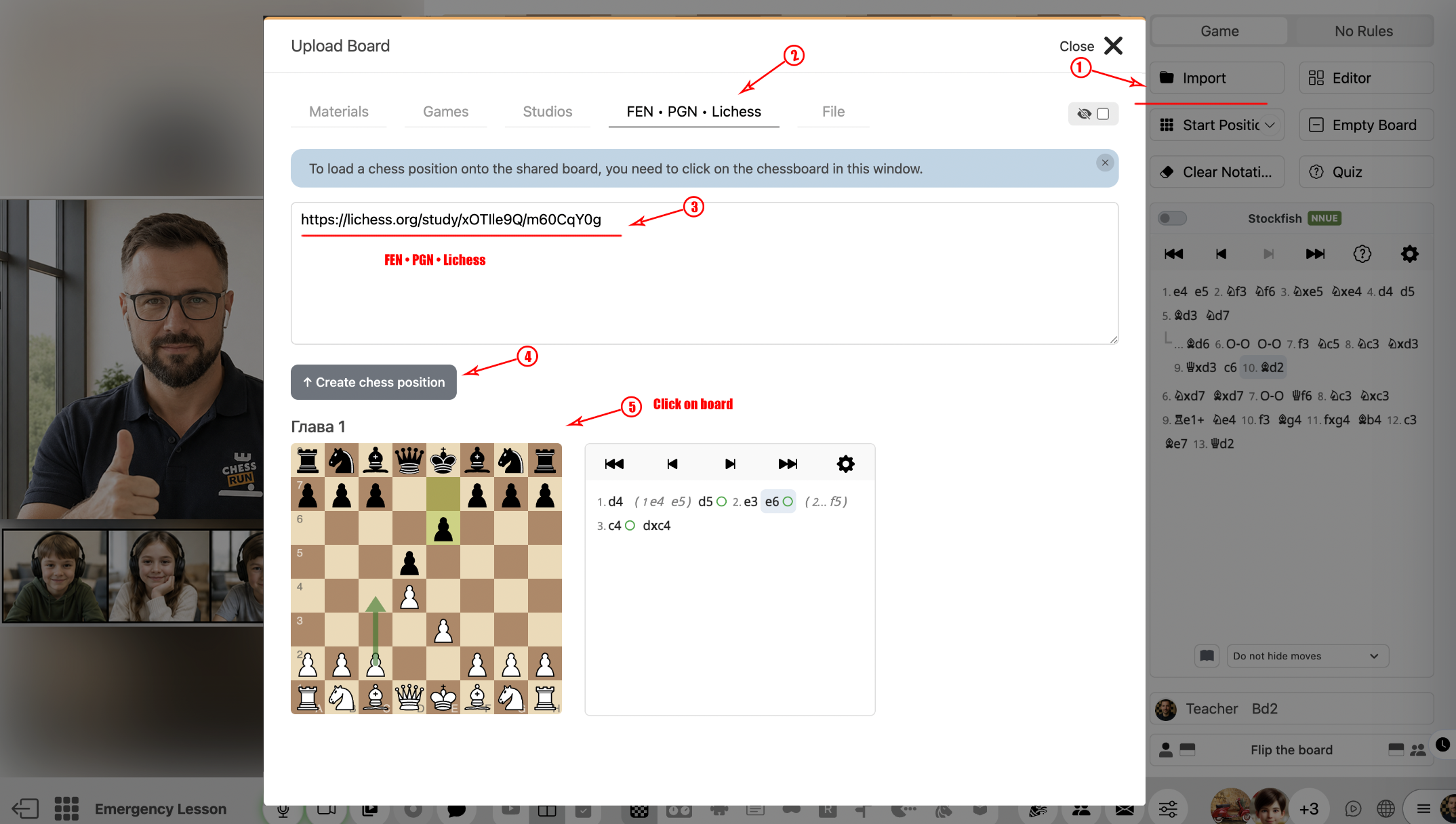
You can load games in PGN format or import a chapter from a Lichess studio. To keep your materials organized, we recommend using your own Chess.Run studios or lesson plans.
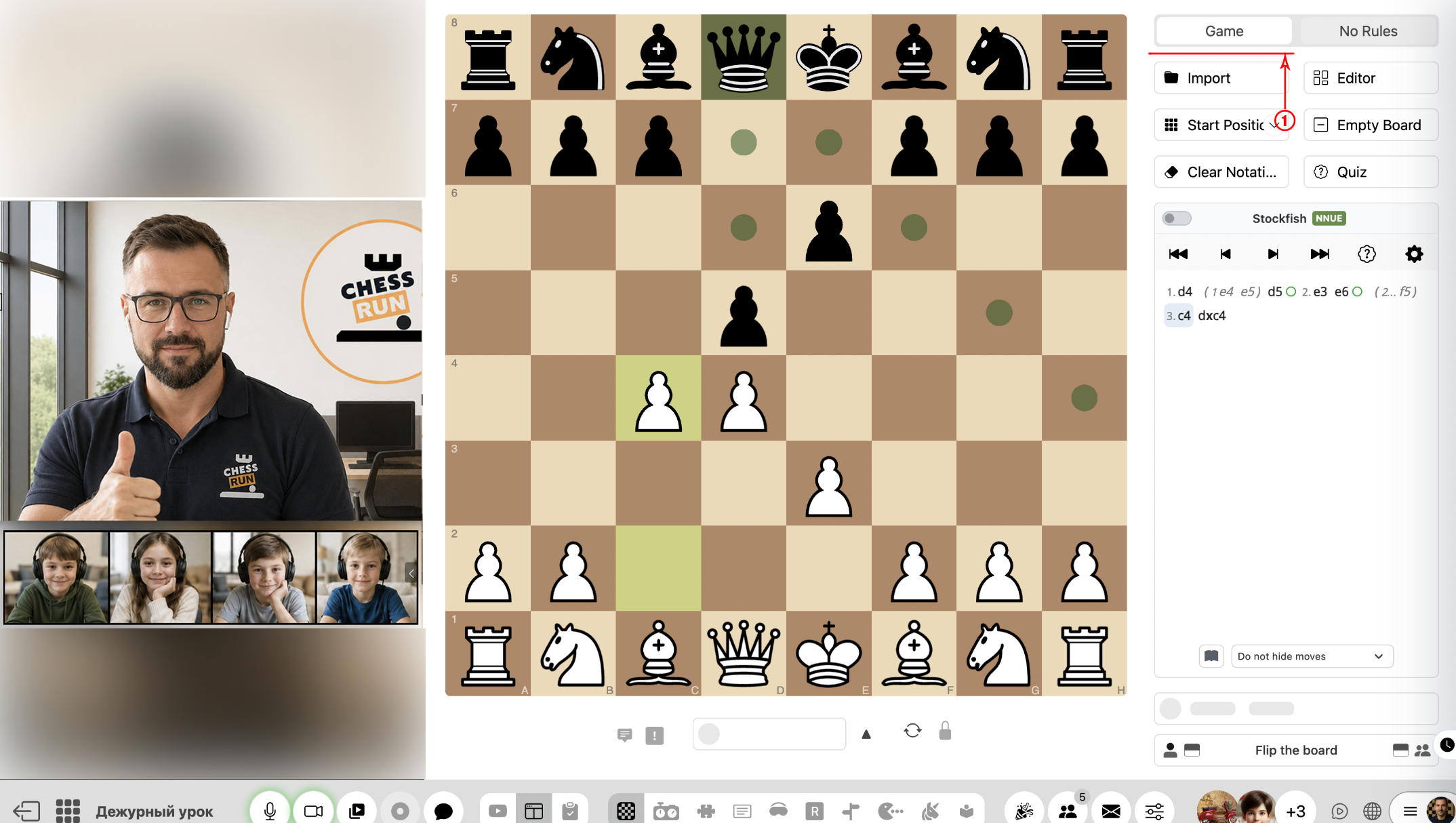
In this mode, only legal chess moves can be made. This is convenient for real games or tactical training.
This mode lets you move any pieces and create custom or even invalid positions. Ideal for showing mistakes, puzzles, and exercises.
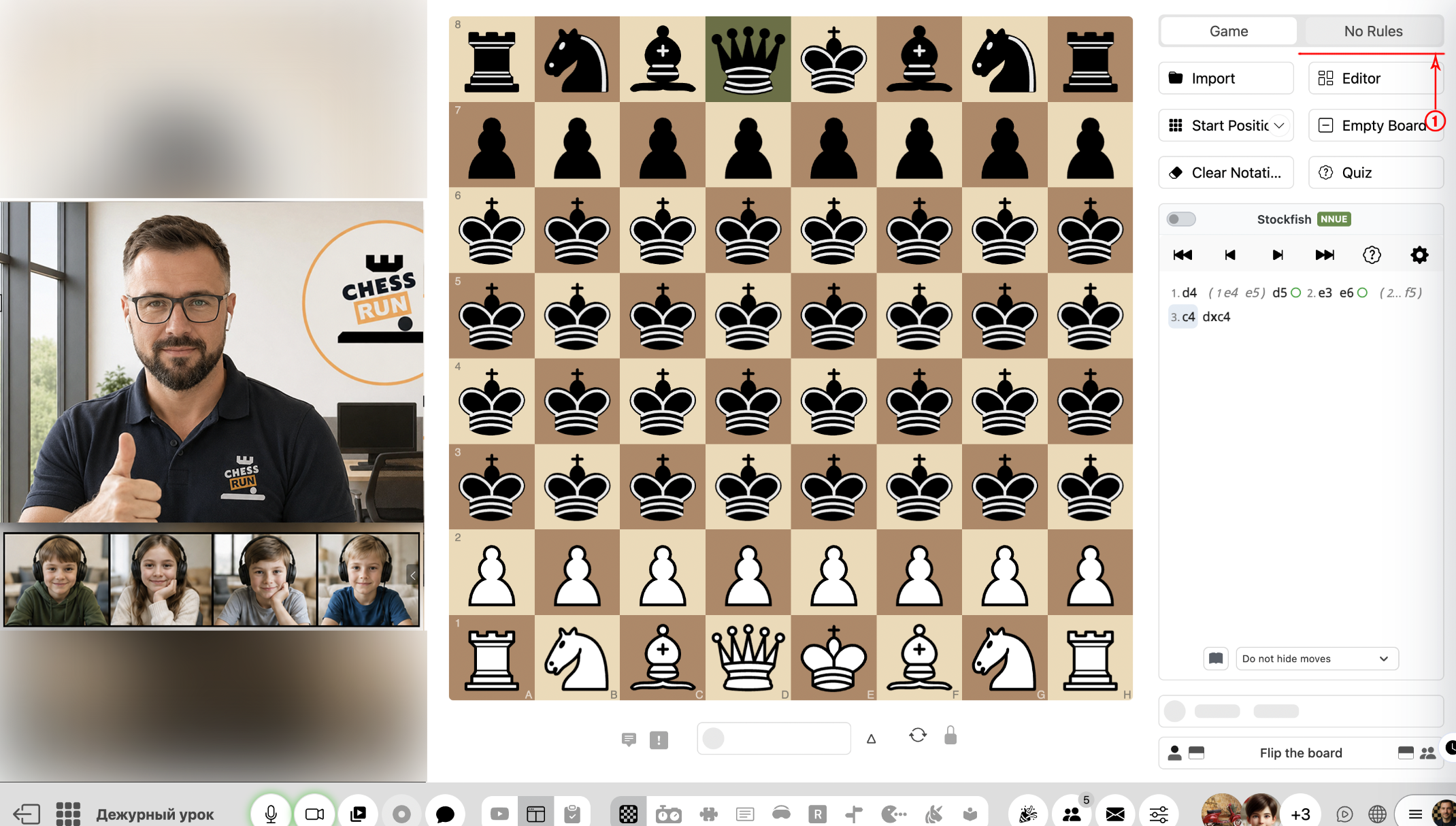
Only the coach can change board modes. It's recommended to switch modes according to the lesson stage: game discussion, puzzles, or demonstration.
FAQ
Can students change the position on the shared board themselves?
This depends on access settings. Usually, only the coach can make changes, but permissions can be customized individually.
Can I restore a previous board position?
Yes, typically there is an option to go back to previous moves or positions. Use the board move history in the lesson.