
How to add a lesson to the calendar?
How to add a lesson to the calendar
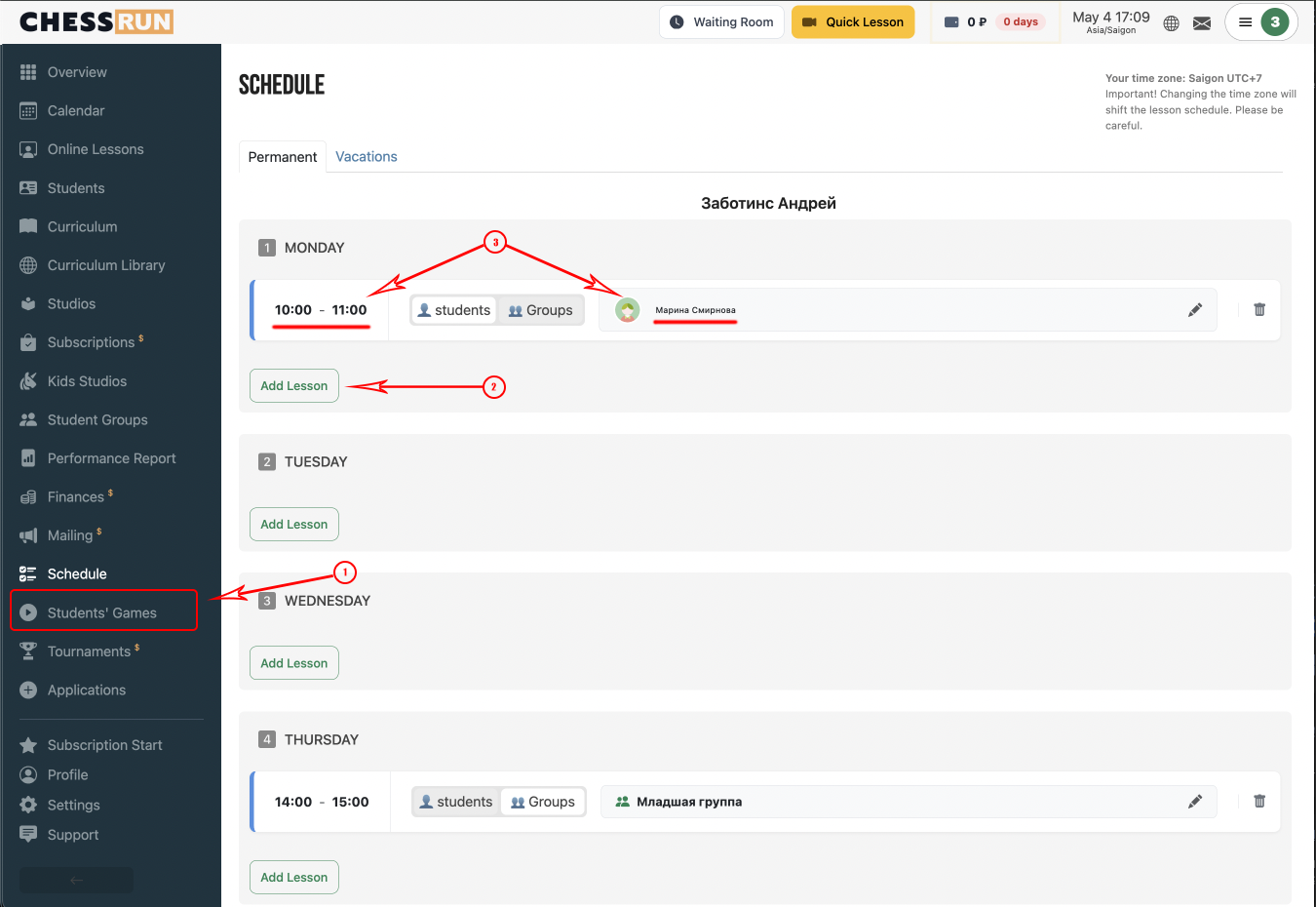
Open the recurring schedule page. Add a lesson with the required student or group on the desired weekday and time. Once saved, the lesson will appear in the calendar for that weekday on all future weeks.
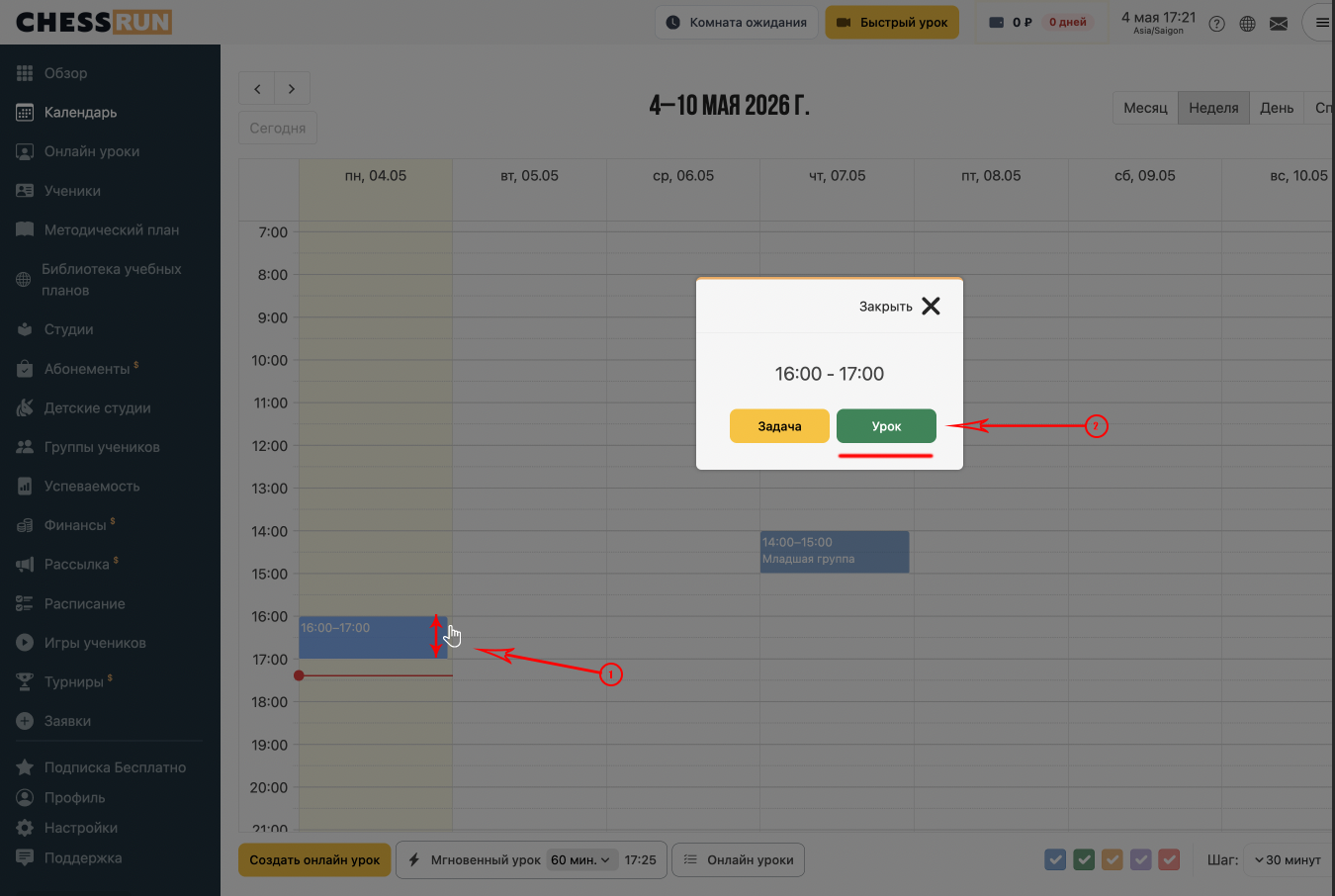
Open the calendar. To add a lesson, click and drag in the desired calendar slot, then select the 'Lesson' type in the popup window.
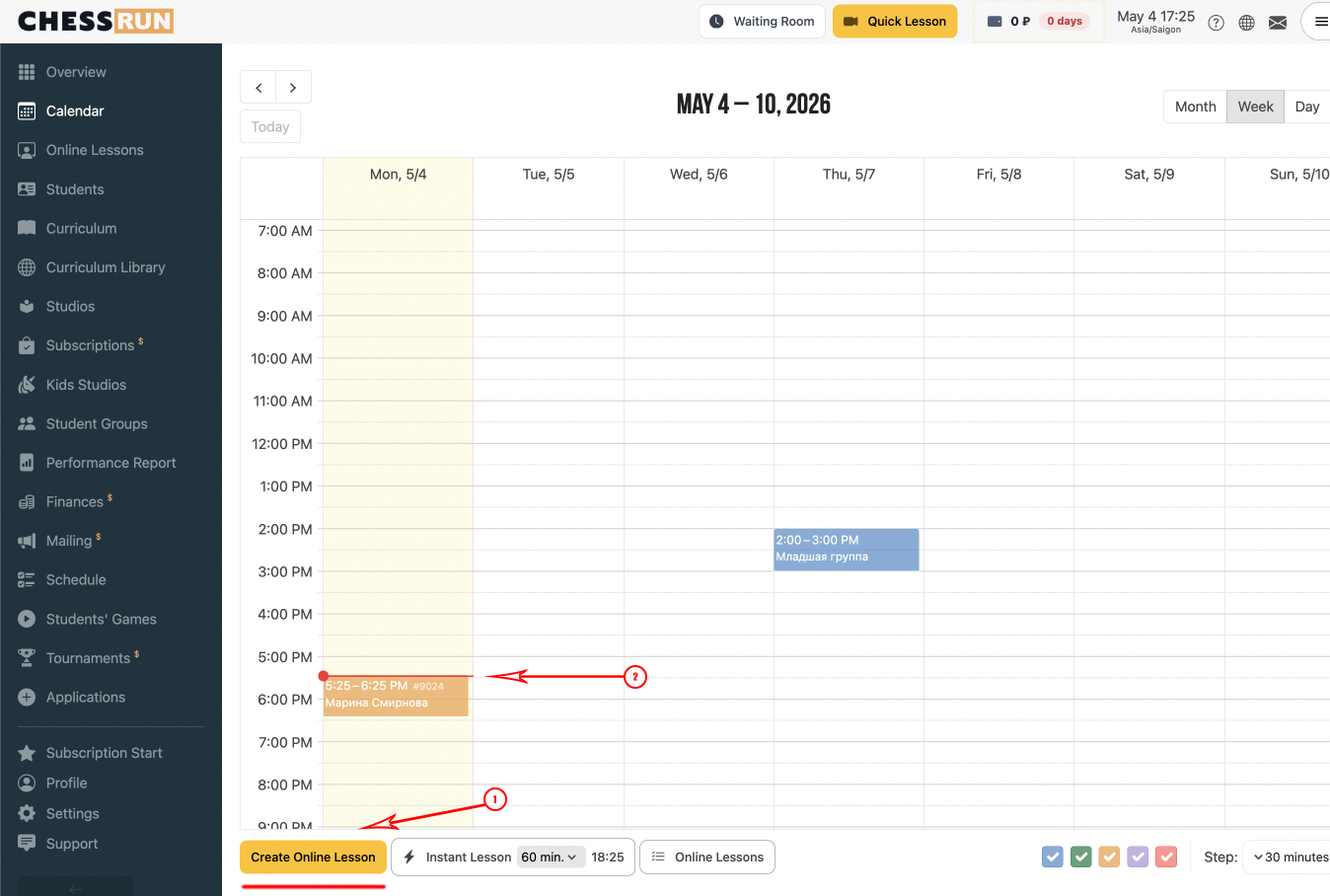
On the calendar page, click the 'Instant Lesson' button. The lesson will be automatically created at the nearest available slot and will appear in the calendar.
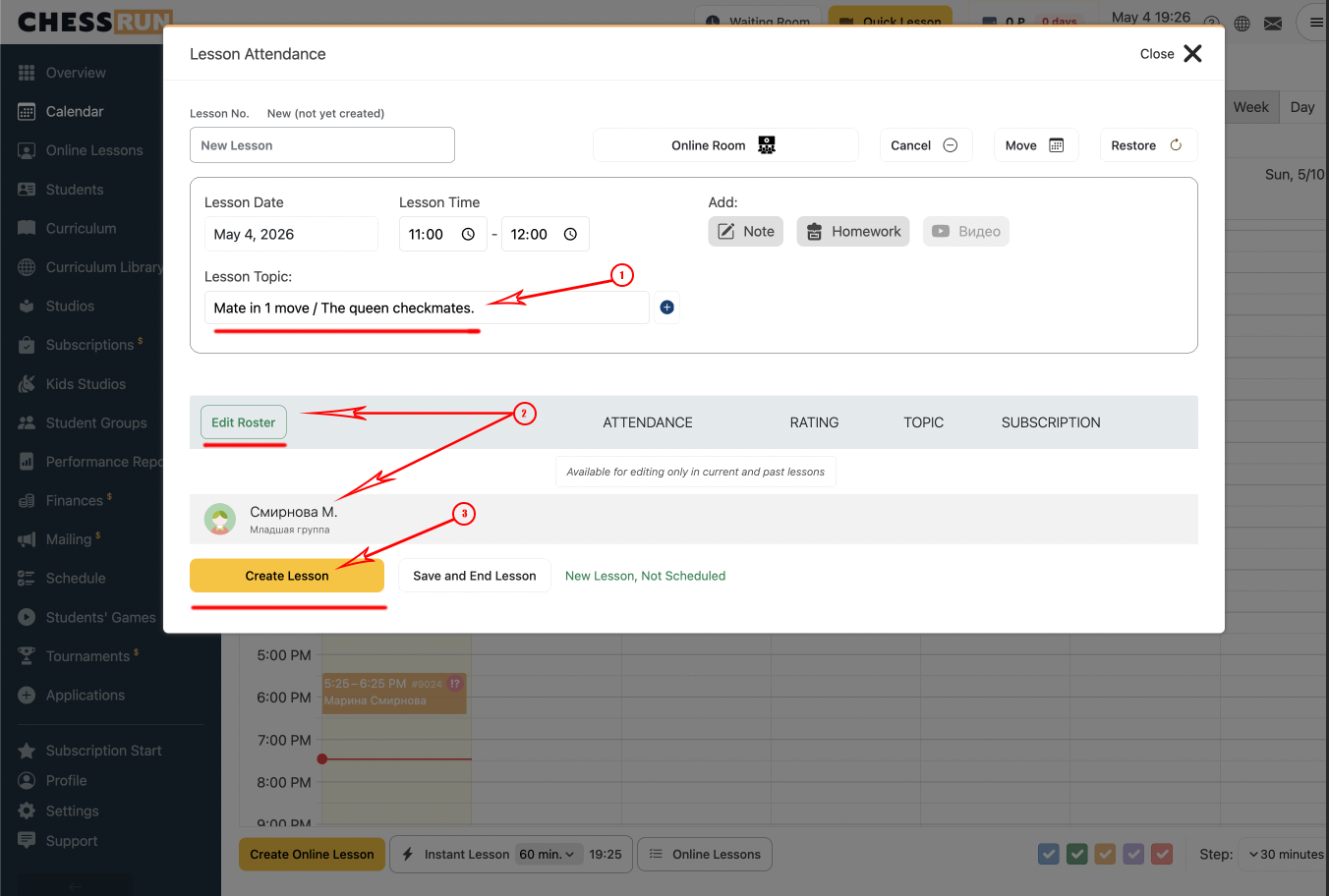
To add a future lesson, you only need to select a student or group of students. If adding a lesson for a past date, you also need to select the topic covered and deduct the subscription.
What is the minimum information required to create a lesson?
For a future lesson, it's enough to select a student or group. For a past lesson, you also need to pick a topic and deduct the subscription.
Where do recurring lessons appear?
Recurring lessons from the schedule will automatically show in the calendar each week on the selected day and time.
Can I edit a lesson after it's added to the calendar?
Yes, you can edit or delete a lesson via the calendar by selecting the corresponding slot.