
How to Work with Student Balance
How to work with student balance
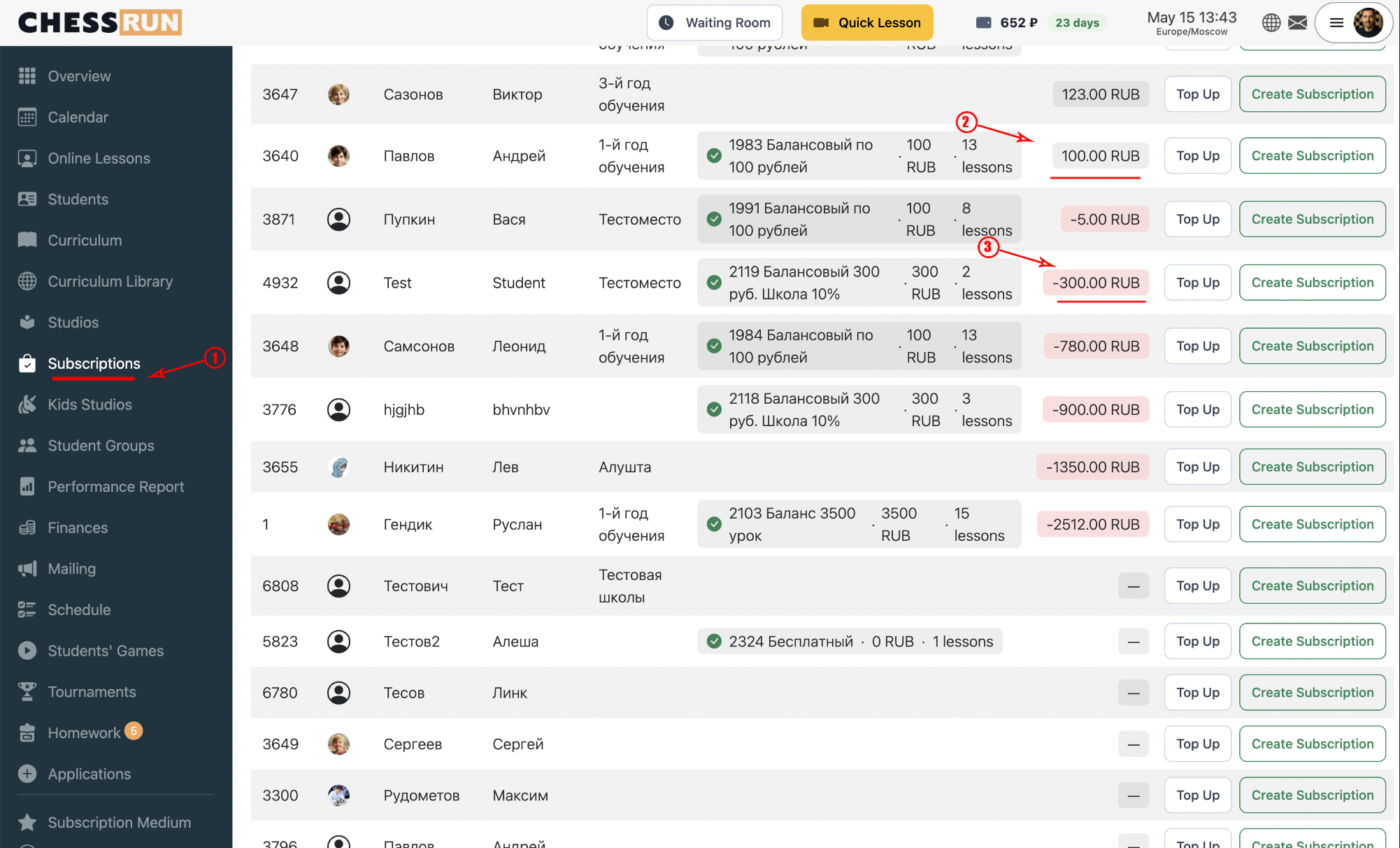
Open the "Subscriptions" section from the left menu. On the right, you’ll see each student’s current balance and subscription status. Negative balances are shown in red.
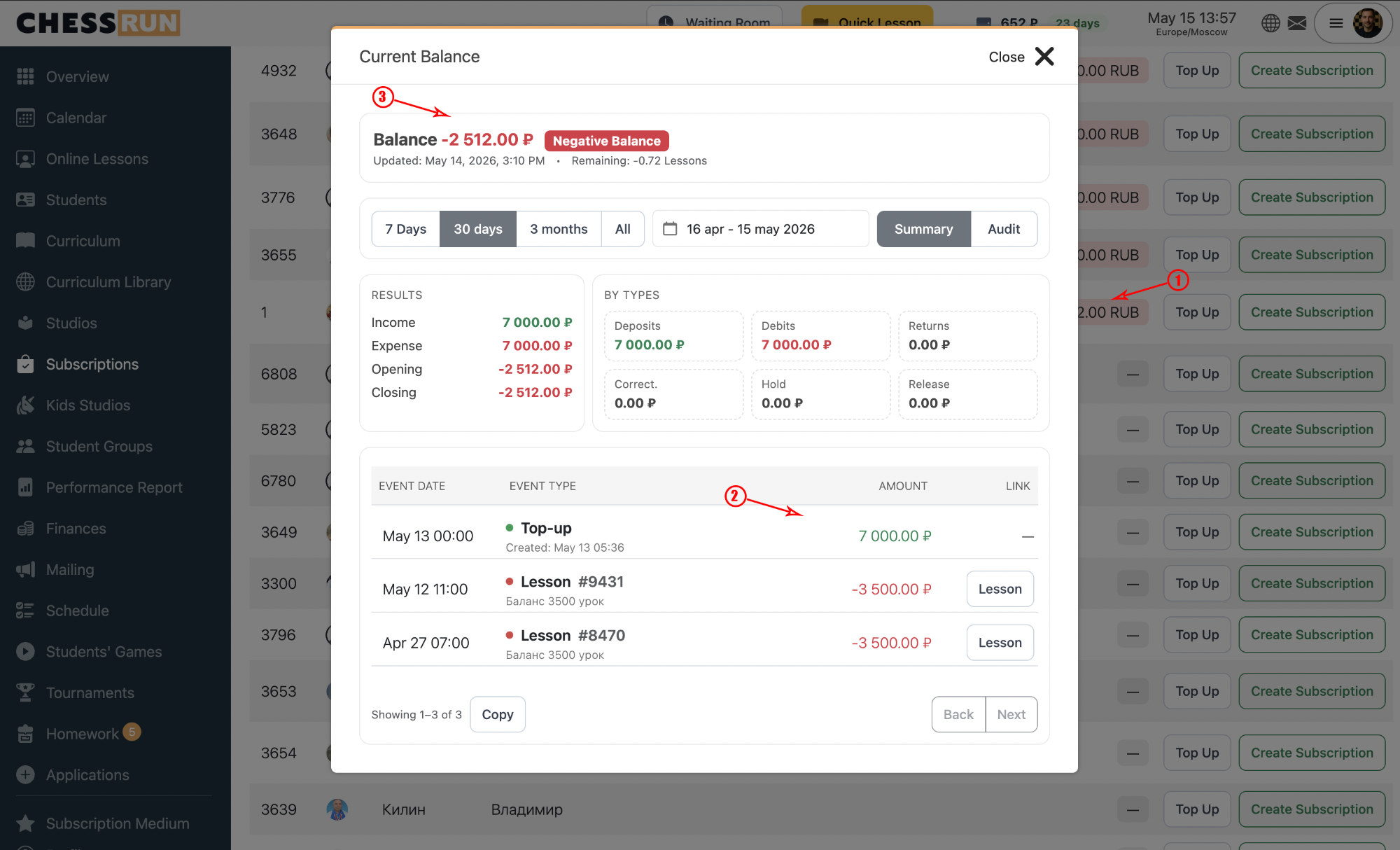
Click on a student's balance to open the modal with transaction history. Here you can see all credits and debits for any selected period.
Click the "Top up" button next to the student. In the modal, choose Credit or Debit mode, enter the amount, select payment method, and add a comment if needed. Confirm to apply the change — the balance updates immediately.
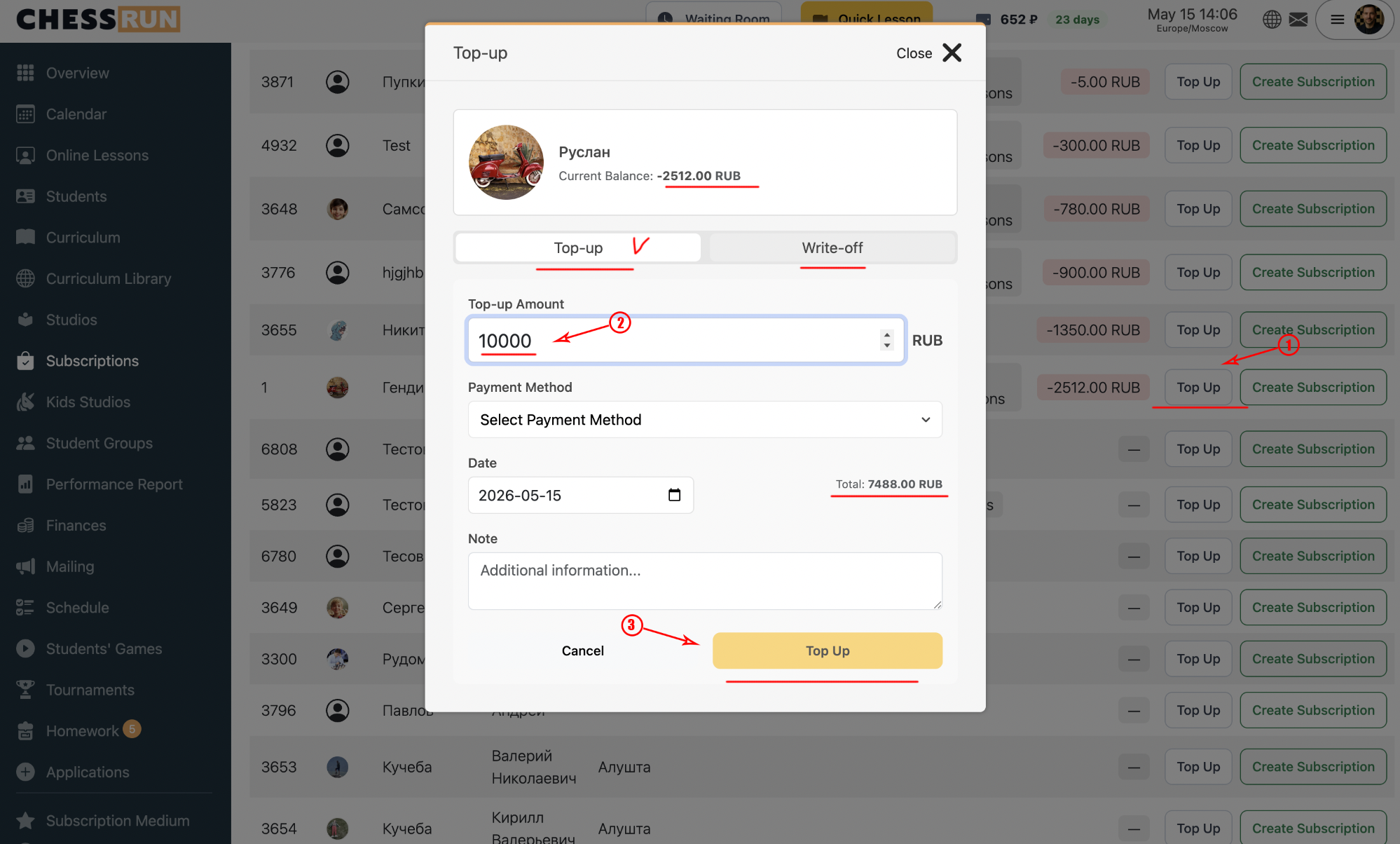
Funds are credited or debited only manually by the coach after receiving payment by any method; automatic debits occur only when lessons are conducted.
FAQ
Who can change the student balance?
Only the coach or the school administrator can credit or debit a student’s balance.
What if the student balance goes negative?
A negative balance means lesson charges exceed received payments. Ask the student or parent to top up, or send a payment reminder.